The command palette and instant search (Ctrl+K)
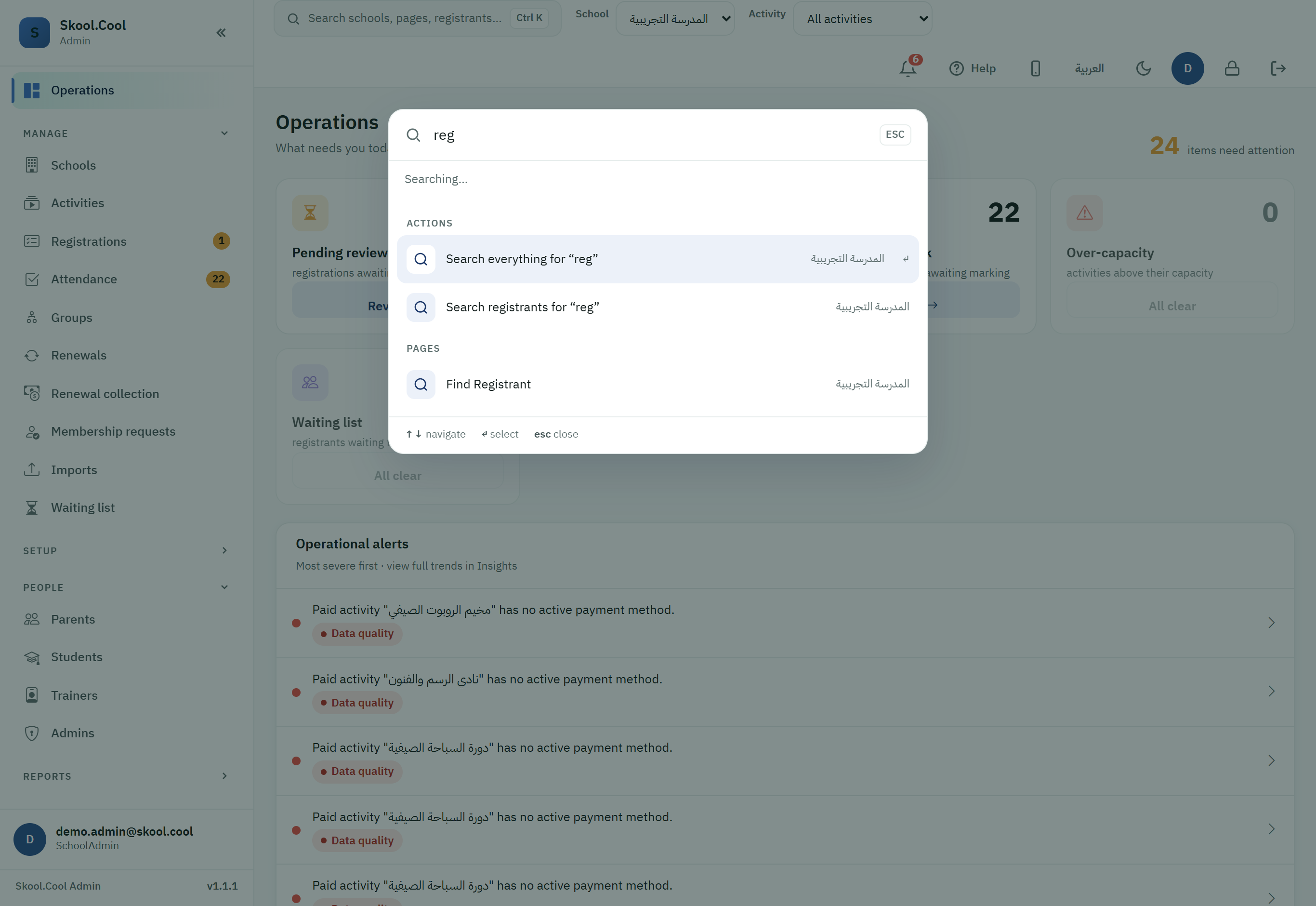
Goal
Use the Command palette to move quickly between pages and schools, and to search for registrants instantly from anywhere in the admin portal, without navigating the sidebar by hand.
When do you need this?
- To find a student or a parent instantly by typing part of their name or phone number.
- To jump between schools when you manage several branches.
- To change the portal's appearance (dark or light mode) with one command.
- To move around without the mouse and keep your daily pace up.
Before you start
- You must be signed in to the admin portal.
- Permissions apply inside the palette: pages you are not allowed to open never appear in the results. For more, see Roles and permissions.
- Some commands (moving between pages, or searching registrants) need an active school selected first.
Where it lives
The palette is available from any page in the admin portal in two ways:
- Keyboard shortcut:
Ctrl + K(orCmd + Kon a Mac). - Top bar: click the search field, Search schools, pages, registrants…
For more on the top bar and the sidebar, see Navigation and the interface.
Steps
1. Opening and closing the palette
- With the keyboard: press
Ctrl + K(orCmd + Kon a Mac) from anywhere in the system. - With the mouse: click the search field in the top bar, Search schools, pages, registrants….
- When the palette opens, an input labelled Search or jump to… is focused and ready to type in.
- To close it: press
Escape, or click anywhere outside the search window. On a phone, where there is noEscapekey, a Close button (×) appears beside the input instead of theESChint, and if you press the browser's Back button or use the back gesture, you go to the previous page and the palette closes with it, rather than staying open over another page. - Over an open side panel: you can open and use the palette while a side panel (such as a student's record) is open;
Escapethen closes only the palette, and the side panel stays as it was.
Results are split into three groups: Actions, Pages and Schools.
2. Quick search (search everything, and search registrants)
Start typing the student's name, their guardian's name, or their mobile number (at least two characters or digits). Quick-search options then appear under Actions, according to your permissions:
- Search everything for "…" — a unified search inside the school (shown to anyone with the unified-search permission).
- Search registrants for "…" — takes you to the advanced Find Registrant page and passes your search text through automatically, so the matching results are shown straight away.
Press Enter on the option you want to run it. See Reviewing and triaging registrations to follow up on the results.
3. Jumping between pages
- Open the palette and type the name of the page you want (for example, type "activity" — the palette matches both Arabic and English names).
- Matching pages appear under the Pages group — such as Dashboard, Registrations, Attendance, Renewals, Activities, Parents, Students, New Activity, Archived Activities, Find Registrant, Trainers, Admins, School Admins, and Schools.
- Use the up and down arrows (
↑/↓) to highlight the option you want. - Press
Enterto go straight to that page within the active school.
Only screens you are allowed to open appear under Pages, so the list can differ from one user to another.
4. Switching schools instantly
- Open the palette and type part of the name of the school you want to switch to.
- The palette shows the schools available to your account under the Schools group.
- Pick the school and press
Enter: the active school changes immediately and you are taken to its Dashboard. If your role cannot open the Dashboard, the palette takes you to the first page your role can open at that school.
5. Switching the portal's appearance (dark or light)
Open the palette and choose Switch to dark mode or Switch to light mode from Actions, depending on the current appearance.
What you should end up with
- Choosing a page opens it immediately within the active school.
- Choosing a school switches the active school and takes you to its dashboard, or to the first page your role can open if it cannot open the dashboard.
- Choosing one of the search commands takes you to the search page with your search text already applied.
- Keyboard hints appear at the bottom of the palette:
↑↓to move,↵to select,escto close. - When what you type matches a page name, the page appears before the search options under Actions, so
Enteralone takes you there.
How search behaves inside the palette
- Minimum length for a registrant search: two characters. With a single character, the quick registrant-search options do not appear.
- Text matching: search is case-insensitive and matches page names in both Arabic and English, plus keywords attached to each command (such as
overview,homeandstatsfor the Dashboard page). - When nothing matches: the palette shows No matches for "…".
Frequently asked questions
What is the shortcut to open the command palette?
Press Ctrl + K (or Cmd + K on a Mac) from any page, or click the search field in the top bar. Interface details in Navigation and the interface.
How do I find a registrant quickly? Type at least two characters of the student's name, their guardian's name, or their mobile number, then choose Search registrants to be taken to the advanced search page with your search already applied. To follow up on the results, see Reviewing and triaging registrations.
Why do some pages not appear in the palette results? Because the palette respects your permissions and only lists pages you are allowed to open. To understand roles, see Roles and permissions.
How do I change the active school without going to the menu? Open the palette, type part of the school's name, then pick it from the Schools group: the system switches the active school and takes you to its Dashboard (or to the first page your role can open, if it cannot open the Dashboard).
Where do I change dark or light mode? Open the palette and choose Switch to dark mode or Switch to light mode from the Actions group, depending on the current appearance.