Approving and accepting registration requests
Goal
Review and approve a student's registration request, and move it on to the next stage (either payment or immediate enrolment).
When do you need this?
When a parent has submitted a request to register a child for an activity, and the admin has checked that the student meets every criterion and that a seat is available.
Before you start
- Permission required: permission to approve registrations, or the general permission to manage registrations.
- Confirm the activity has enough capacity before approving, to avoid pushing it over capacity.
Where it lives
- Go to the activities table and press Registrations.
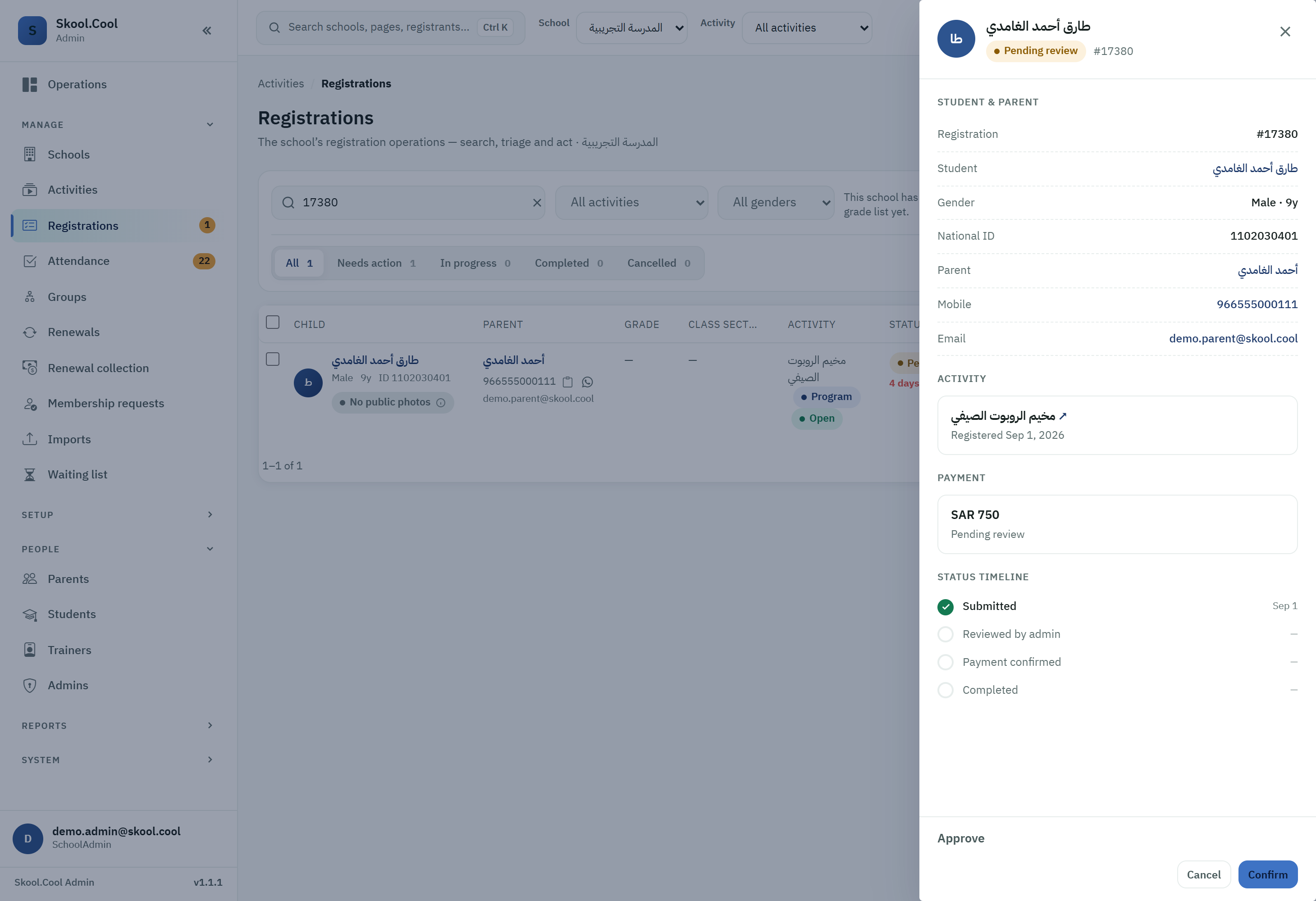
- Press the options for the student you want (the one whose status is Pending review) and choose Manage.
Steps
1. Approving a single request
- On the request's detail page, review the child's details and age to check they match the activity's constraints.
- Press Approve in the actions list.
- A confirmation dialog asks whether you want to approve the request. Press Confirm.
- What a successful approval does:
- On paid activities: the request's status changes immediately to Awaiting payment, and the parent is notified and asked to pay through the portal.
- On free activities: the request goes straight to Paid (active) and the student's name appears on the attendance rosters immediately.
2. Bulk approval
To save operators' time when dozens of requests are waiting:
- On the activity's registrants list, select the Pending review filter from the chips at the top.
- Select the students you want, and the bulk action buttons appear at the top; press Approve.
- Press Confirm.
- The system shows a live progress bar for the bulk approval, and refreshes the table as soon as it completes.
What you should end up with
The registrant's status changes from Pending review to Awaiting payment (or Paid on free activities), and an email goes to the parent telling them their child has been accepted, with the payment details still outstanding.
Frequently asked questions
How do I approve a student's registration request? Open the student (status Pending review) with Manage, press Approve, then Confirm.
What happens after approval? On a paid activity the status becomes Awaiting payment and the parent is notified to pay; on a free activity it becomes Paid and the student appears on the attendance roster immediately.
I have dozens of requests — how do I approve them all at once? Select the Needs action triage group or the Pending review status, choose the students, then press the bulk Approve and Confirm.
Does a seat have to be available before approving? Yes; check there is enough capacity before approving, to avoid going over capacity.