Activity attendance reports: downloading a PDF and exporting to Excel
Goal
Produce an official statement of a student's presence and absence across an activity's sessions, then download it as a print-ready PDF or send it straight to the guardian's email. This page also explains how to export an activity's registrations in full to an Excel file, for record-keeping and reconciliation outside the system.
When do you need this?
- When a guardian asks for a detailed statement of their child's presence and absence on a particular activity.
- To send the attendance statement to a guardian officially by email, without downloading it by hand.
- To export an activity's registration list to Excel for reconciliation and paper records outside the platform.
Before you start
- To produce and send the attendance statement: you need permission to generate the attendance report.
- To export to Excel: you need permission to export registrations to Excel.
- The activity must have sessions: the download and send buttons appear only if the activity has at least one session in its schedule. If the sessions have not been set up yet, see Scheduling weekly sessions.
If these buttons or permissions do not appear for you, your role most likely does not hold them; see Roles and permissions or contact your school manager.
Where it lives
Open Registrations from the sidebar. From there, an individual student's attendance statement (PDF or email) is produced through the registration management page, while Export Excel is available directly on the registrations list toolbar once an activity is chosen.
1. An individual student's attendance statement (PDF, or emailed to the guardian)
- From Registrations, press Manage next to the student's registration to open the registration panel.
- At the bottom of the panel press Open full page to go to the Registration management page.
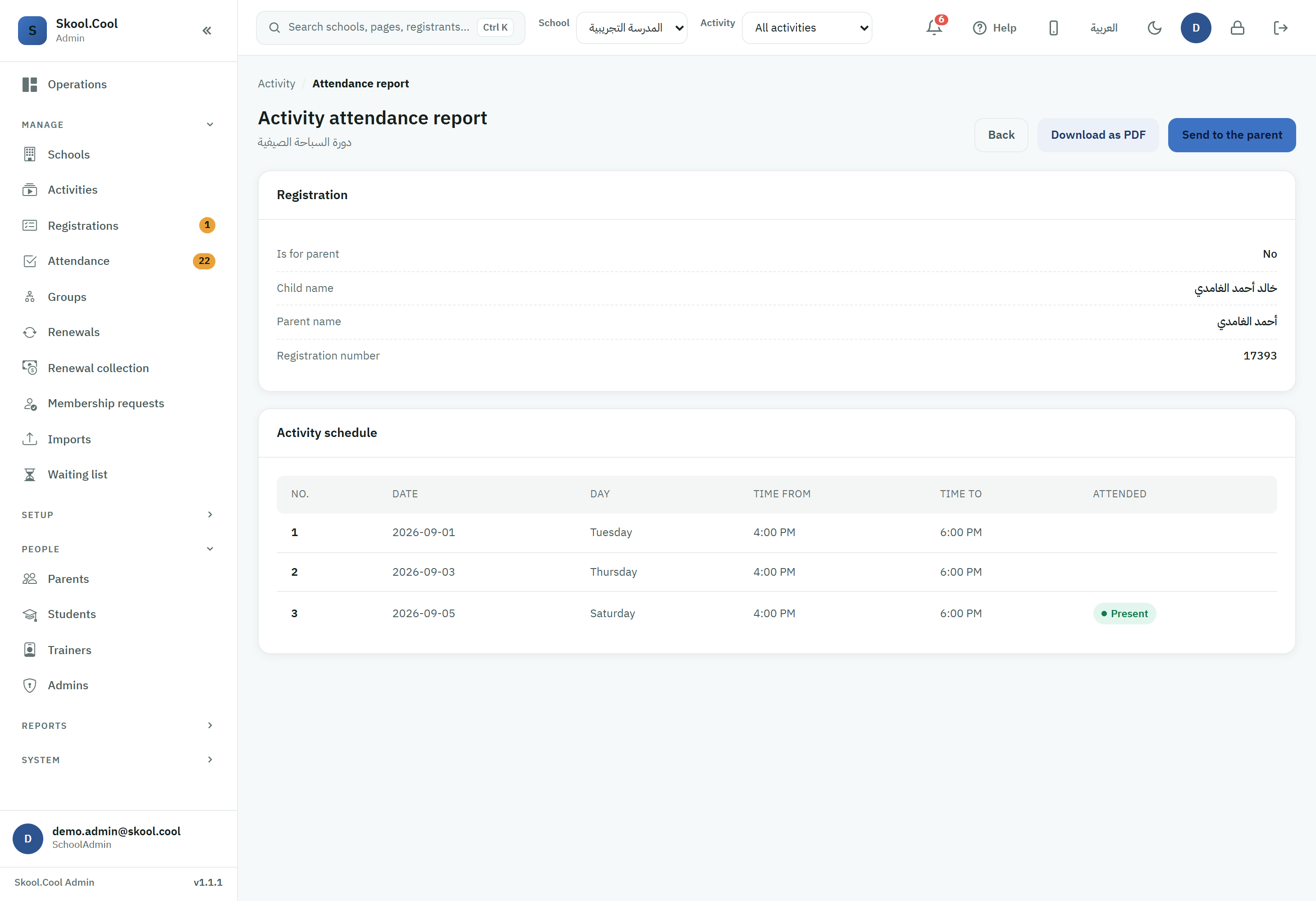
- In the Actions panel at the side of the page, press Generate Attendance Report, then confirm the message that appears. The system takes you to the Activity attendance report page.
- The page shows the registration's details and a table of every session, its date, and its attendance state: Present or Absent.
- Choose one of the two actions at the top of the page:
- To download directly: press Download as PDF; the system creates a print-ready PDF and downloads it to your device immediately.
- To send it to the guardian: press Send to the parent, and a confirmation dialog appears. Press Confirm and the system sends the statement as a PDF automatically to the guardian's registered email.
What you should end up with
Once sending completes, a green success message appears at the top of the page confirming the activity attendance report was sent to the guardian. A download saves the PDF straight to your device with no further notice.
2. Exporting the activity's registrations to Excel
- From Registrations, choose the activity first (the export button appears only while working inside a specific activity).
- On the top toolbar, press Export Excel.
- The system generates an Excel file of the activity's registrations and downloads it to your browser directly (the system decides the file's name and its columns).
This file is for record-keeping, reconciliation and paper records outside the platform. It is an export of the activity's registration list, and differs from the individual attendance statement (PDF) addressed to a single guardian.
Frequently asked questions
Where do I find the "Generate Attendance Report" button?
The button is inside the registration management page, not on the menu directly. From the registrations screen press Manage, then Open full page, then choose Generate Attendance Report from the Actions panel.
Why do the "Download as PDF" and "Send to the parent" buttons not appear?
These buttons appear only when the activity has at least one session in its schedule. If the activity has no sessions, set them up first from Scheduling weekly sessions, then return to the report page.
How do I send the statement to the guardian instead of downloading it?
On the Activity attendance report page press Send to the parent, then confirm with Confirm. The system sends the PDF automatically to the guardian's registered email, and a green success message appears when it completes.
What is the difference between "Download as PDF" and "Export Excel"?
Download as PDF produces a formatted attendance statement for one student, ready to print or send to their guardian. Export Excel on the registrations toolbar exports the activity's complete registration list in one file, for record-keeping and reconciliation. For recording the attendance itself, see Taking session attendance.
Why is the "Export Excel" button not showing for me?
Most likely because you have not chosen a specific activity yet (the button appears within a chosen activity), or because your role does not hold permission to export registrations to Excel. Choose the activity first, and if the problem persists see Roles and permissions.