How do you add a child to your account?
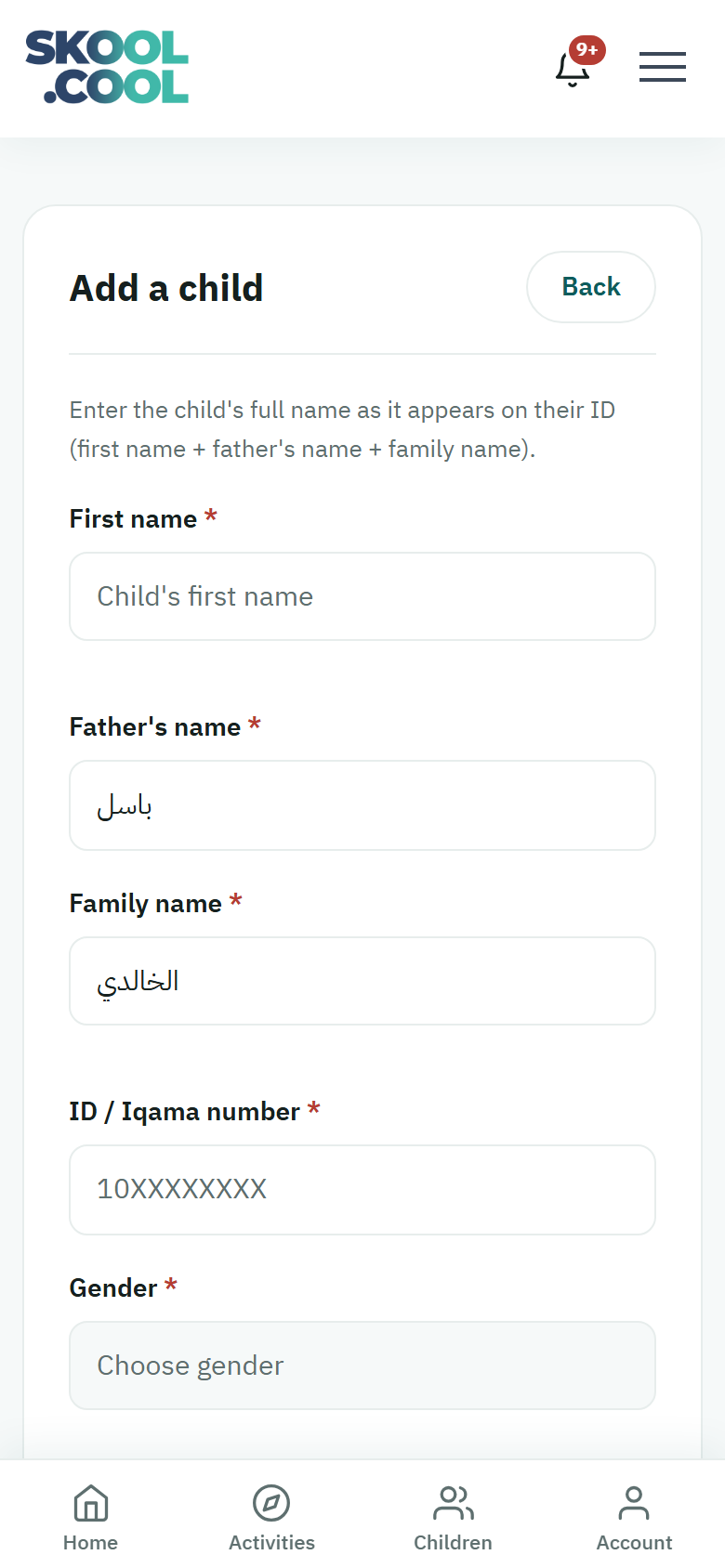
Before booking any activity, record your child's details in Skool.Cool so the system can match the activities' conditions — the age group and the gender — against them.
The steps for adding a child
- Go to My account → My children.
- Press Add a child.
- Fill in the basic details:
- First name — the child's own name.
- Father's name — needed to complete the three-part name.
- Family name — the family or tribal name.
- ID / Iqama number — ten digits, used for verification and linking, and to avoid duplicate records.
- Gender — male or female.
- Date of birth — from the date picker.
- Press Save child.
This section adds your child's details to your account. Linking them to a particular school happens separately, through school membership, when it is needed. You can always book the activities available to your child once you have added them.
The child's health information
Beneath the basic details, record the health information supervisors need to know for your child's safety. It is shown only to the supervisors concerned, and never to other parents.
Against the question Does your child have a health condition the supervisors should know about?, choose:
- None — if there is no health condition.
- Yes — which reveals optional fields: allergies, chronic conditions, regular medication, special needs, and emergency instructions. And with Yes chosen, you can turn on the Life-threatening condition marker, so an urgent alert shows for the supervisor.
No medical detail is asked for unless you choose Yes. And when registering for the first activity, the system will ask you to confirm this information — choosing None is enough. See the registration steps.
Photo consent
The section explains: the centre may take photos or videos of your child during activities; your child's photos in the Activity journal reach you and their other parents; the two options below are for any wider use than that, and your consent to them is optional and you can withdraw it at any time. Refusing them does not prevent registration, and you can change your choice later by editing the child's details. There are two separate levels, both off by default:
- Internal use — sharing your child's photos within the activity's closed group, with the group's parents.
- Public / marketing use — on social media accounts, the website and adverts.
The photos of your child that the trainer shares in the Activity journal always reach you, whatever you choose in this section — see The health profile and photo consent.
If the child is already registered (a link request)
If you enter the ID number of a child already registered by another guardian — their mother or father, say — the system does not create a duplicate record. Instead it offers Send link request:
- Set Your relation to the child: Father, Mother, or Another relative / guardian.
- Press Send link request.
- Your request waits for the primary guardian's approval before you can see the child and book activities for them. See the guardians system.
Frequently asked questions
How do I add my child to my account on the platform? From My account → My children → Add a child, fill in the name, the ID number, the date of birth and the gender, then press Save child.
Why does it ask me for the ID or Iqama number? To confirm the child's identity, tie their record together, and prevent duplicate accounts between parents.
I added a child but they are registered under somebody else — what happens? The system offers you Send link request to the current guardian; once they agree, the child appears in your account.