How do you register your child for a school activity?
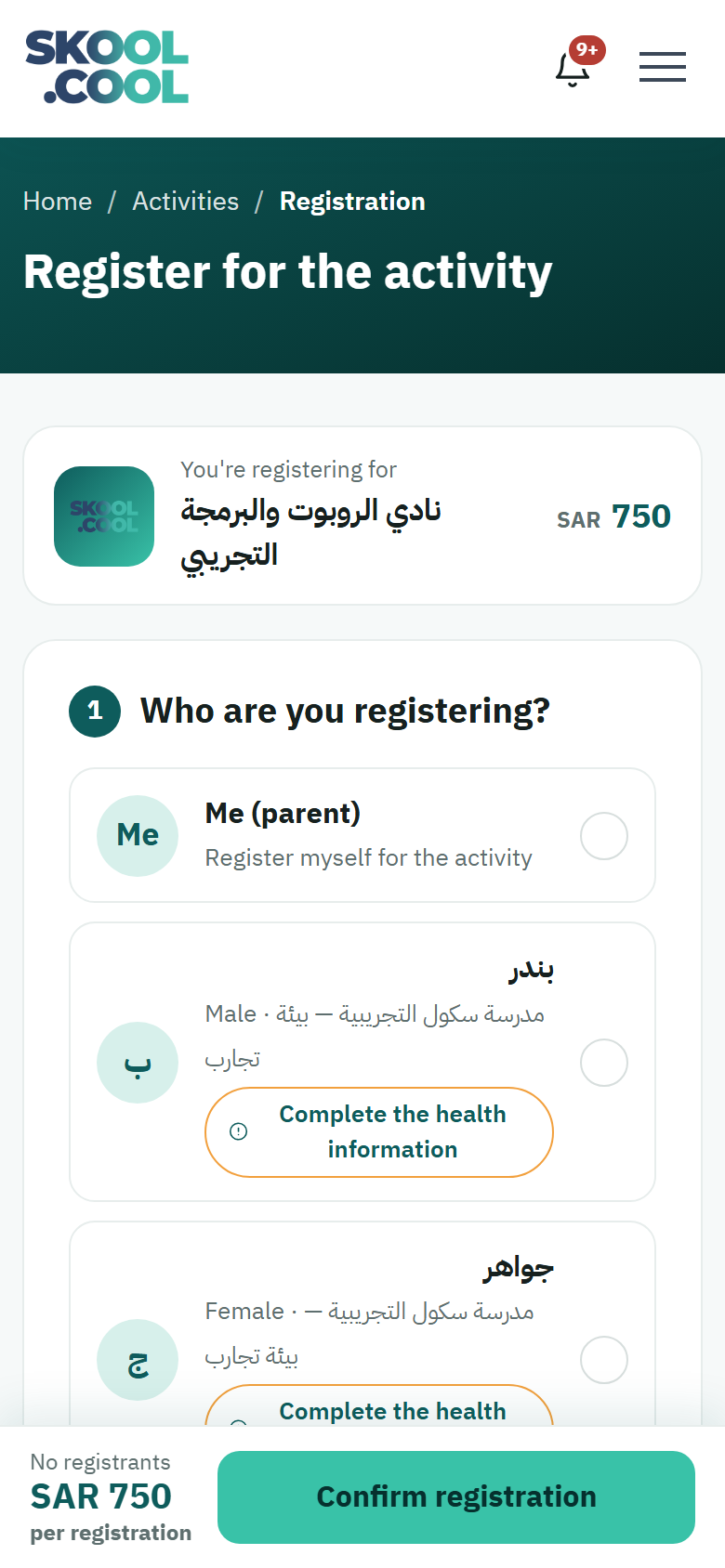
Skool.Cool takes you through a simple registration wizard to book your child a place on an activity and check that they meet its conditions. It takes less than a minute.
Before you start
- An active parent's account — if you do not have one yet, see Creating an account and signing in.
- Your child added to your account — if you have not added them yet, see Adding a new child. You can also add them during the registration itself.
- Confirming the child's health information — a required step for their safety. Choosing None is entirely enough.
The registration wizard, step by step
From the activity's page, press Register now to open the wizard. The number of steps depends on the activity and on the school: one or two extra steps may appear between choosing the children and the payment method.
- Information needed to register — appears if the school has added questions for this activity, to gather information about each registrant before it starts. Whether it appears is optional, but its required answers must be given for the registration to complete. See Answering the information required at registration.
- School policy — appears if the activity's school has a financial policy in force, and the registration is not accepted until you have agreed to it. See Accepting the school's policy.
And a free activity has no payment step at all.
Step 1: Choosing who to register, and the eligibility check
- A list of the children added to your account appears, with the option of registering yourself, Me (parent), if the activity allows adults.
- Tick the child, or children, you want to book a place for.
- The system immediately matches the activity's conditions against each child's details, and one of these may appear beside the name:
- The age is outside the range — the text reads "Age is outside this activity's age range". A five-year-old, say, where the activity starts at seven.
- The gender does not match — the text reads "This activity is for girls only" (or for boys), where it is set aside for one gender.
- Not eligible — the child's name appears in faded grey and cannot be selected, to keep the registration sound.
If you cannot find your child in the list, press Add a new child from within the page itself; the system takes you to the add form and then returns you to complete the booking.
The system asks you to confirm each child's health information before their registration can complete. If you try to register a child whose health information has not been confirmed, the booking will not complete, and a message appears with a button carrying the child's name that takes you straight to their edit page.
Choosing None against the health question is entirely enough — no medical detail is asked of you. Once you save, the app brings you back to the activity with the people you selected and your payment method kept, so press Confirm registration again. Photo consent is optional and does not prevent registration.
If a schedule clash appears for your child
If your child is registered for another activity whose times overlap with this one, a button beside their name shows how far the clash goes — for example Partial clash: 3 of 9 sessions · details or Full clash: every session (9) · details.
- Press the button to open the Schedule clash window and see the clashing activities and the times of the overlapping sessions.
- If you want to go ahead, tick the acknowledgement box and press Done. The button changes to Clash acknowledged · view details.
- Complete the registration as usual.
- A partial clash: only some sessions overlap, and your child may miss a number of them.
- A full clash: every session overlaps, which means that at every slot your child will miss either this activity's session or the session it clashes with. Read the details carefully before acknowledging.
- Acknowledging gives no automatic right to a refund for the clashing sessions.
- Your acknowledgement of a full clash is tied to the times you were shown. If either activity's times change before you confirm, "The schedule clash must be acknowledged before registering" appears beside the child's name in the registration result; open the updated details, acknowledge again, then confirm the registration.
- You acknowledge a full clash yourself, from your own account; it is not accepted from the support team on your behalf.
Step 2: Choosing how to pay, and confirming the booking
- Depending on the hosting school's settings, one of the following appears:
- A free activity — the message "This activity is free — there's nothing to pay." appears, and you go straight to the confirmation.
- One payment option — where the school accepts cash only or online only, the available option appears as a fixed line: Pay in cash or Pay online.
- Both together — you are given a choice between Cash and Online.
- Review the Registration summary in the side panel, or at the bottom of the screen on a phone. It shows Registrants (the number being registered), Fee per registration, the automatic Sibling discount (second child onwards) where more than one child is being registered, and the Total due.
- Press Confirm registration to send the request.
What happens after you confirm?
- A registration results screen appears, setting out the outcome for each child: a confirmed booking, or a place on the waiting list if the places are full. For the detail, see Understanding the registration results and the waiting list.
- You can keep track of the request's status at any time from Current activities in your profile. For what each status means, see The payment and booking statuses.
- If you chose to pay online, you are taken to the secure payment gateway to complete it at once — see The payment methods available.
Frequently asked questions
How do I register my son or daughter for the school's out-of-class activities? Open the activity's page and press Register now, then choose your child and complete the wizard's steps: the eligibility check, then any extra step that appears — the activity's questions or the school's policy — and then the payment.
Can I register more than one child for the same activity at once? Yes. Tick all the eligible children at the first step, and the sibling discount is applied automatically from the second child onwards.
Why does my child's name appear greyed out so I cannot select them? Because the child is not eligible for the activity — either their age is outside the age group, or the activity is set aside for the other gender. The explanation appears beside their name. A schedule clash, even a full one, does not stop you selecting your child: you review the clash and acknowledge it (see "If a schedule clash appears for your child" above).
I saw a message saying the health information is not confirmed — what do I do? Press the button carrying the child's name in the message, complete the health question — choosing None is enough — then save. The app brings you back to the activity with the same choices, so press Confirm registration again.