Notifications: the bell and the Notifications page
Goal
Understand how notifications work in the admin portal: the bell counter, opening the record concerned in a single click, the full Notifications page, and the connection indicator — so no registration, payment or request that needs your decision slips past you.
When do you need this?
- To keep up with new registrations, payments and requests as they happen, without opening every screen one by one.
- To jump straight to the record a notification is about, in one click.
- To review what you missed while you were busy or offline, from the full Notifications page.
Before you start
- Viewing notifications needs no special permission — the bell and the Notifications page are available to every user, and each person sees only their own notifications.
- But which notifications reach you depends on your responsibilities: events do not go to everyone, only to whoever holds the permission tied to each event (see Roles and permissions). When a role's permissions are edited, future notifications are routed accordingly, with no need to sign in again.
Where it lives
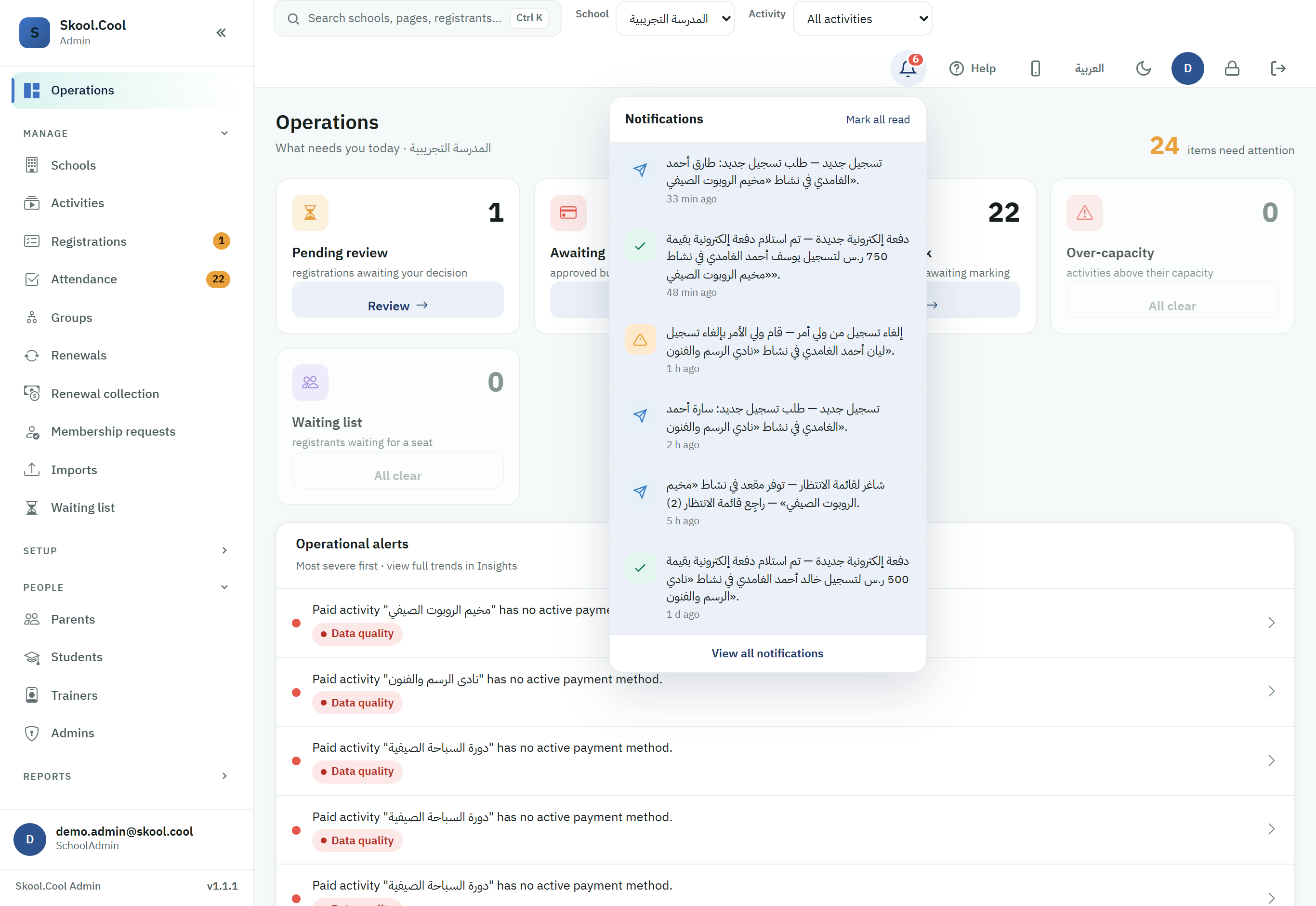
- The bell: the bell icon in the top bar — visible on every screen.
- The full page: the View all notifications link at the bottom of the bell dropdown, or from the account menu in the top bar: open your account icon and then Notifications.
Who receives notifications?
Each event's notifications reach the school staff who hold the permission tied to it — not everyone:
- New registration and a registration cancelled by a guardian: whoever can manage registrations. (See Reviewing and triaging registrations.)
- A new online payment (and likewise a failed online payment): whoever can confirm payments (the cashier and finance roles, for example).
- A new membership request: whoever can list memberships.
- A seat freeing up in a full activity (from the waiting list): whoever can manage registrations. It takes you straight to the activity's waiting list.
The notification text names the student and the activity directly (for example: "New registration request: Bandar Hassan Al-Shammari in Swimming Academy").
The notification bell in the top bar
- The counter: a badge on the bell icon shows the number of unread notifications (and reads "99+" once unread passes 99).
- Clicking opens the record concerned: every notification in the list is a button — one click marks it read and takes you straight to its record:
- Registration and payment notifications open the registrations console with the relevant registration's detail panel already open.
- A membership notification opens the Membership requests list.
- If the notification belongs to another of your schools, the system switches the active school automatically before opening it.
- Mark all read: clears the counter and marks every notification as read.
- View all notifications: a link at the bottom of the dropdown that opens the full page.
The "This session" section
Notifications about work in progress (such as reminder messages finishing sending, or attendance-note emails) appear in a separate This session section inside the bell dropdown. They are temporary: they disappear when the page is refreshed or you sign out, and they are not counted in the badge.
The full Notifications page
You reach it from the View all notifications link below the bell, or from Notifications in the account menu in the top bar.
- Filtering: All / Unread buttons at the top of the list (with a count of unread next to Unread).
- Paging: the list is paged, with a per-page row count (25 / 50 / 100).
- Clicking any row marks it read and takes you to its record — exactly like the bell.
- The page shows your notifications across all your schools — clicking takes care of switching the active school when needed.
Notification categories
| Category | Colour | Real example |
|---|---|---|
| Success | Green | A new online payment received. |
| Info | Blue | A new registration request, a membership request awaiting review, or a seat freeing up on the waiting list. |
| Warning | Orange | A registration cancelled by a guardian, or a failed online payment. |
The trainer bell in the trainer area
Trainers have their own notification bell at the top of Field mode's Today screen, where a trainer starts after signing in, and at the top of the trainer screens: My programs, and each program's student list and attendance inside it (see Where does a trainer start after signing in?):
- What reaches a trainer? Changes to their program's schedule, a student joining or leaving their group, and schedule-conflict alerts on their list.
- The counter refreshes automatically roughly every minute while the app is open (and immediately when they come back to it).
- Clicking a notification marks it read and goes straight to the program concerned.
- The Thursday reminder of what their week still lacks opens the My week card: on the Today screen when clicked from its bell, and in My programs when clicked from any other trainer screen.
- The «خطة الأسبوع لم تُنشر بعد» ("The week's plan is not published yet") notification opens the weekly-plan panel of their group directly on the week it reminds them about. See Weekly plans.
- The trainer's inbox is separate from the admin inbox: someone holding both roles never sees them mixed, and Mark all read in the trainer bell does not touch admin notifications.
Trainer notifications are enabled at the platform level — if the bell is always empty, the feature has not been turned on yet, or you are not an active trainer at this school.
Connection status
- Real-time notifications rely on a live connection to the server.
- Reconnecting indicator: if the internet drops or the platform is being upgraded, a pulsing dot appears on the bell with the hint Reconnecting notifications….
- Automatic resync: as soon as the connection returns, the system fetches everything you missed during the outage — with no need to reload the page.
Frequently asked questions
What does the number on the bell mean? It is the count of unread notifications only. Once unread passes 99 the counter reads "99+", and it returns to zero as soon as you open them all or press Mark all read. The temporary notifications in the "This session" section are not counted in that number.
Why do some of my colleagues not get the same notifications I do? Because each notification goes to whoever holds the permission tied to it, not to everyone: an online-payment notification, for example, reaches only those who can confirm payments. Adjust this from Roles and permissions; the change applies to future notifications automatically.
How do I get back to an old notification that has scrolled off the bell? Open the full page from View all notifications below the bell, or from the account menu in the top bar → Notifications. The page shows all your notifications across your schools, with All / Unread filtering and paging.
What should I do when the "Reconnecting notifications…" dot appears? Nothing — the indicator means the live channel dropped temporarily (internet or a platform upgrade). As soon as the connection returns, the system fetches everything you missed automatically, with no need to refresh the page.
Why is my trainer bell always empty? Most likely because trainer notifications have not been enabled at the platform level yet, or you are not an active trainer at this school. Remember too that the trainer inbox is entirely separate from the admin one, so anyone holding both roles has an independent bell for each.