Turning on school membership and sharing the join code
Goal
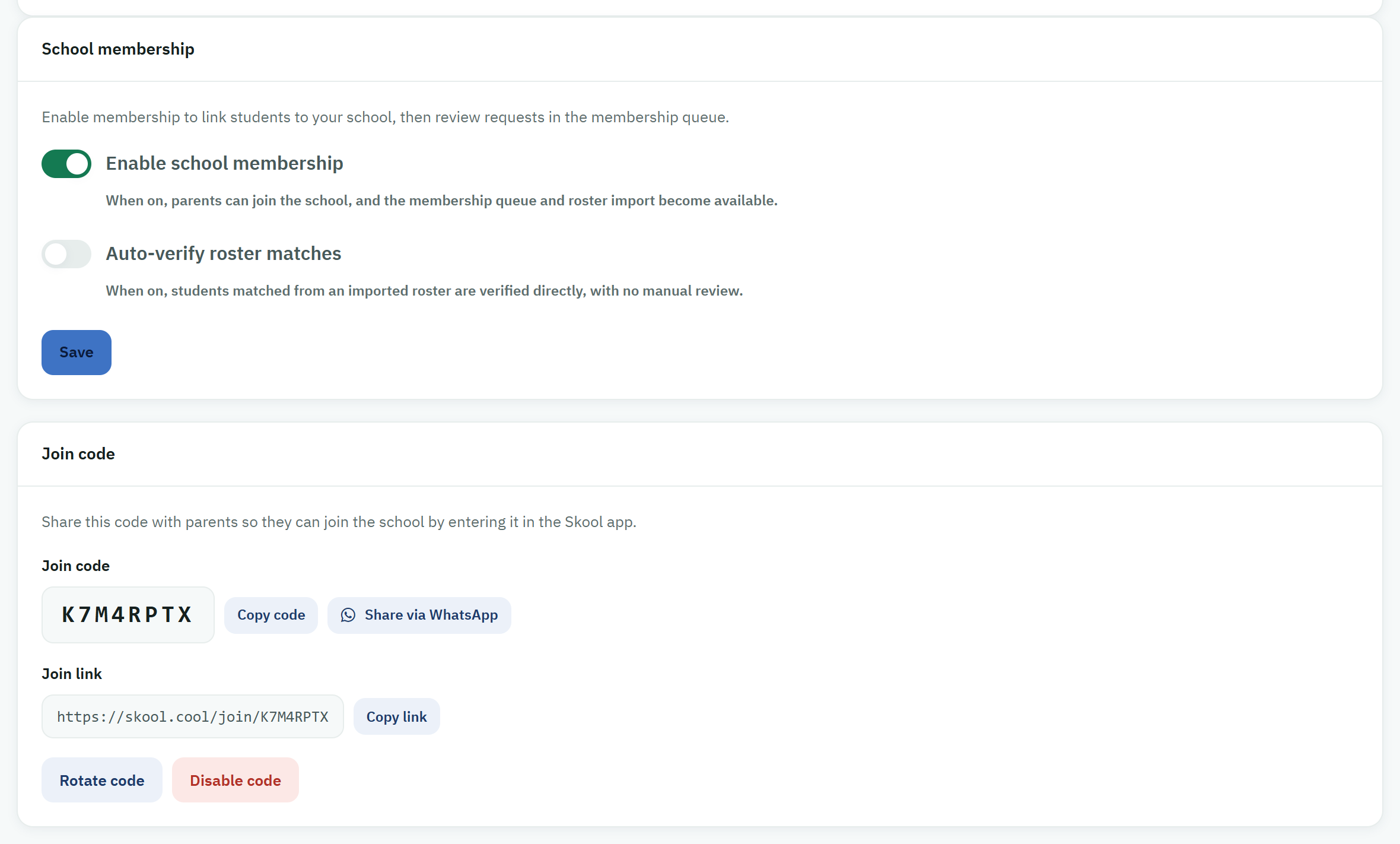
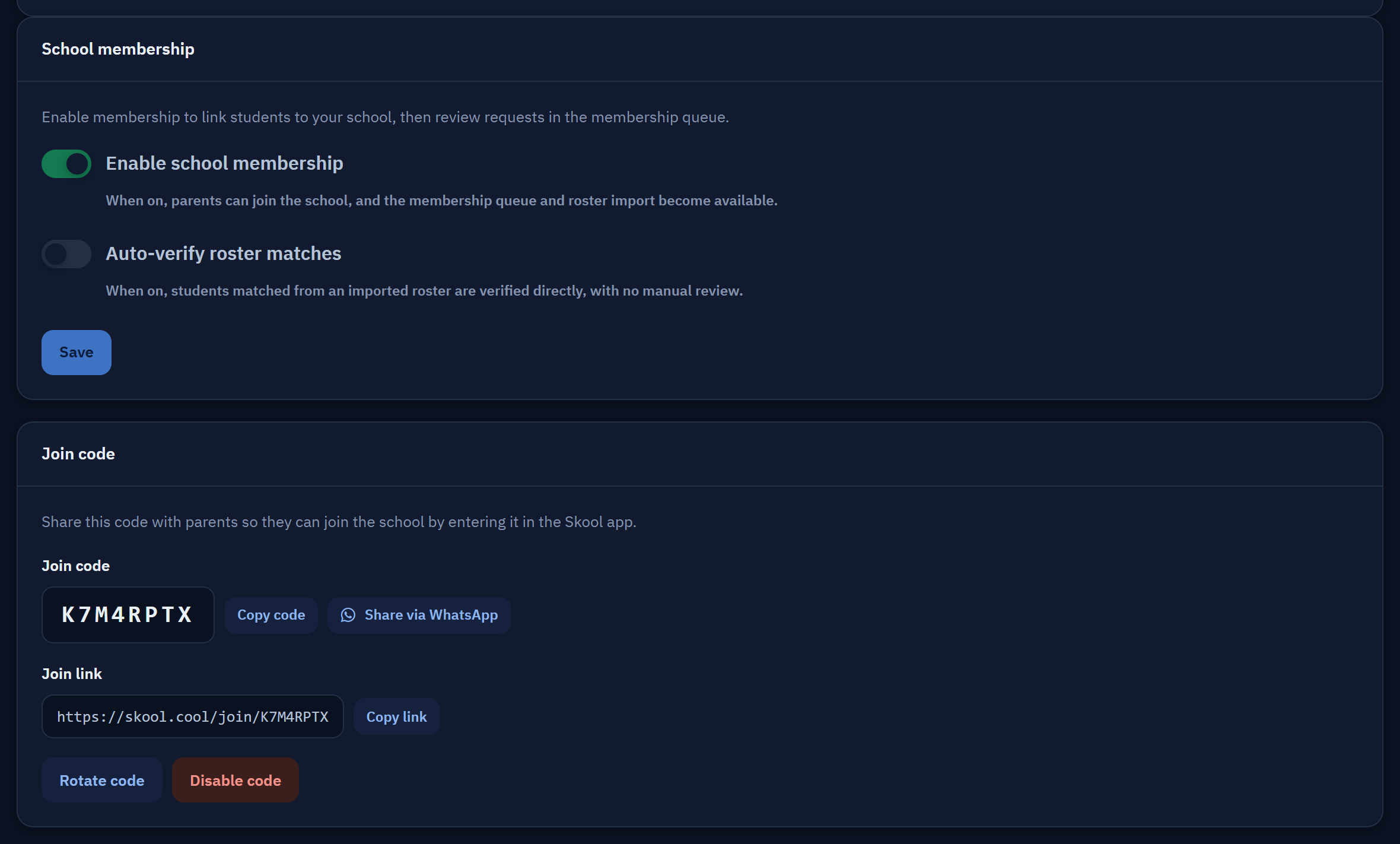
Turn the school-membership feature on for your school, then create a join code to share with guardians so they can join the school from the Skool.Cool app. This is usually the first step in working with membership, before importing the roster or reviewing requests.
When do you need this screen?
When starting with school membership for the first time: you turn the feature on once, then create a code to share with guardians. The rest of the membership tools (Membership requests and Membership roster) do not appear until it is turned on.
Before you start
- Permission: you need permission to manage membership for your school (normally available to the school manager). If you cannot find the membership cards on the Branding page, you may not have the permission, or the feature may not be enabled for your school yet.
- No prior data is needed to turn the feature on or create the code.
Where it lives
The school sidebar > Setup (collapsed by default — open it) > Branding, then scroll down to the School membership and Join code cards.
Steps
1. Turn on school membership
- On the School membership card, turn on Enable school membership.
- As soon as it is on, guardians can join the school, and Membership requests and Membership roster become available to you in the menu.
- When the setting saves, a message confirms that the membership settings were saved.
2. Set automatic roster verification (optional)
On the same card, the Auto-verify roster matches option controls how the import behaves:
- On: matching students in an imported roster are approved as verified immediately, with no manual review.
- Off (the default): matching students' memberships are created as pending, awaiting your approval from the Membership requests page.
Choose "on" if you trust your roster's accuracy and want to move faster; leave it off if you would rather review each membership before verifying it.
3. Create the join code
- On the Join code card, press Create join code.
- The system creates one active code for your school, and shows a Join link beside it.
A code cannot be created before school membership is turned on; if the feature is off, you will see a notice asking you to turn it on first.
4. Share the code with guardians
You have more than one way to share it:
- Copy code: copies the code so you can put it in any message.
- Share via WhatsApp: opens a ready-made message containing the school's name, the code and the join link.
- Join link: a direct link that opens the join screen in the Skool.Cool app.
The guardian enters the code in the Skool.Cool app to join the school, and their request appears in Membership requests for approval (unless it was verified straight away through a sufficient match).
Managing the code later
- Rotate code: stops the current code immediately and issues a new one. Use it if the old code has leaked or you want to refresh it; you will be asked to confirm.
- Disable code: stops the current code so guardians can no longer join with it; you will be asked to confirm.
On rotating or disabling, the old code stops working immediately. If you have shared it already, it will no longer work — share the new one.
After this screen
- To bring your students in from a file in one go: Importing the membership roster.
- To review and approve join requests: Reviewing and approving membership requests.