Reviewing and approving membership requests
Goal
Manage your school's memberships from one place: approve or reject new join requests, and revoke or renew memberships. Requests reach you from the join code, from a roster import (when auto-verify is off), from a guardian's request, or from imports that created the student records themselves.
When do you need this screen?
Regularly after sharing the join code or importing a roster, to approve the requests coming in; and at the start of each school year, to renew the verified memberships.
Before you start
- It must be turned on: school membership must be enabled for your school.
- Permission: viewing the list requires permission to view membership; making decisions (approve, reject, revoke, renew) requires permission to manage membership.
- The effect on the guardian: every decision (approve, reject, revoke, renew) notifies the guardian, so review before you act.
Where it lives
The school sidebar > Today's work > Membership requests.
Understanding the screen
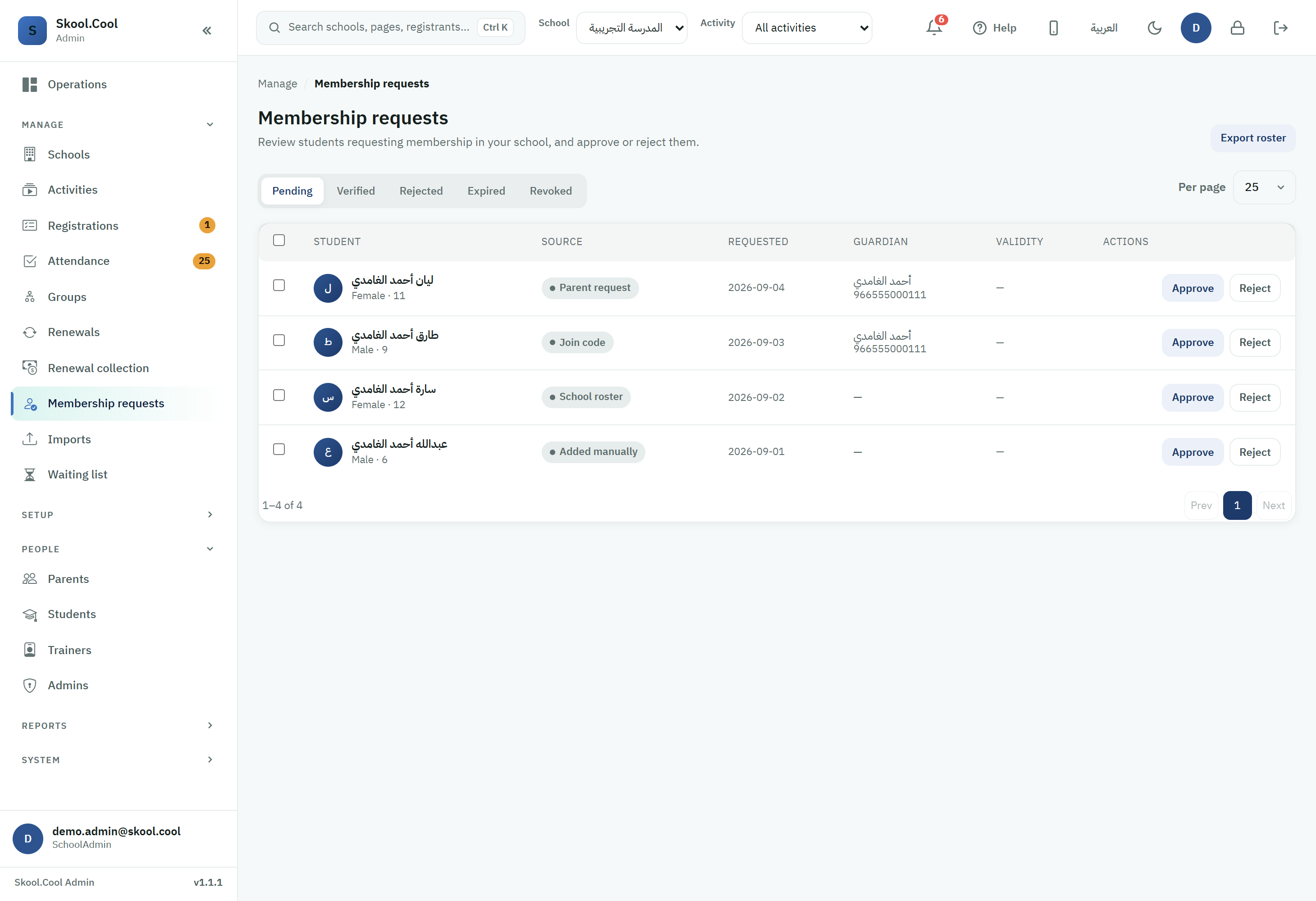
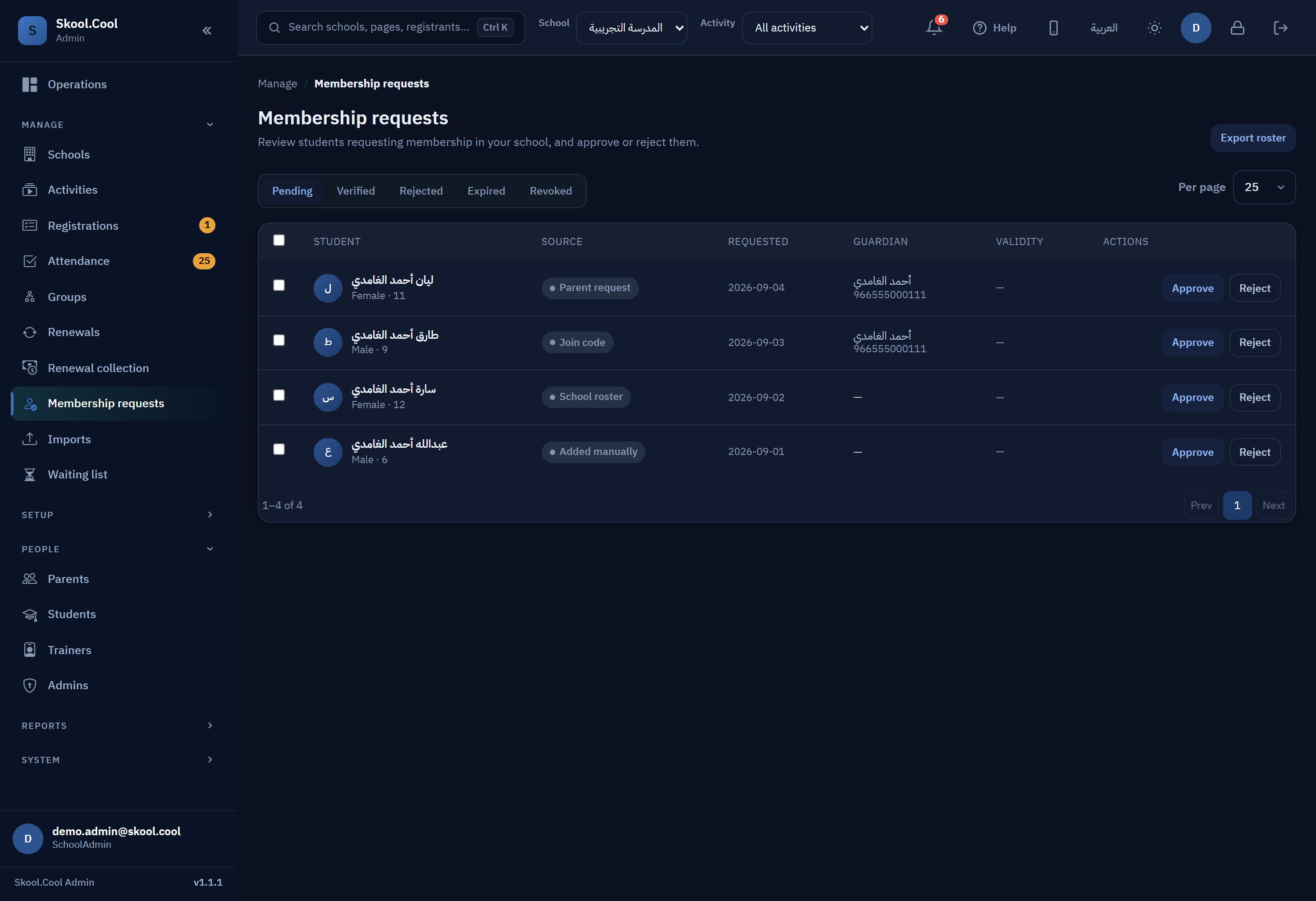
- The state tabs: Pending · Verified · Rejected · Expired · Revoked. See What school membership is, and its states.
- The columns: Student · Source · Requested · Validity · Guardian · Decision reason.
- The source shows how it arrived: School roster · Join code · Added manually · Parent request · Import file.
- The difference between the two sources coming from your school's files: School roster means the membership roster import wizard matched a row in your roster with a student and guardian already existing in Skool.Cool. Import file means an import in the Imports section created the student's own record from your file, and created their membership in the same operation. So to trace a row of that kind, look for it among the imports rather than in the membership roster.
- Exporting the roster: the Export roster button at the top of the page downloads the members of the tab currently shown as an Excel file.
- Sidebar badge: the Membership requests item in the sidebar shows how many requests are Pending at this school. Only an admin with permission to view membership at this school sees it, so it counts this school only, not the whole platform.
Steps
Approving or rejecting a request
- Open the Pending tab.
- For a single request, use the row's action to approve or reject it; or select several rows and use Approve selected or Reject selected.
- In the confirmation panel you can write a Reason (shown to the guardian) — optional. That text is shown to the guardian, so keep it clear and courteous.
- Confirm. A message such as Approved. or Rejected. appears, and the guardian is notified.
When you approve a student, their membership becomes verified and valid for the current school year. The approval confirmation makes clear that a given number of requests will be approved and their guardians notified.
Revoking a verified membership
- Open the Verified tab.
- Use Revoke on the row, or select several rows.
- Confirm. Existing registrations are unaffected by revoking — as the confirmation text says: a given number of memberships will be revoked and their guardians notified, and existing registrations will not be affected.
Renewing memberships for the new year
- On the Verified tab, choose Renew on the row, or Renew selected for several rows.
- The system renews the verified memberships for the current school year, and shows a summary such as how many were renewed and how many skipped — memberships that cannot be renewed are skipped.
Exporting the membership roster to Excel
To download your school's membership roster — for archiving or internal sharing:
- Open the tab representing what you want to export (Verified for approved members, say, or any other state).
- Press the Export roster button at the top of the page.
- The browser downloads an Excel file of the current tab's members, including: the student's name, age, gender, state, how they joined, the guardian and their mobile number, the request date, the validity period, and the school year.
The button exports the tab currently shown only — switch the state first to export the list you want. And if there are no memberships in that tab, a message says there are none to export and no file is downloaded.
Bulk operations
- Select rows with the checkboxes (or select all the rows on the page), and a selected-count indicator appears.
- Apply Approve selected / Reject selected / Renew selected according to the tab.
- Use Clear selection to start again.
- When an operation is applied to several rows, some may succeed and some fail; a message then reports how many succeeded and how many did not.
Troubleshooting
- School membership is not enabled yet: the feature has not been turned on for your school; turn it on from Turning on membership and the join code, or contact your administrator.
- Could not load membership requests.: reload the page and check your connection.
- No memberships to export in this list.: the current tab is empty — switch to a tab that has memberships and export again.
- Could not export the membership roster.: try again shortly, and check your connection.