The notification centre in the app
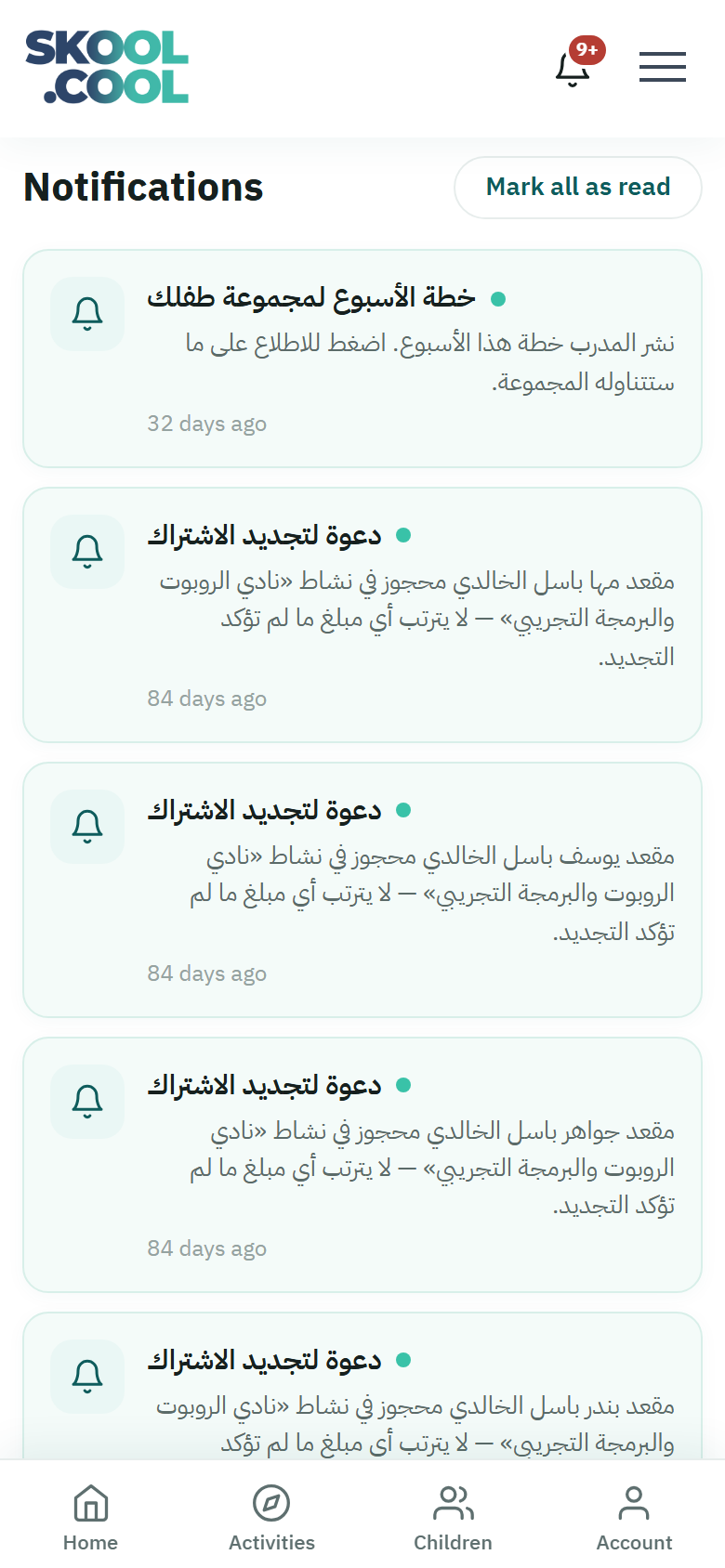
Skool.Cool keeps you up to date with what is happening for your children: the status of every registration request, payment confirmations, and any change to the times of the activities they are registered for. These alerts appear inside the app in the notification centre, and you can also receive some of them by email.
For the detail of the emails you receive and when they are sent, see The emails you receive.
On the English site, notifications show in English. Notifications sent before the app's English edition, and messages written by school staff, appear in Arabic, as they were written.
Reaching the notification centre
The notification centre appears only after you have signed in:
- In the app's top bar you will find the bell icon.
- When you have unread notifications, a red dot with a number appears on the bell showing how many. Above nine, the number shows as 9+.
- Press the bell to go straight to the Notifications page, which shows your full list, newest first.
On the Notifications page each alert appears in its own row with a short heading, explanatory text where there is any, and how long ago it arrived — "Just now" or "3 minutes ago", say. An unread notification is marked with a small dot beside it.
The kinds of notification and their colours
Each notification carries a coloured symbol to help you tell at a glance what kind of update it is:
- 🔵 Blue (information and general updates):
- A registration request submitted: confirming your child's request was received, its status becoming Pending review.
- A new progress report (shown with a folder symbol): the school has issued a periodic progress report for your child — it reaches you by email, and you can download it from the app at any time while it is available.
- The waiting list: your child has been put on the activity's waiting list because the places are full.
- The activity completed: the activity's programme has ended, and the status becomes Completed.
- A change to the activity's times (shown with a calendar symbol): the administration has changed the times or sessions of an activity your child is actually registered for.
- A refund while the registration stays (titled Refund issued, shown with a card symbol): the school has returned an online payment to you and your child's registration is still in place — for example, the fees were charged twice and the extra amount was returned. It may take several working days for the amount to appear in your account.
- 🟢 Green (approvals and successful payments):
- The registration accepted: your child's request was approved, and the status becomes Awaiting payment.
- An activity completion certificate (shown with a medal symbol): the school has issued your child a completion certificate — a message reaches you by email, and you can download it from the app at any time.
- Payment confirmed: the fees were received in full successfully, in cash or online, and the status becomes Paid.
- A payment received (titled Payment received): the school has received part of the fees in cash, at a school that accepts payment in instalments. The notification gives the amount received and the remaining balance, and the status shows Partially paid to the parent who registered the child. Once the remainder is paid, a notification titled Paid in full arrives and the status becomes Paid.
- 🔴 Red (alerts, declines and cancellations):
- The registration declined: the request was declined by the school's administration, and the status becomes Declined, usually with the reason explained.
- Cancelled for non-payment: the place was cancelled because the cash-payment deadline passed, and the status becomes Cancelled — no payment.
- The registration cancelled: the registration was cancelled by the administration or at your request, and the status becomes Cancelled. If the school returns your online payment and the registration ends with it, the notification arrives in this colour, titled Refund issued.
For the full meaning of each registration status, see The registration and payment statuses.
What happens when you press a notification?
When you press any notification in the list:
- The notification is marked read automatically, and the number on the bell goes down by one.
- The app takes you to the page the update concerns. Notifications about live requests take you to Current activities, while notifications about finished requests — declined, cancelled or completed — take you to Previous activities.
So you reach whatever needs doing quickly, without hunting through the app by hand.
Marking everything read
If notifications have built up and you want to clear the counter in one go:
- Open the Notifications page.
- Press Mark all as read at the top of the page.
- The red dot disappears from the bell, and every notification is marked read at once.
This button appears only when you have notifications in the list.
Refreshing automatically, and the empty state
- Refreshed automatically: the app checks for new notifications about every 60 seconds while its screen is open and active in front of you. And opening the Notifications page refreshes the content immediately.
- No notifications: if no alerts have reached you yet, the page shows No notifications — which is normal, and notifications will start appearing with the first update on your children's registrations.
Frequently asked questions
Why is the bell icon not showing?
The bell appears only after signing in. If you cannot find it, check you are signed in to your account first; and if you have not registered yet, start from Signing in and creating an account.
What does the red number on the bell mean?
It is the number of notifications you have not opened yet. It goes down each time you open one, and shows as 9+ above nine. To clear it in one go, press Mark all as read.
Do the notifications reach me by email too?
Yes, some important updates are sent to your email address as well as appearing inside the app. The detail of those messages is on The emails you receive.
What do I do if no notification reached me about my child's status?
Open Current activities to check the registration's actual status directly. And if the problem continues, see Solutions to common problems.