Viewing and updating your parent's profile
Your profile page lets you review and update your recorded details at any time, so your contact information stays right and the school's notifications and messages reach you at the right city and address.
How to reach your profile
- Sign in to your account.
- From the top bar, open the My account menu.
- Choose My profile.
Your profile appears with a sidebar holding: My profile, My children, Current activities, Weekly schedule, and Previous activities.
Viewing your current details
On the My profile page your saved details are shown in clear rows:
- First name
- Last name
- Gender
- City
- Mobile number
Any field that has not been filled in shows a dash (—) instead of a value.
Editing your details
- From My profile, press Edit at the top of the card.
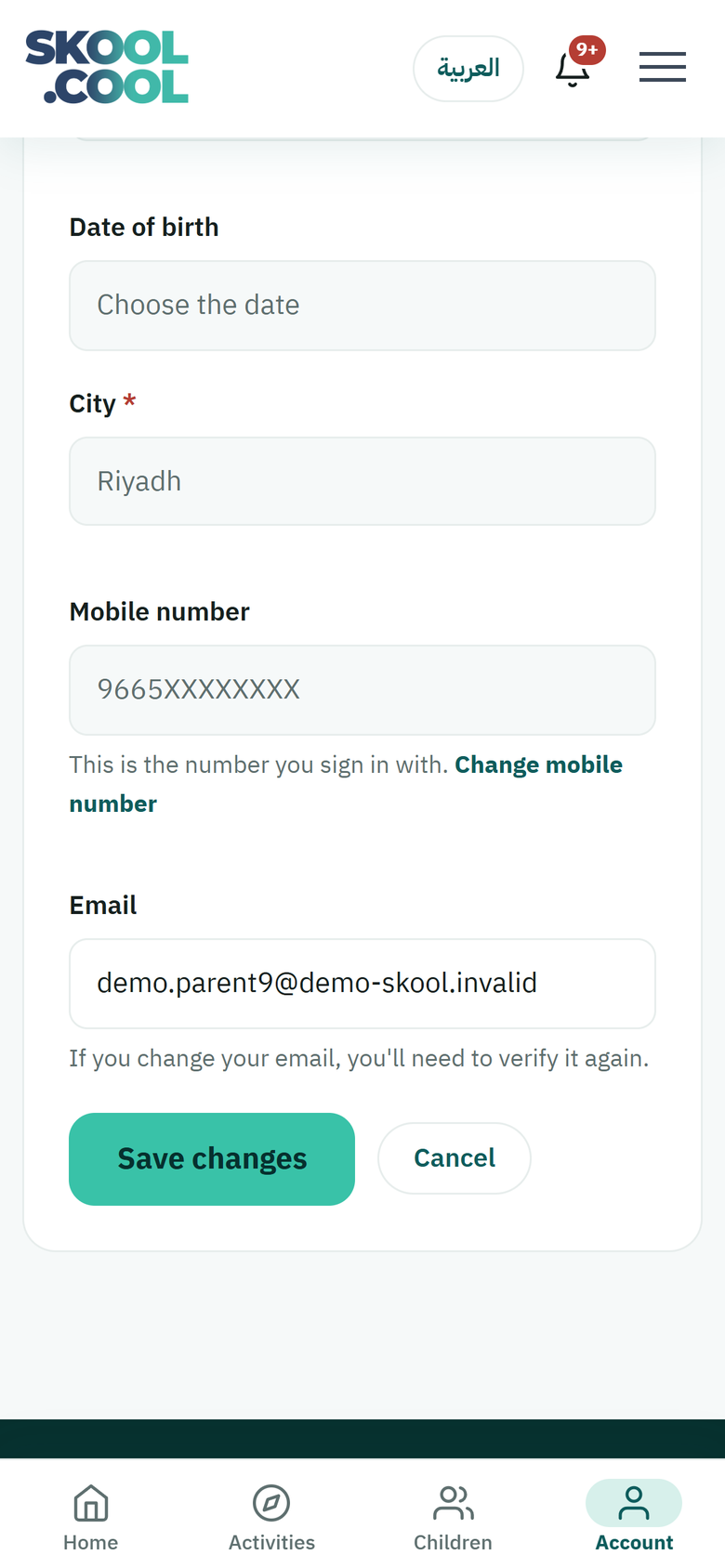
- The Edit profile page opens, holding these fields:
- First name, required: for correcting spelling.
- Last name, required: for correcting spelling.
- Gender, optional: choose Male or Female from the list, or leave Choose gender.
- Date of birth, optional: choose the date from the calendar picker.
- City, required: choose your city from the drop-down.
- Mobile number: shown for reference only, with a Change mobile number link under it — see the section below.
- Email, optional: for updating your recorded address.
- Change the fields you want.
- Press Save changes to save.
When the save succeeds, a green confirmation appears. If you leave a required field empty — First name, Last name or City — a notice appears beneath the field and the change is not saved until you complete it. To abandon the edit without saving, press Cancel or Back to return to the view page.
Limits and things to watch
Changing the mobile number you sign in with
Your mobile number is the number you sign in with, and your children's details, your registrations and your payments are all tied to it. So it is not edited in this page's fields, but on a separate page that checks both numbers:
- On the Edit profile page, press the Change mobile number link under the mobile number field.
- Press Send the code to my current number. A 6-digit code arrives on your current number.
- Enter the code in the Verification code field, type your new number in the New mobile number field, then press Verify and continue.
- A second code arrives on the new number. Enter it, then press Confirm the new number.
Once it is confirmed, you sign in with the new number and you are signed out on your other devices; your children's details, their registrations and their payments stay as they are. The code is valid for 10 minutes. If the code for the new number does not arrive, press Didn't get the code? Start again.
If you can no longer use your current number (you lost the SIM, for example), you cannot finish these steps yourself: contact support or your school to move your account to the new number without losing any data.
Changing the email address means confirming it again
When you change your email address on the Edit profile page, the notice "If you change your email, you'll need to verify it again." appears. After saving, you will need to confirm the new address with a six-digit code sent to it, entering it on the Confirm your email address page and pressing Confirm. If the code does not arrive, use Resend. Notification emails do not reach the new address until the confirmation is complete.
For the full detail, see Confirming your email address.
Frequently asked questions
How do I change the mobile number I sign in with?
On the Edit profile page, press Change mobile number and confirm the change with two codes: the first arrives on your current number, the second on the new one. If you have lost your current number, contact support or your school so the account can be moved safely.
I changed my email address — why are the messages not reaching me?
When you change the address it does not become live until you confirm it. Enter the six-digit code sent to your new address on the confirm-email page and press Confirm. If the code does not arrive, use Resend, and once it is confirmed the messages start arriving.
Which fields are required to save the changes?
First name, Last name and City are required, and the change is not saved until they are complete. Gender, Date of birth and Email are optional.
How do I get back to my old details if I changed something by mistake?
Before saving, press Cancel or Back and no change is saved. After saving, go back into Edit profile, correct the value by hand and press Save changes.