Creating a new account and signing in with your mobile number
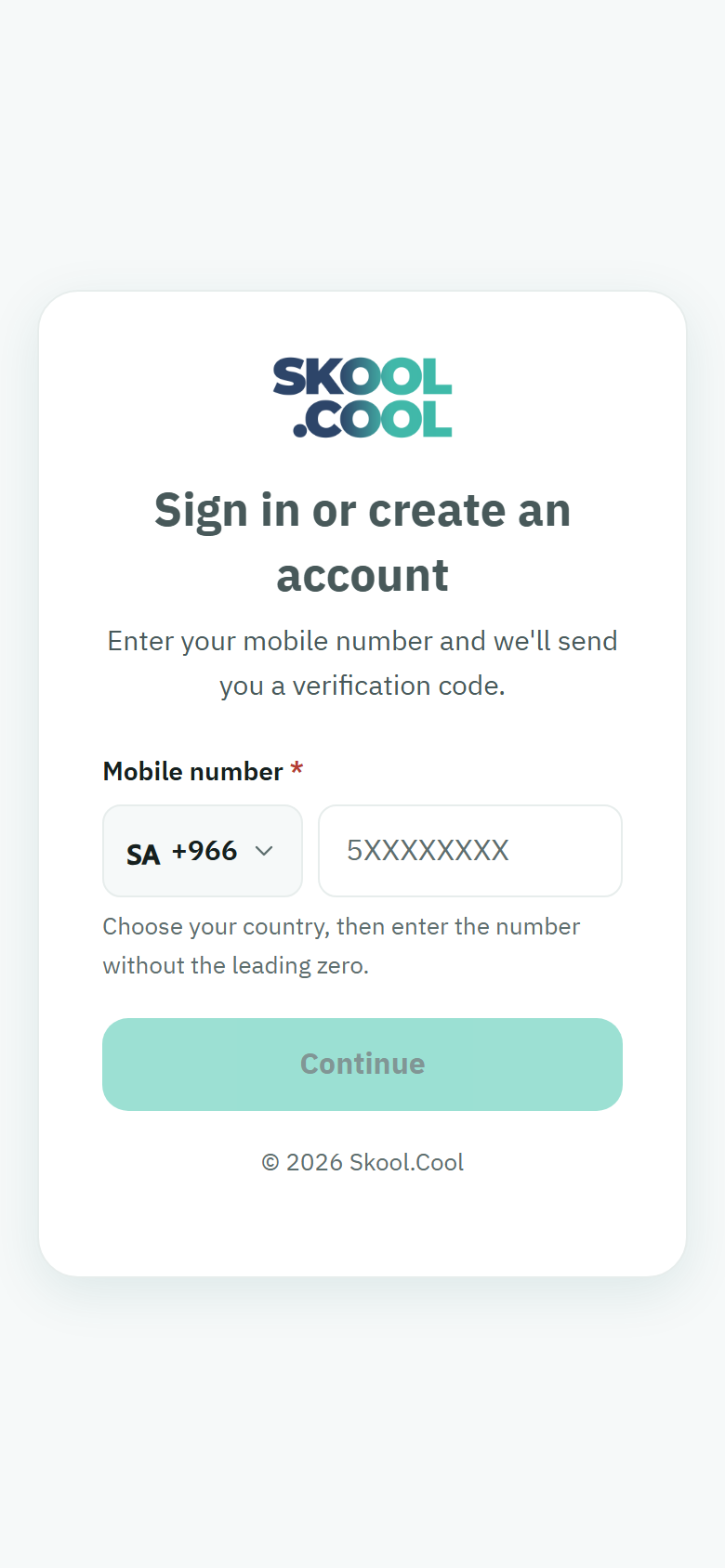
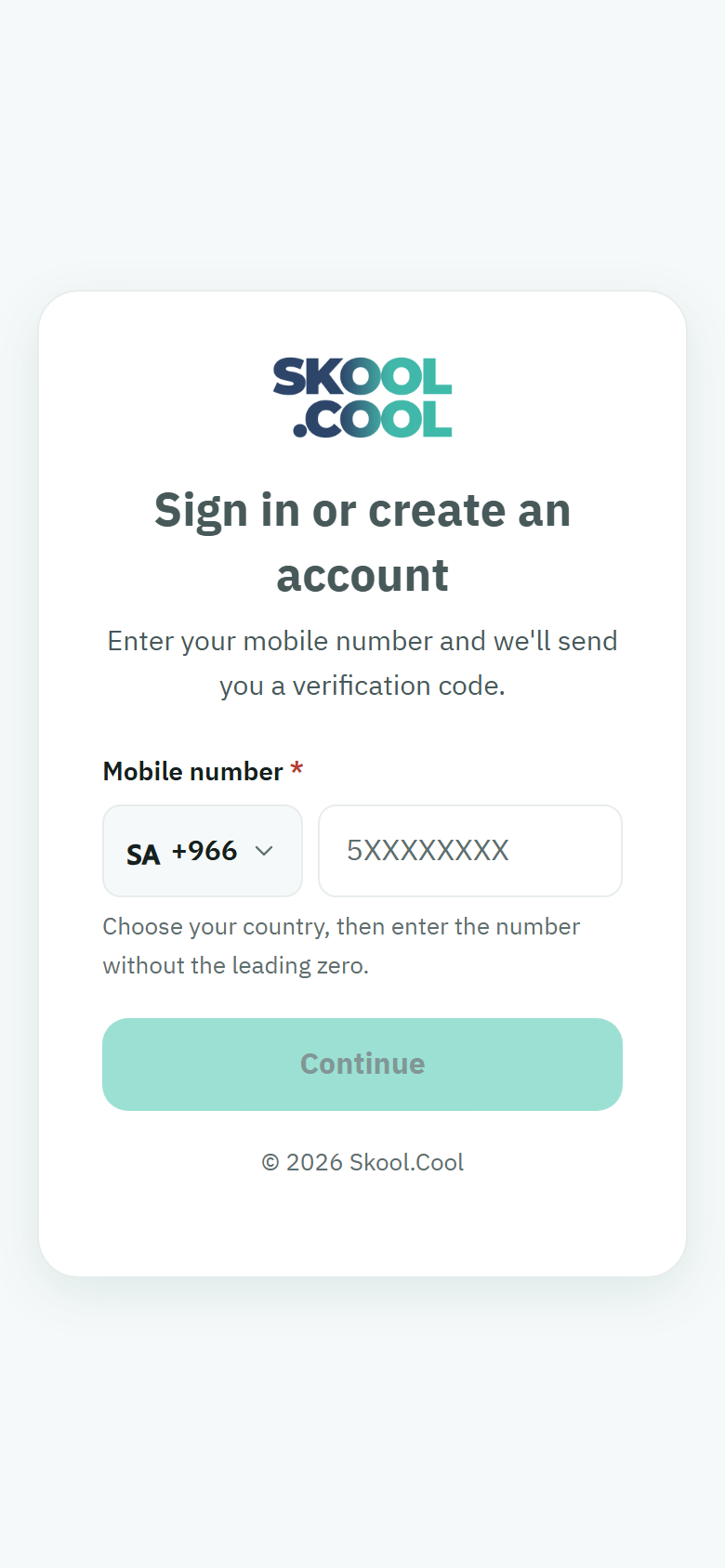
Skool.Cool uses a single way in: your mobile number and a verification code, with no complicated passwords. The same route is used both for signing in and for creating a new account.
Step 1: Entering your mobile number
- Open the sign-in screen from Sign in at the top of the page, or Start for free to create a new account. The screen is headed Sign in or create an account.
- Choose the country code —
+966for Saudi Arabia, say — from the drop-down. - Type your mobile number, in the form
5XXXXXXXX, without the leading zero. - Press the continue button to have the verification code sent.
Step 2: Completing your details (new users only)
If your number has not been registered as a parent before, a screen appears for completing your details:
- Parent's name — write it in full and correctly, matching your ID.
- City, which is required — choose it from the list, so that activities near you are easier to filter later.
- Press Send verification code.
Step 3: Confirming with the code
- A temporary six-digit verification code reaches you by text message.
- Enter the code in the verification field.
- Press Confirm to verify your identity and be taken to your account.
Never share the verification code with anybody. Skool.Cool's staff and the school's administrators will never ask you for it.
The other options on the code screen
- Change the number — to go back and correct your mobile number if you entered it wrongly.
- Resend the code — for a new code if the message has not arrived.
Frequently asked questions
How do I sign in with my mobile number and no password? Enter your mobile number, then enter the verification code that reaches you by text message and press Confirm. No password is needed.
Why is the verification code not reaching my phone? Check that the number is right and that you have signal, then press Resend the code to ask for a new one. If it keeps happening, see Solving problems.
I got a message saying I entered a wrong code too many times — what do I do? After several wrong codes, verification pauses for a while to protect your account, even if the code you enter now is correct. Wait for the time the message gives without trying again (each try during the wait starts it over), then ask for a new code with Resend the code and enter it.
I got a message saying my account could not be created — what do I do? Try again in a little while. If the message comes back, your mobile number may already be in use on another account on the platform; contact support or your school's administration and give them your number so they can help you create your account.
How do I change the mobile number registered on my account? If you entered it wrongly while signing in, use Change the number. To change the number on an existing account yourself, use the Change mobile number link on the Edit profile page: it checks your current number, then the new one (the details are in Viewing and editing your profile). If you can no longer use your current number, contact support or the school's administrators to move your account safely.
I am a new user — what is different for me? After entering your mobile number you get one extra step, for completing Parent's name and City, and then you carry on to the verification code.
I work at a school on Skool.Cool as a trainer or an administrator — can I create a parent's account with my own mobile number? Yes. A parent's account is separate from your work account: enter your number on the sign-in screen and you get the step for completing your details, like any new parent, and then you carry on to the verification code. Signing in to your work account stays exactly as it is.