Keeping track of the current activities
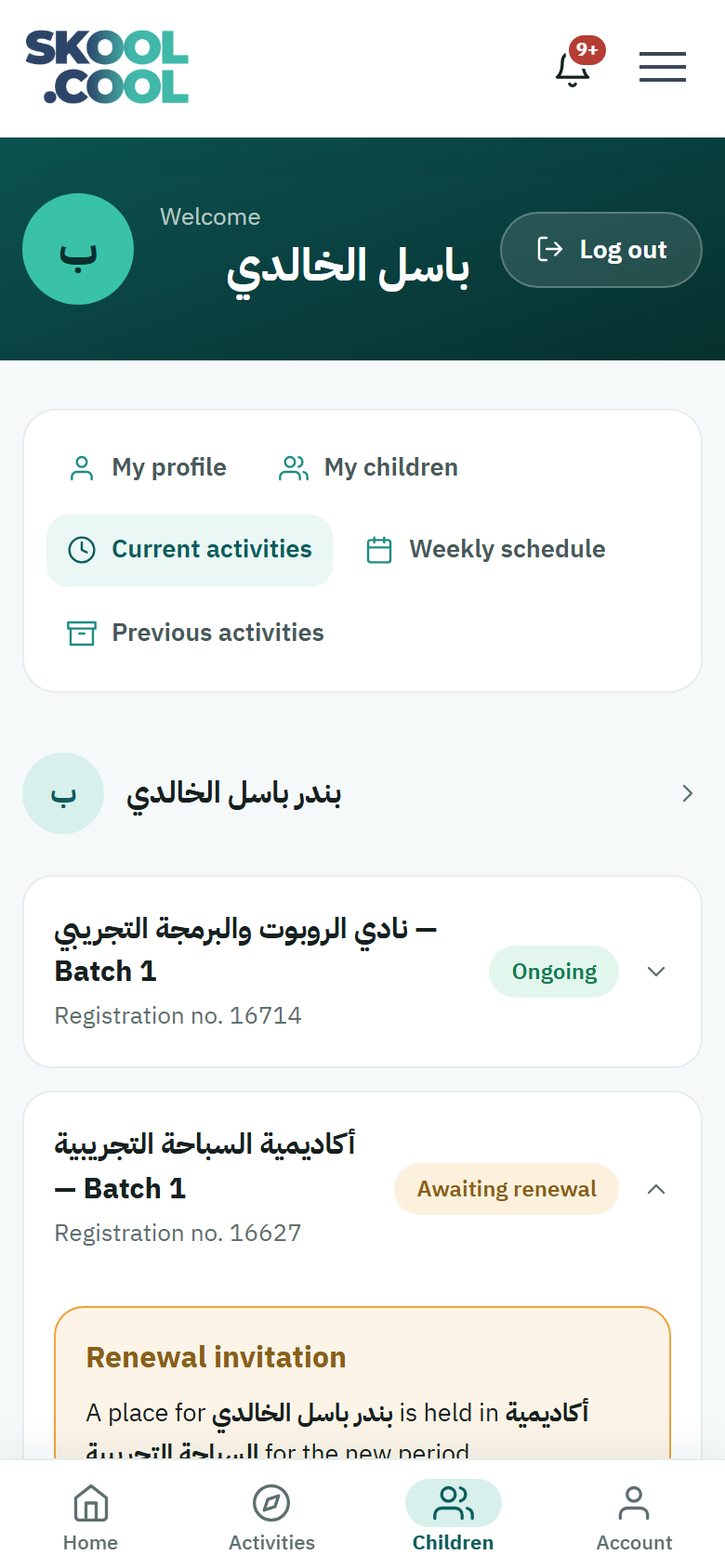
The Current activities page is your main place for keeping track: it shows every active registration for your children — and your own activities, if you registered yourself — with each booking's status and the attendance record, and lets you cancel registrations that have not been paid for yet. This page shows activities that are running; those that have finished are in Previous activities.
If one activity's batch has ended and the school has opened a new one, a Renewal invitation card may appear here, with a place held for your child; for the detail see Renewing a subscription.
Reaching the current activities
- Open your profile page from the menu.
- From the sidebar choose Current activities.
- The active registrations appear grouped separately under each child's name, with your own registrations, if any, under the heading Me.
If you have no active registration, the message "You have no current activities." appears.
Reading an activity's card
Each registration appears as a card that can be expanded. Press the card's head to open it and show its detail.
The card's head shows:
- The activity's name as the school wrote it, its suffix if it has one, and the batch number in the form — Batch N — «كرة القدم» — Batch 3 (football, batch 3), say.
- The registration number: a reference useful when contacting the school or support.
- The coloured status badge, showing the booking's status in the same words the system uses: Pending review, Awaiting payment, Confirming payment, Paid, Ongoing and Cancelled. And if the school has opened an invitation to renew your child's registration, the green Ongoing badge is replaced by Awaiting renewal; for what that means see Renewing a subscription. And if the school has received only part of the fees, the badge reads Partially paid instead of Paid — see Part-payment details below. Each status is explained in full on The payment and booking statuses.
Expanding the card reveals the following buttons and details.
The buttons inside the card
- View activity: opens the activity's public details page and its schedule. For more, see The activity's details.
- Activity journal: opens the trainer's journal for this registration — notes and updates on how the activity is going.
- Cancel registration: appears only where the booking can be cancelled by you, because it has not been paid for yet or is on the waiting list.
Part-payment details
If the school accepts the fees in cash in instalments and has received part of them, the following payment lines appear inside the card, each on a line of its own:
- Paid … of …: how much you have paid out of the total fees — Paid SAR 1,500 of SAR 3,000, say.
- Outstanding: the amount not paid yet.
- Due on: the date the remainder is due — Due on 1 Nov 2026, say — shown only if the school set one.
- The outstanding balance is paid at the school: a reminder that the remainder is paid at the school, so there is no button to pay it in the app.
These details appear only to the parent who registered the child for the activity. Once the fees are paid in full, the outstanding lines disappear and the badge becomes Paid. For the detail, see The payment methods available.
The attendance record
An Attendance section appears inside the card for every session that has come due, showing its date and day and a badge reading Present, Absent or Not recorded (your child has not been marked for it yet, which is not an absence), along with the trainer's note if there is one. Sessions still ahead do not appear. For attendance in full, see The attendance record.
Cancelling a registration
You can cancel the registration yourself as long as it has not been paid for or is still on the waiting list:
- Expand the registration's card, then press Cancel registration.
- A confirmation appears: "Are you sure you want to cancel the registration for … ?"
- Press Yes, cancel the registration to complete it, or Go back to return.
- On success the message "The registration has been cancelled." appears, the registration's status becomes Cancelled, and the cancel button disappears.
For more on the conditions for cancelling, see Cancelling a registration.
If the registration has been paid for
Where the registration is paid, partially paid or ongoing, the cancel button does not appear. In its place is the note "To cancel this registration, please contact the school.", because any refund goes through the school.
Situations and messages you may see
- An empty list: "You have no current activities." appears when you have no active registration.
- It would not load: if the list does not refresh, the message "Couldn't update the list. Please refresh the page." appears — reload it and try again.
- The cancel button is not showing: this is normal for paid or ongoing registrations; contact the school instead.
Frequently asked questions
Why is the activity not appearing under current activities?
This page shows only activities that are running. If the activity has finished you will find it in Previous activities, and if your registration is still Pending review or Awaiting payment, it appears here with that status.
What is the difference between View activity and Activity journal?
View activity opens the activity's details page and its schedule, while Activity journal shows the trainer's notes and updates for your child's registration in particular.
Why does it say Partially paid instead of Paid?
Because the school has received part of the fees in cash and part is still unpaid. Your child's place is held; expand the card to see what has been paid, what is outstanding and the due date, if there is one, then pay the remainder at the school so the badge becomes Paid.
How do I cancel a paid registration?
A paid registration cannot be cancelled by you from the app; a note appears asking you to contact the school, because any refund is handled from their side.
Where do I see my child's attendance?
Expand the activity's card to see the Attendance section with its sessions and the Present, Absent and Not recorded badges, or see The attendance record for the full detail.