Managing trainer accounts
Goal
Add the trainers responsible for delivering activities and recording student attendance, edit their details, stop or restore their access, and manage their membership of the school (or of several schools).
When do you need this screen?
When engaging a new sports or teaching trainer to assign to activities; when disabling the access of a trainer whose contract with the school has ended while keeping their history; or when a trainer who worked at the school before comes back and their account has been archived.
Before you start
- Permission to view trainers — to open the school's trainer list.
- Permission to add a trainer — to create a new trainer (the Add Trainer button then appears), and to restore an archived account with Restore, because restoring grants access just as adding does.
- Permission to edit a trainer — to edit details, to switch between Active and Dormant (making them dormant or reactivating them), to issue a new password with Reset password, and for the bulk actions.
- Permission to delete a trainer — to take a trainer off this school's list with Remove from school.
Your permissions come from your role at the school. If the add, edit or remove buttons do not appear, ask your school manager. For more: Access control and roles.
Where it lives
Sidebar > People > Trainers (or press Ctrl+K and type "trainers").
Steps
1. Adding a new trainer
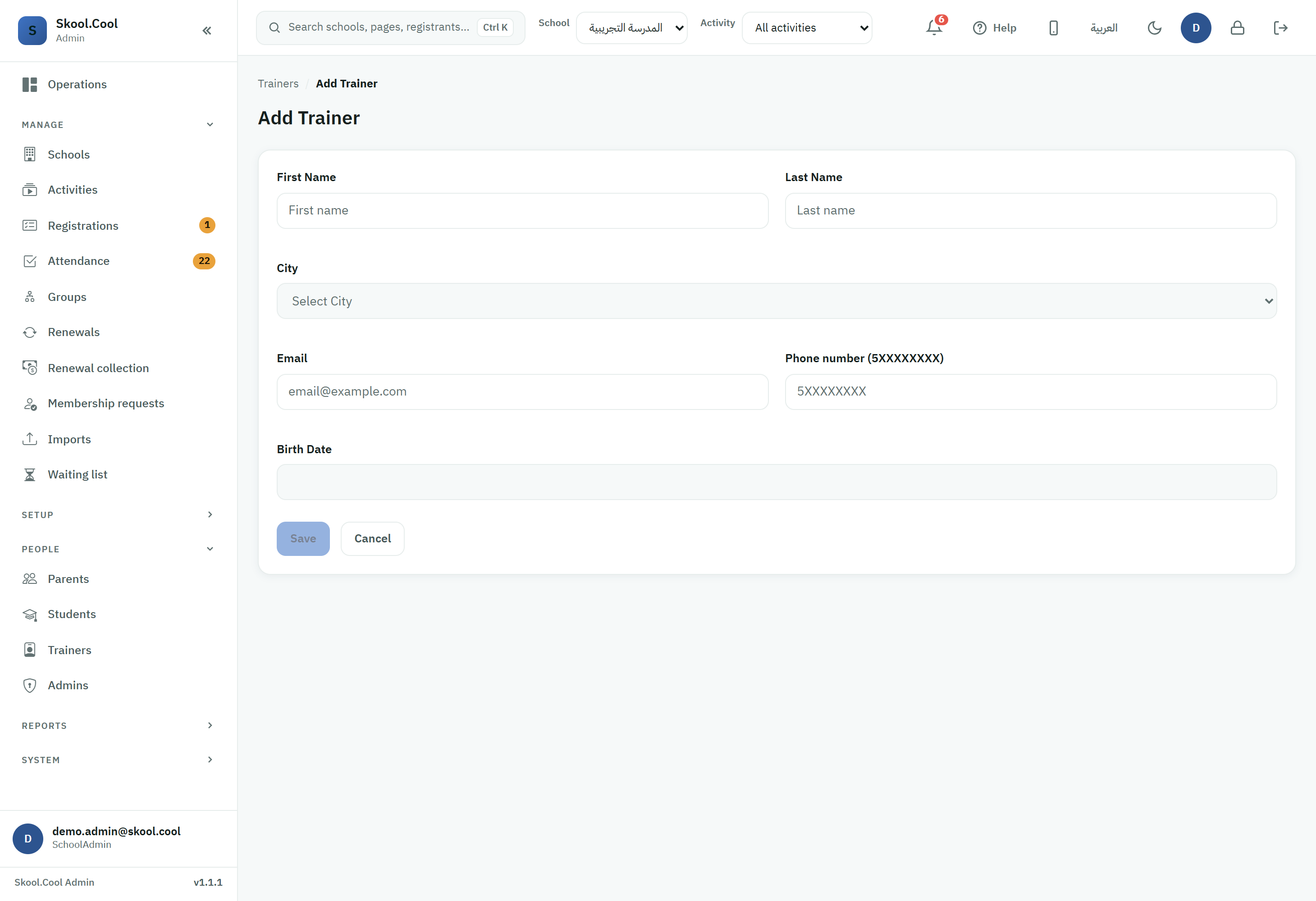
- On the trainer list, press Add Trainer.
- Fill in the form:
- First Name: required.
- Last Name: optional.
- City: choose the trainer's city of work from Select City (optional).
- Email: required, and used for the trainer's sign-in.
- Phone number (5XXXXXXXX): optional.
Important
Saudi mobile validation:
- The mobile number must begin with
5, and be 9 to 10 digits long. - While you type, the field accepts only a number starting with
5— anything beginning with another digit is cleared automatically.
- The mobile number must begin with
- Birth Date: optional, chosen from the pop-up calendar.
- Press Save.
- What it does: if the email is entirely new, a Trainer created screen appears containing a one-time password — save it and hand it to the trainer, because it will not be shown again, and they will be asked to change it at their first sign-in. If the email is already used by an existing account, no second account is created for the same person, and what happens depends on the state of that account — see the table below.
If the email is already in use
| What you see | What it means | What to do |
|---|---|---|
| A message: "This e-mail belongs to an archived account at your school…" | The trainer worked at your school before, then their account was cancelled and became archived | Do not create a new account; restore it from the Archived tab — see Restoring an archived trainer account |
| A This e-mail belongs to an archived account window with an Add to my school button | The account is linked to no school, so it appears in nobody's Archived tab | Press Add to my school: it is added with the name and details you entered, and a new password is shown to you once only |
| A message: "This e-mail belongs to an account outside this school, so it cannot be added here…" | The account has no active link to your school, such as a trainer working at another school. It can also appear for a trainer you removed from your school, or for an archived account that was dormant at your school | First look for them in the Archived tab and restore them if you find them — see Restoring an archived trainer account. Otherwise use a different address, or ask the support team to add them through Help or request |
| A message that the address is registered to a parent, an administrator or another account | One account cannot hold two roles | Add the trainer with a different address — see the frequently asked questions below |
Do not add them again from the form. Open the Dormant tab and press Activate next to their name.
2. Editing a trainer's details
Press Edit next to the trainer's name to change the name, city, email, mobile or birth date, then Save.
Changing the email or mobile changes how the trainer signs in everywhere, so it needs your access at every school the trainer works at - and the admin-management access too if the trainer also holds an admin role. If a message says the change is outside your access, put the email and mobile back and save your other changes, or ask a system administrator (see Troubleshooting, item 12). After any allowed change the trainer is asked to sign in again.
3. Suspending a trainer or reactivating them (without deleting)
- Press Make dormant next to the trainer's name to take them out of this school's list while keeping their record; it can be reversed at any time with Activate.
- Making a trainer dormant at one school does not affect their membership of any other, and it does not remove their name from the sessions and historical reports they marked previously.
- Move between the Active / Dormant / All / Archived lists using the tabs above the table, and search by name, mobile or email in the search field.
4. Removing a trainer from the school
Press Remove from school next to the trainer's name, then confirm in the Remove trainer from this school dialog. The trainer disappears from this school's lists and from the activity trainer picker, and loses access unless they belong to another school; their account itself is not deleted.
If the aim is to stop access temporarily, use Make dormant instead, because it can be reversed from the same screen with Activate. There is no permanent deletion of a trainer account on this screen.
The account itself is kept, but bringing the trainer back to your school is not done from this screen: after the removal they appear in no tab, and the Add Trainer form refuses their email. If you removed a trainer by mistake, ask the support team to bring them back through Help or request.
5. Restoring an archived trainer account
An archived account is a trainer account that was cancelled earlier. It appears in none of the Active, Dormant or All lists, nor in the activity trainer picker, and its email cannot be used to add a new trainer — until it is restored. It is not the same as Dormant: dormant describes the trainer's standing at this school, while archived describes the account itself.
You usually need these steps when you try to add a trainer who worked at your school before, and the form refuses their email with this message:
This e-mail belongs to an archived account at your school. Open the «Archived» tab in the trainers list and restore it instead of creating a new account.
The refusal is deliberate, not a fault: restoring brings back the same account with its history, instead of creating a second account for the same person.
The form can also refuse the email with a message that it belongs to an account outside this school, if the trainer was dormant at your school before their account was archived. In both cases, look for them in the Archived tab.
- On the trainer list, open the Archived tab. A notice above the table explains what an archived account is.
- Search for the trainer by name, mobile or email.
- Press Restore next to their name, then confirm. The confirmation reminds you that a new password will be generated and that the old one will stop working.
- A Restored — new sign-in details window appears containing a new one-time password. Copy it and hand it to the trainer immediately, because it will not be shown again, and they will be asked to change it at their first sign-in.
- The trainer returns to this school's Active list and to the activity trainer picker.
The account was restored and is back on the trainer list. Do not restore it again; press Reset password next to their name to issue a new password.
The Restore button appears for anyone with permission to add a trainer. A restore can be refused if the account reaches beyond your access; in that case, ask the support team through Help or request.
Managing a trainer across several schools
A trainer is one account that can serve more than one school. On the edit-trainer screen, a Schools card lists the schools the trainer belongs to, each with their state there (Active / Dormant) and:
- A Make dormant or Activate button for that school in particular.
- A Remove button to take them out of that school's list.
To add a trainer who works at another school to yours, ask the support team through Help or request. Entering their email in Add Trainer shows a message that the address belongs to an account outside this school, because the form neither reveals nor takes in accounts from other schools.
Bulk actions
Select several trainers with the checkboxes in the table and the bulk actions bar appears with two options:
- Archive (make dormant) — makes the selected trainers dormant at this school in one go, so they appear in the Dormant tab, not Archived.
- Activate — reactivates them in this school's list.
The system shows a confirmation with the number of trainers affected before it runs, and their records are preserved either way.
What you should end up with
- The new trainer appears in the Active list, signs in with their email and the one-time password, and then changes it.
- An active trainer can be assigned to activities, and can record attendance through session attendance and write in the trainer journal.
- A dormant trainer disappears from this school's active list, but their history stays exactly as it was.
- A restored trainer returns to the Active list with a new password, which they change at their first sign-in.
What does a trainer see? (the trainer's scope)
There is one rule: the level of assignment is the level of visibility.
- A trainer assigned to the main program sees the whole program: every group and every child, including those not yet placed in a group. This is the shape of a lead trainer or a program coordinator.
- A trainer assigned to a group sees only the children actually placed in their group: in the student list, in attendance, and in trainer notes. If they are assigned to more than one group, they see those groups' children together.
- Unplaced children are the program's responsibility, not the group's: a group's trainer sees only their number ("N children not yet placed") with no names, until the school places them from group placement.
You choose the level of assignment in the activity form itself: the Trainers field on the main program grants full visibility, and the same field on a group narrows it to that group. A hint under the field in both places reminds you of the difference.
Usually because the student has not been placed in that trainer's group yet, or was placed in another. Open group placement and check where they are. And if you want the trainer to see the whole program, assign them to the main program rather than to a group.
Where does a trainer start after signing in?
A trainer starts in Field mode, on the Your tasks now screen of the Today tab: today's sessions and the past sessions still waiting to be marked, for their own programs only. Along the bottom of the screen are three tabs:
- Today: opens any session straight into attendance.
- Students: the children of their current programs at this school, with a name search; each child opens the Trainer notes panel.
- More: language, theme and log out, and My programs.
The Today screen itself also carries what is theirs alone, without going to another screen:
- The Today's sessions card above the task list on a day they have sessions, with its Session started button, when trainer check-in is on for your school (details below).
- The My week card after the task list, when trainer follow-up is on for your school: their figures for the week exactly as the school sees them, with a choice of This week or Last week. Each gap has a button that closes it: Mark for a session still waiting for attendance, which opens its attendance in Field mode when the session is at the school Field mode is showing, and in My programs otherwise; Write a note for a child who has not had a weekly note; and Write the plan for a group whose plan has not been sent. The last two open the program's screen in My programs. Where the monthly record is on, the bottom of the card shows My month once a month has closed: its status, weeks and figures as the school sees them, and the reason for any correction to their weeks (without the name of who made it). During the reply window they write a reply under "Your reply to this month's record" and select Send the reply - up to 5 replies a month - and the school reads it beside the figures. If the school corrects the month while they are writing, the reply is refused with "Your month changed since you opened it. Read it again before replying." and the card shows the new figures; they read them and send the reply again.
- Their notification bell at the top of the screen, next to the title. See the trainer bell.
From More → My programs they reach the usual trainer screens: their program list and its archive, and their groups' weekly plans; the two cards and the bell are there too. The back arrow at the top of My programs takes them back to Field mode. If they have no program at your school, the Today screen says so — You have no programs assigned at this school. — with a My programs button.
In My programs, their group appears as a badge on the program card, and when they open attendance they choose between their group's sessions (the default) and the program's sessions — and in both cases they see only their own children.
When trainer check-in is on for your school, a Today's sessions card appears on the Today screen above the task list, and in My programs above their program list: the sessions they are responsible for today, each with a Session started button they press when they arrive, from an hour before the session until it ends. After the press it shows Started at with the time, and a Mark attendance button opens that session's attendance directly; on the Today screen it opens in Field mode itself (except for a trainer who works at more than one school, for whom it opens in My programs). Pressing again does not change the first time.
Following up a trainer's commitment
The same assignment level decides a trainer's responsibility on the Trainer follow-up screen: a group's trainer is responsible for its sessions, its children and its weekly plan, and a main program's trainer is responsible for these across all of the program's groups. There you can see, for every trainer in every week, whether they marked their sessions on time, whether every child got a weekly note, and whether every group's plan was sent.
- Changing a group's trainer during the week marks that week in the group as Trainer changed, so it counts against neither trainer, and from the following week it counts for the new trainer. Where you can, make the change at the start of the week.
- A group with no trainer of its own and none on its main program shows there as No trainer, and its work counts against no one. Assign a trainer to it for it to start counting.
Frequently asked questions
What is the difference between "Make dormant" and "Remove from school"? Make dormant suspends the trainer at this school and keeps them in the Dormant list with their record, and can be reversed with Activate at any time. Remove from school takes them off all of this school's lists and out of the activity trainer picker, without deleting their account. Use dormant for a temporary suspension or the end of a contract; a removed trainer cannot be brought back by the school itself, only by the support team.
How do I give the trainer their password, and what if it is lost? After saving, the one-time password appears on the Trainer created screen — copy it and hand it to the trainer immediately, because it is not shown again. If it is lost, press Reset password next to the trainer's name on the list: a new one-time password is shown to you in the same way, and the old one stops working.
I am adding a trainer who worked with us before, and it says the email belongs to an archived account — what do I do? Their account exists but is archived, and no new account is created on the same email. Open the Archived tab on the trainer list, press Restore next to their name, and hand them the new password that is shown to you once. The full steps are in Restoring an archived trainer account.
Why is the mobile number not accepted?
Because it must begin with 5 and be 9 to 10 digits long (in the form 5XXXXXXXX). Anything beginning with another digit is cleared automatically as you type. The mobile is an optional field, so you can leave it empty if you have no valid number.
How do I add the same trainer to another school? Ask the support team through Help or request; the Add Trainer form does not take in an account that works at another school. To follow all their schools, open the Edit Trainer screen and review the Schools card.
I am adding a trainer and it says the email is already registered — what do I do? Usually because that same address is already in use by a parent or an administrator account on the platform, and one account cannot hold two roles. This is common when the trainer is also a parent at the school. The fix: add them with a different email address that is not already in use on the platform. Their parent account is untouched.
If the address belongs to a trainer account you will not see this message; you will see one of the cases in the table If the email is already in use. One of them is the archived account, which is restored rather than created again.
What is the difference between a trainer and an admin? A trainer delivers the activity and records attendance; an admin runs the school's operations in the portal. To manage admins, go to Managing school admins.