Transferring a student from one activity to another
Goal
Move a student's registration from one activity to another within the same school. The same registration moves, with its record and history, to the new activity — without re-entering the student's details from scratch.
When do you need this?
- The student was registered for the wrong activity (moving them from the art club to the Arabic calligraphy club, for example).
- The parent wants to change activity because the level or the times do not suit.
To change a student's group within the same activity, do not use transfer — use group placement. Transfer is for moving to an entirely different activity.
Before you start
- You need permission to transfer a student to another activity (or the school-wide permission to manage registrations).
- Make sure the correct school is selected in the school switcher first.
- The transfer action appears only for registrations in particular states (see "Which registrations can be transferred?" below), and the destination activity must be open for registration with capacity available.
Where it lives
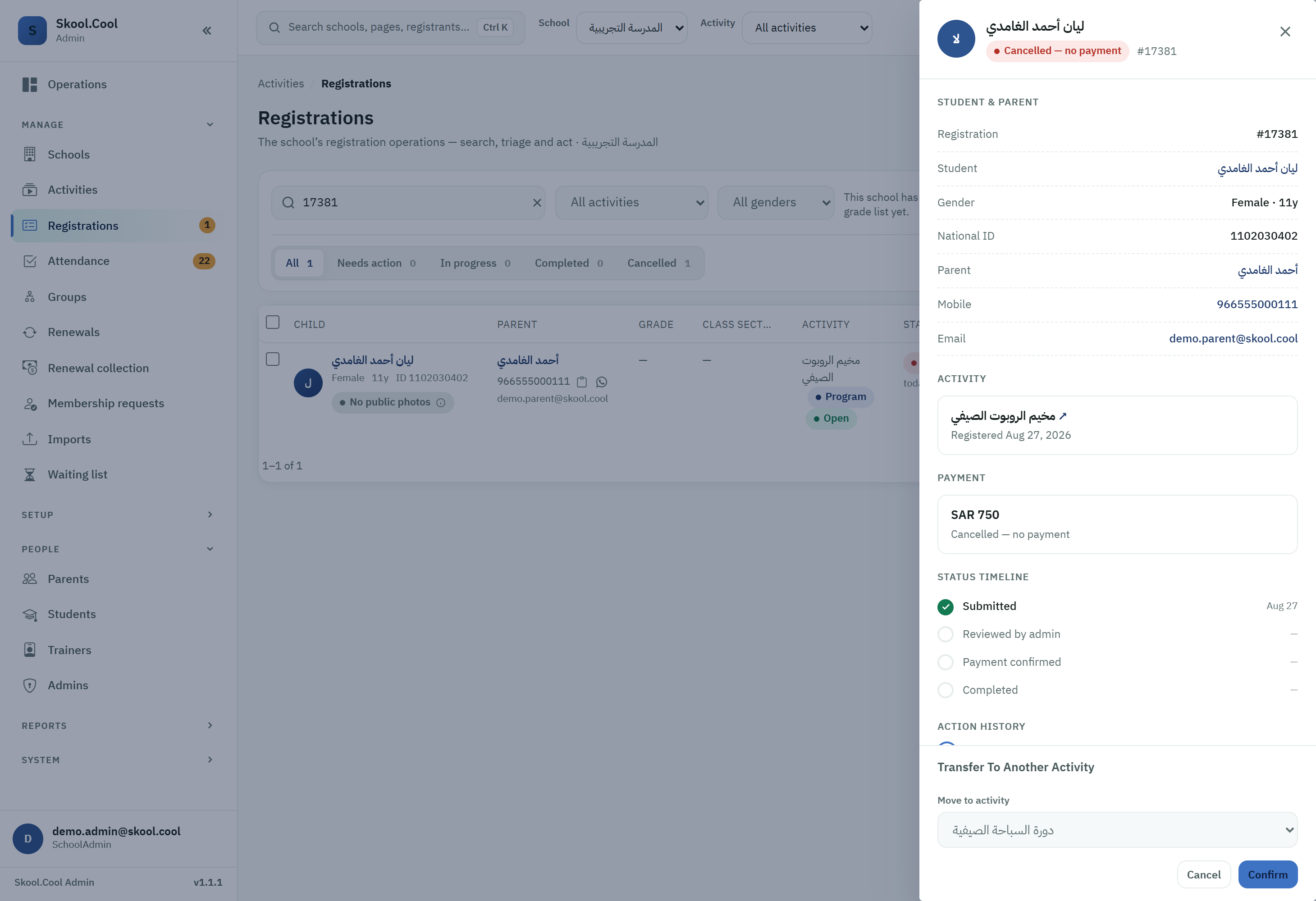
Sidebar > the Today's work group > Registrations (after choosing the school) > press Manage on the student's row to open the side panel, or open the Registration management page.
Which registrations can be transferred?
Transfer To Another Activity is only available when the registration's status is one of:
- Rejected
- Cancelled — no payment
- Paid
In other states (such as Pending review or Awaiting payment) the transfer action does not appear.
Steps
- Open the student's registration by pressing Manage to open the side panel, or go to the Registration management page.
- From the registration's actions choose Transfer To Another Activity.
- From the Select Activity dropdown, choose the destination activity. (The current activity and any sub-activities or groups are excluded from the list automatically; you cannot transfer into them.)
- Press Confirm.
If the new activity clashes with the student's schedule
If the destination activity's times clash with the student's other activities, the system stops the transfer and shows the conflicting sessions with a warning; the transfer is not carried out automatically.
You can go ahead despite the conflict by pressing Transfer anyway after writing a mandatory reason, which is recorded in the action log; a notification about it goes to the parent and to the new activity's trainer. For details: Schedule conflicts.
What you should end up with
On a successful transfer:
- The same registration moves to the new activity, and the move is added to the registration's history (its record is preserved).
- The registration's status updates according to what it was before the transfer:
- Rejected → becomes Pending review (it needs approving again).
- Cancelled — no payment → becomes Awaiting payment; if its new price is zero (a free activity, or a full sibling discount) it becomes Paid straight away.
- Paid → stays Paid on the new activity.
- The registration's price is set by what has been paid on it:
- A registration with nothing paid on it (Rejected or Cancelled — no payment) takes the new activity's fee, with the sibling discount when it applies.
- A Paid registration, one on which any amount has been collected, or one with an online payment that has not finished yet, keeps its previous price.
- If the student had a place in a group within the old activity, that placement is removed (groups belong to their original activity).
- An email reaches the parent telling them about the transfer.
If the registration kept its previous price and it differs from the new activity's fee, the payment card in the registration's side panel shows a note: "Moved here from another activity. Its price is …; this activity's fee is now …. The system does not calculate the difference; settle any difference at the desk." The system neither calculates nor settles the difference; handle it (collecting or refunding) by hand according to your school's policy — see Confirm a cash payment.
Limits and notes
- Within the same school only: a registration cannot be transferred to an activity at another school.
- No transfer into a sub-activity or group: groups are places within the same activity, not a transfer destination — use group placement.
- No transfer into a cancelled activity, or one that has reached full capacity.
- No duplicates: if the student is already registered on the destination activity, the system blocks the transfer to avoid a duplicate registration.
Frequently asked questions
Why can I not find the transfer button on some registrations? Because Transfer To Another Activity appears only for registrations in the Rejected, Cancelled — no payment or Paid state. Open the registration with Manage in the registrations list to check its status.
What happens to the student's registration after the transfer? The same registration moves to the new activity and is kept in its history. The status changes according to what it was: Rejected becomes Pending review, Cancelled — no payment becomes Awaiting payment (or Paid if its new price is zero), and Paid stays Paid. No separate new record is created.
How do I move a student to another group within the same activity? Transfer is for different activities only, and does not accept a sub-activity as a destination. To change group within the same activity use group placement.
The new activity clashes with another of the student's activities — can I still go ahead? Yes. Once the system has shown you the conflicting sessions, press Transfer anyway and write the mandatory reason, which is recorded. Details of handling conflicts are in Schedule conflicts.
The new activity's fees are different — what happens to the price? If nothing has been paid on the registration, it takes the new activity's fee automatically (with the sibling discount when it applies). A paid registration, one on which an amount has been collected, or one with an online payment that has not finished keeps its price, and its side panel shows a note with its price and the activity's current fee. The system does not settle the difference automatically; handle it by hand according to your school's policy, and record the payments through Confirm a cash payment.