Editing attendance for past sessions
Goal
Review and edit the attendance rosters of sessions already held, to correct administrative mistakes and record unexpected absences after the session has ended.
When do you need this?
- When a student presents an accepted excuse after the session, to change their state from Absent to Present or to clear the mark.
- To correct a human error made while marking a session quickly.
- To complete a past session whose attendance was left incomplete (it usually appears under Missing attendance on the attendance screen).
Before you start
- You need permission to take and edit session attendance.
- What you can edit follows your scope and role: a trainer works on the activities assigned to them, while anyone with the permission at school level (such as SchoolAdmin and Coordinator) can mark any activity at the school.
- Make sure the right school is selected first, if you manage more than one.
Where it lives
Sidebar > the Today's work group > Attendance (the attendance screen) > press Mark against the activity or session > from the date strip, select the past session you want.
You can also open the attendance screen directly from the activity's own screen.
Steps
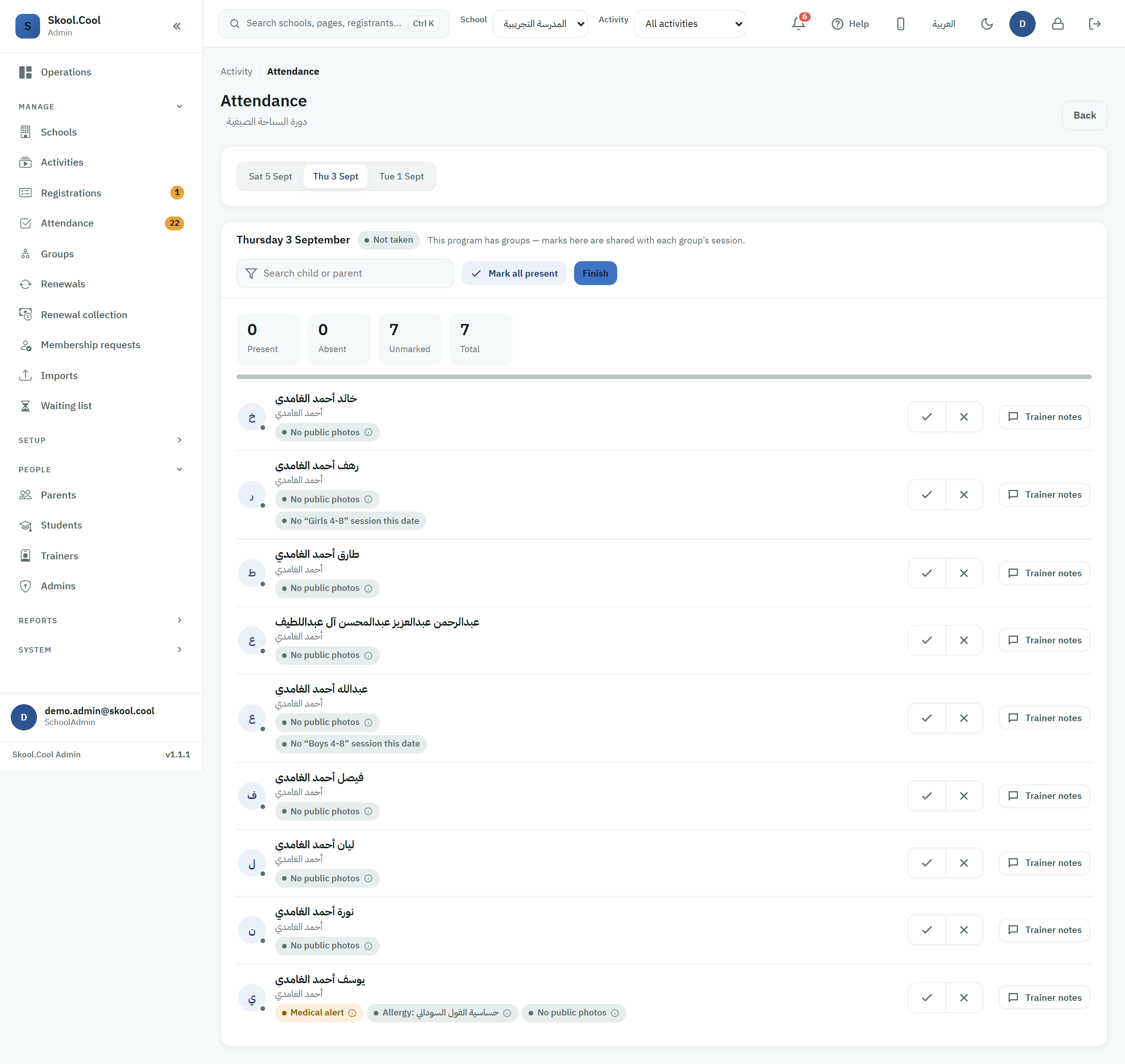
- From the Attendance screen press Mark against the activity or session (or open attendance from the activity's screen) to open the roster.
- At the top of the roster is a strip of session dates. The system shows only sessions dated today or earlier, and hides future sessions automatically until their time comes.
- The strip shows the most recent five sessions by default. If the session is older and not shown, press More to expand the list (the button then becomes Less to collapse it).
- Press the date of the past session whose attendance you want to edit; the roster of student names and the states recorded for that session load. Next to the session's name is a badge showing its state: Complete, Partial or Not taken.
- Go to the student's name and press the right state button next to it: Present (a ✓) or Absent (a ✕). To undo a wrong mark, press the active button again and the mark is cleared, returning the student to Unmarked.
- To find someone quickly use the Search child or parent field, or press Mark all present to mark the whole roster present in one go and then adjust the exceptions.
- Every change is saved automatically in the background, and the present, absent and unmarked counters update immediately. The save indicator at the top of the screen shows Saving… and then All saved; and if saving fails, Save failed — retry appears so you can retry with one press.
- When you are done, press Finish to commit any pending changes and show the attendance-saved message.
What you should end up with
- Each student's new state is saved, and the session's attendance and absence rates update immediately.
- Once every student is marked, the session's badge changes to Complete and the session leaves the Missing attendance list.
- The changes are reflected in the attendance reports.
Frequently asked questions
Where do I find the old sessions whose attendance I want to edit? From the Attendance screen press Mark against the activity, and the date strip then shows past sessions only; press More to see older ones. For more on taking attendance, see Taking session attendance.
Why does a session with a future date not appear? Because this screen shows only sessions dated today or earlier, and hides future ones until their time comes. Today's session attendance is taken from Mark as usual.
How do I return a student from "Present" to "Unmarked"? Press the active state button again (Present or Absent) and the mark is cleared, returning the student to Unmarked. The three states are explained in Attendance states.
Do I have to press a save button after every change? No; every change is saved automatically. Watch the save indicator at the top of the screen until All saved appears, and if saving fails press the retry link. Details in Autosave and working offline.
What does a "Partial" badge on a session mean? The session badge shows its state: Complete when everyone is marked, Partial while some students are still Unmarked, and Not taken before any state is recorded. Finish the marking with Mark all present or by setting each student individually.