Recording students' presence and absence for a session
Goal
Take attendance for daily sessions and record each student's state (present, absent, or unmarked), so participation rates are documented accurately and easily.
When do you need this?
At the start or end of an activity's scheduled session, to record who was there and who was not.
Before you start
- Permission required: permission to take attendance (granted to trainers for the activities assigned to them, and to coordinators and managers for every activity).
- Only past and current sessions — those on or before today's date — appear in the list; the system prevents attendance being taken for future sessions.
Where it lives
Sidebar > the Today's work group > Attendance (the attendance hub) > find the activity and press Mark.
Your school may enable day check-in for some programs: a single, program-wide screen for recording the arrival of all its students at once. It does not replace the session attendance described here; both are available and both write to the same attendance record. See Day check-in.
Next to each student's name is a Trainer notes button for recording a note about their performance and progress (tags, a rating, a note and a photo) and sharing it with the parent if you want. See The trainer journal.
How sessions appear in the attendance hub
In the today's sessions list in the attendance hub, each program's sessions are grouped together: the full program title appears at the top with its overall attendance, and its groups' sessions branch beneath it as nested lines — so you see the program once with its groups, rather than repeated lines. A program with a single session today appears on one line.
Inside the attendance roster itself, a group's session appears with the group's name (its Suffix) as the main heading and the main program's name as a secondary line for context, while the main program's own session appears under its name alone.
One attendance record per student — shared between the program and their group
When a student is placed in a group within a program, they have one attendance record for the day, saved on their group's session and shared between both levels: mark them from the full program's roster and they show as marked on their group's roster, and mark them from the group's roster and they show on the program's — with no duplication and no conflict.
- On the full program's roster, a Group: … badge appears next to a placed student's name, showing that their attendance is recorded on that group's session and appears in both places.
- If the student's group has no session on this date, they cannot be marked from this roster; a note appears next to them saying their group has no session on this date, the marking buttons are disabled, and they are not counted in the roster's total for this session.
Steps
1. Choosing the session
- On the attendance screen, a list of session dates appears, ordered newest first.
- Select the date of the session you want. (By default, the most recent session due to be marked is selected.) (If two sessions fall on the same date, each one's start time appears next to its date, and the roster heading shows its full time range, so you can tell them apart.)
- The system loads the complete list of names of the students enrolled on the course automatically, on a single page with no paging (so attendance data cannot be lost while browsing).
- If a colleague marks attendance on the same roster at the same time, the rows update in place without reloading the page, so your position in the list does not move and a mark you have just entered is not lost.
2. Recording the attendance state (tri-state marking)
The system uses three options for a student's state:
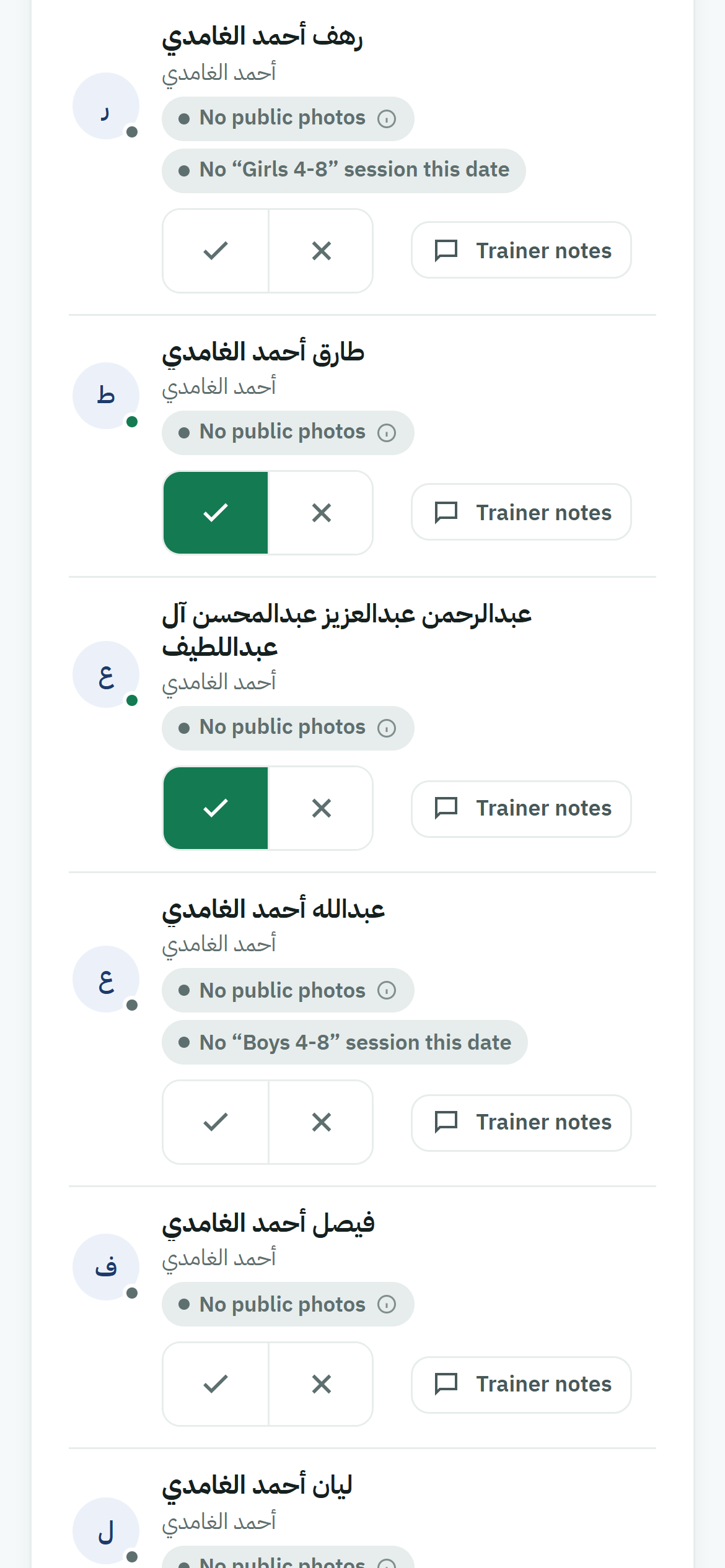
- Present: press the presence button (green).
- Absent: press the absence button (red).
- Unmarked: to clear a student's recorded state and return them to the default, press the selected option again to deselect it.
On a phone screen, the student's full name is shown on at most two lines without truncation, and the marking buttons and the Trainer notes button appear on a second line beneath the name — so a long name does not crowd out the marking buttons, and four-part names stay clearly readable.
3. The bulk shortcut (Mark all present)
When everyone is there except a handful, to speed things up:
- Press Mark all present at the top.
- Every student's state becomes Present in one press.
- Change the few absentees by hand, pressing Absent next to their names.
4. Saving and completing the session
- Individual saves happen automatically in the background (autosave).
- When you have finished marking the whole class, press Finish at the bottom of the form so the system saves the final confirmations and shows a green success message: attendance saved.
On the Trainer follow-up screen a session counts as marked on time if its children were marked before 12:00 noon on the next working day; Thursday, Friday and Saturday sessions are due by Sunday 12:00. Each child's first mark time is what counts, so correcting a state later does not make it late. If some children are still without a state after the deadline, the session counts as Incomplete.
Live session statistics
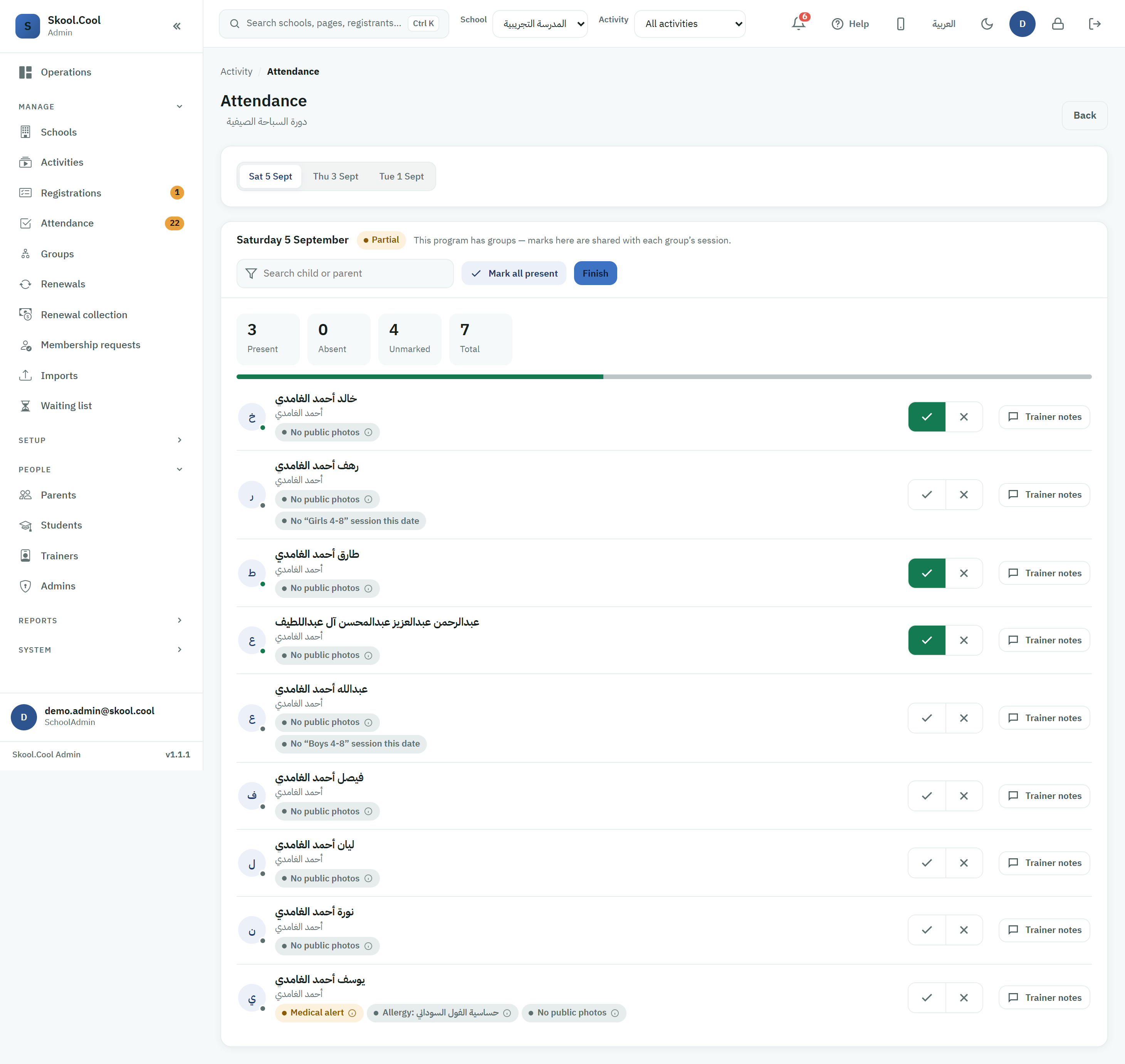
At the top, the screen shows a live counter that reacts to your input, telling the trainer:
- The session's attendance percentage and the number present.
- The session's absence percentage and the number absent.
- How many students are still unmarked, to remind you to complete the roster.
Safety indicators on the attendance roster
To help the trainer take the right precautions during the session, safety text badges may appear next to a student's name:
- Life-threatening: an urgent red badge.
- Medical alert: an amber badge for a recorded health condition.
- Allergy: …: a short summary of the allergy.
- No public photos: no consent for public photography.
Press any badge to see its details under Safety information, and close them with the Close button (×) at their top or by pressing outside them.
The health badges appear only to those with permission to see students' health information. The absence of a badge means "not recorded yet, or not shown to you" — not "there is no condition". For more detail, open the student's profile from the registrations screen.
The schedule conflict marker
A text marker starting with Conflicts with may appear next to a student's name if they have another activity clashing with this particular session. It names that activity and gives its session time, for example "Conflicts with Swimming 16:00–17:00". If the clashing commitment is at another school, its name is not shown: the marker reads Conflicts with an activity at another school, with the time alone. It is a warning that the student may be absent because of an overlapping commitment, and it does not affect recording their attendance. For details, see Student schedule conflicts.
Frequently asked questions
How do I record students' presence and absence in an activity's session? From Attendance, choose the activity and press Mark, then set each student to Present or Absent — saving is automatic, and press Finish when you are done.
Can I mark every student at once? Yes, press Mark all present at the top to set everyone to Present, then change the few absentees by hand.
A student's name did not appear on the attendance roster — why? The roster shows only students who are registered and activated on the activity. Check that their registration is paid and active; requests that are pending review or awaiting payment do not appear yet.
How do I change a student's absence after saving? From Editing past attendance — you open the session, change the state, and the edit is saved.
I marked a student on their group's session — why are they marked on the program's roster too? Because each student has one attendance record for the day, shared between the program and their group; so marking at either level appears in both places, with no duplication or conflict.
I am a group's trainer — why does the roster show only my group's children? Because the level of assignment is the level of visibility: a trainer assigned to a group sees only the children placed in it, even when they open the main program's sessions. A trainer assigned to the main program sees everyone. See What does a trainer see?.
I got a message saying attendance was saved except for N children who are no longer on this list — what happened? Those children were moved to another group, or their registration was transferred or removed, while you were marking. The other children's attendance was saved and nothing was saved for them. Press Refresh and they disappear from the roster. A child who was moved to another group or transferred to another activity is marked from their new group's or activity's roster; a child whose registration was removed is no longer marked.