Following up missing attendance
Goal
Gather every past session whose attendance is still incomplete into one place, ordered by how overdue they are, so you can follow them up and finish marking them before they pile up.
When do you need this?
When you want to be sure no session has gone unmarked — an end-of-day or end-of-week review to check that every session due has had its attendance recorded.
Before you start
- Permission required: permission to view attendance to open the queue, and permission to take attendance to go on and complete a session's marking.
- The screen shows past sessions that still have registered, active students with no attendance state recorded; sessions that are fully marked, and future sessions, do not appear.
Where it lives
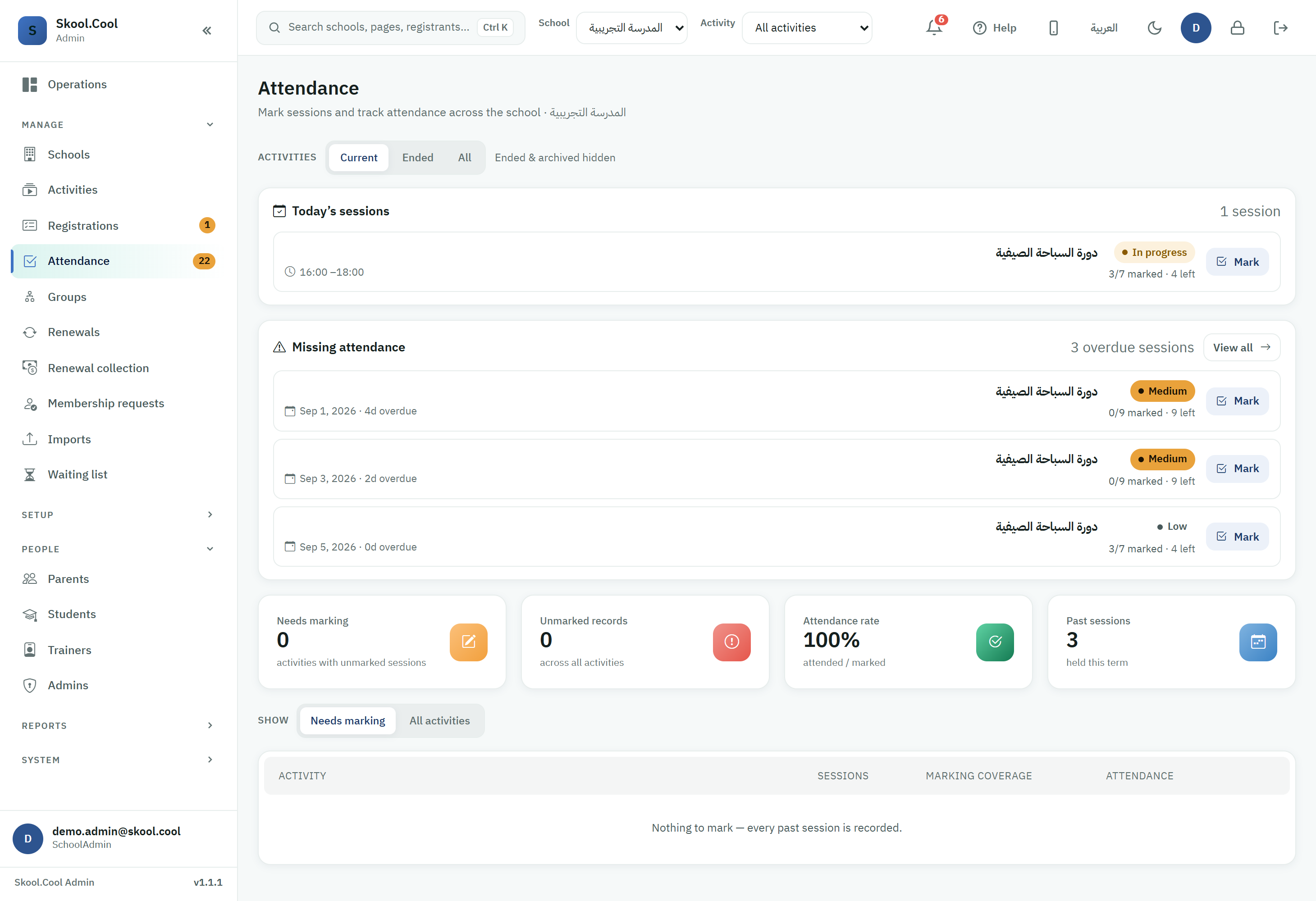
Sidebar > the Today's work group > Attendance (the attendance hub) > on the Missing attendance card press View all.
The Missing attendance card inside the attendance hub shows a short sample of the most overdue sessions. The View all screen shows the complete queue with its own filters, and is the better place for working through them systematically.
What you see on the screen
The overdue-session counter
At the top of the screen is a counter of the total sessions with incomplete attendance, next to a description of overdue sessions (its wording changes with the number). It is a quick view of how much follow-up is needed.
The activity scope filter
The Activities bar decides which activities count towards the queue, and has three modes:
- Current (the default): hides ended and archived activities, so a program whose season has finished does not keep generating overdue alerts — a hint appears saying ended and archived ones are hidden.
- Ended: shows ended and archived activities only — a hint appears saying ended and archived only.
- All: with no exclusions.
Your choice of scope is remembered and applied when you reopen the screen.
The severity filter
The Severity bar filters the sessions shown by how overdue they are, immediately and without a reload:
- All
- High
- Medium
- Low
The queue table
Each overdue session has a row showing:
- Activity: the activity's name, and the session's time if there is one.
- Date: the session's date.
- Overdue: a badge with the severity (High / Medium / Low) and the number of days overdue.
- Unmarked: how many students have no state recorded yet, with a summary of how many of the total are marked, showing how much of the roster is complete.
- A Mark button: takes you straight to that particular session's roster to finish the marking. See Taking session attendance.
Sessions are ordered most overdue first, so you start your follow-up with the most important.
States and exceptions
- No missing sessions: if every past session is fully marked, a message appears saying everything is in order with no sessions of incomplete attendance, alongside a line confirming every past session is fully marked. This is the state you want.
- No results within the filter: if no session matches the chosen severity filter, a no-results message appears — try widening the filter to All.
- The Mark button is disabled: in rare cases going straight from the row is not possible, and a hint appears asking you to open it from the activity — in which case open the activity and enter session attendance from its page.
- Could not load: on a fetch error, a message appears with a Retry button.
Frequently asked questions
Where do I find the missing attendance screen? From the Attendance hub → the Missing attendance card → press View all to open the complete queue.
Why does an ended activity not appear in the queue? Because the default activity scope, Current, hides ended and archived ones. Switch the scope to Ended or All to see them.
What do the High, Medium and Low severities mean? They indicate how far past its date the session is; the highest severity is the most overdue and the first to follow up, and you can filter the queue to a single level.
I pressed "Mark" — what happens? The system takes you straight to that particular session's attendance roster, where you finish marking the unmarked students and it saves automatically.
Related
- Taking session attendance
- Editing past attendance
- Attendance reports
- Day check-in
- Trainer follow-up: who marked each session and when, against its deadline, for every trainer and every week.