Adding and verifying your email address
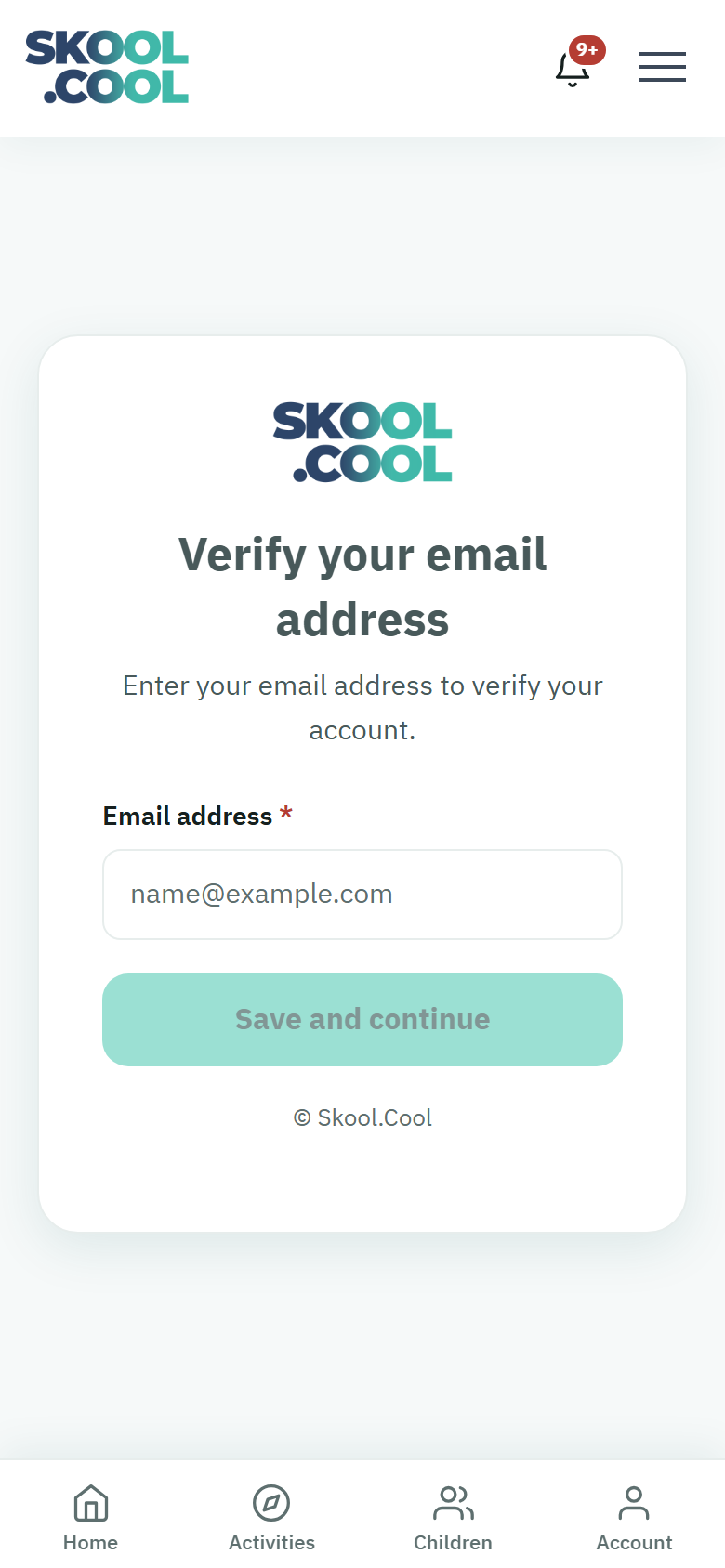
Adding your email address to your Skool.Cool account is optional, but it matters. Once it is verified, your booking confirmations, payment invoices, attendance notifications and important alerts from the school all reach you by email. Signing in itself is by mobile number; the email address adds a second, safe channel for notifications.
Verification happens in two stages: first you enter your address, then you confirm it with a six-digit code that arrives in your inbox.
Stage one: adding the address
There are two ways to add it:
a) From the verification screen after signing in
- If you sign in without a verified address, the Verify your email address screen may appear, inviting you to add your address to secure your account and receive notifications about your children's activities.
- Type your address in the Email address field, in the right form —
name@example.com. - Press Save and continue.
If the address is not in a valid form, the notice "That email address isn't valid." appears; and if you leave the field empty, "Email address is required." appears.
b) From your profile page
- Open My profile, then press Edit.
- Type your address in the Email field. You will see the note "If you change your email, you'll need to verify it again."
- Press Save changes.
After saving, the app takes you to the code-entry stage to confirm the address.
Stage two: confirming the address with the code
- The system automatically sends a message containing a six-digit verification code to the address you entered.
- Open your inbox, and check the spam folder too if you cannot find the message.
- Go back to the Confirm your email address screen in the app and enter the code in its field.
- Press Confirm.
If the code has not arrived, press Resend, shown beneath the field beside Didn't get the code?, and a new code is sent to the same address.
Only the latest code you received works: each new code — from Resend, or from changing the address — cancels the ones before it, so enter the code from the newest message.
When you enter the right code, the system finishes verifying your address and returns you to the page you were on. Your verified address then appears among your details on the My profile page.
Situations you may meet
- The code is wrong or has expired: an error notice appears above the button. Check that you copied the whole code without spaces and that it is from the newest message, or ask for a new one with Resend. After five wrong attempts the code itself stops working to protect your address — even if you then enter the right one — so ask for a new code and enter that.
- The message has not arrived: wait a minute, check the spam folder, and check the address is spelled right. If you need to, change the address from My profile and send again.
- You want to change the address later: go to My profile → Edit, change the address and save, then confirm it with a code again.
- The mobile number is not edited here: the mobile field on the edit page cannot be edited directly. To change it, press the Change mobile number link under it and confirm your current number, then the new one. If you can no longer use your current number, contact support or your school.
Frequently asked questions
Is adding an email address compulsory?
No, it is optional, and signing in is by mobile number. But verifying an address makes sure your booking, payment and attendance notifications reach you on a second, safe channel, so we recommend adding one.
What do I do if the verification code has not arrived?
Check the spam folder first, and check the address you entered is right. Then press Resend beneath the code field for a new one. If the problem continues, change the address from your profile page and try again.
How do I change my email address after verifying it?
Open My profile and press Edit, then change the address field and press Save changes. The system will ask you to confirm the new address with a six-digit code before it is accepted.
Why do I need to confirm the address with a code?
Confirming with a code proves the address really is yours, and stops your notifications going to a wrong one. It is a simple security step, done once when you add the address or change it.