Understanding an activity's details page and its schedule
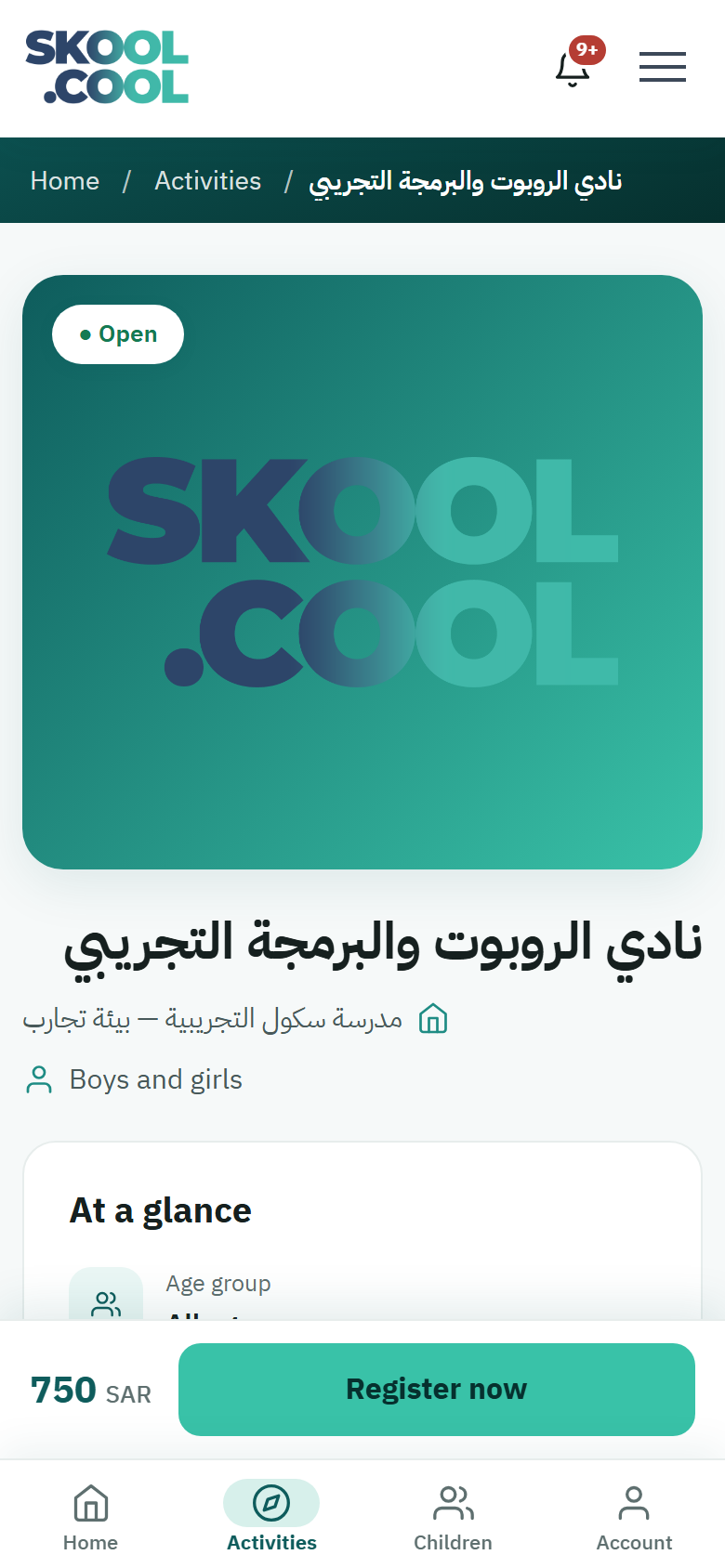
Once you have found an activity that suits and pressed its card, you go to its full details page. This page shows everything you need in order to decide about registering your child: the activity's status, the age group, the capacity, the schedule, the fees, and the register button. This guide explains each section and what it means for you.
The activity's name, its description and the school's name appear as the school wrote them.
How to reach the page
- From the home page or the activities list, browse the cards or use the search and the filters.
- Press the card of the activity that interests you.
- The details page opens, with a trail at the top: Home / Activities / the activity's name.
The sections of an activity's details page
1. The activity's picture and its status badge
- One picture of the activity is shown at the top of the page. Where there is none, the platform's logo appears instead.
- On the picture is a status badge:
● Openwhen registration is available, or● Closedwhen it is not — because the places are full or the period has ended. - Directly beneath the picture are the activity's name, the name of the school hosting it, who it is for, and a Location on the map link.
2. The At a glance card
A panel summarising the activity's most important details in a few short lines. It may show the following, depending on what the school entered:
- Age group: the stage and the age range allowed, such as "Primary (9–12 years)".
- Capacity: the maximum number of places, shown as a number of places.
- Type: Private or Public.
- Level: Beginner, Intermediate or Advanced.
- Start date and End date of the activity.
Who the activity is for appears as one of: Boys, Girls, or Boys and girls.
3. The About the activity section
Descriptive text written by the school, explaining what the activity is and what it offers. It may include the skills it aims at or any requirements on the student. If the text is long, a Read more button appears to show it in full, and Show less to fold it away again.
4. The schedule
The Schedule section gives a quick summary of the sessions:
- The total number of Sessions.
- The Days set aside each week — Sunday and Tuesday, say.
- The daily Time of the session. Where the times differ between sessions, it shows Multiple times.
- The full span, from the start date to the end date.
To see each time separately, press Show all sessions (N), and a detailed table appears with columns for the number, the date, the day, the start time (From) and the end time (To). To close the table, press Hide the schedule.
5. The location on the map
The Location on the map link appears beside the school's name, and opens the school's location in Google Maps in a new window, to help you plan the journey there and back.
6. The booking card and the mobile bar
On the right of the page — or beneath it on a phone — is the booking card, showing:
- The fees: the activity's price in Saudi riyals, or the word Free if there is no charge.
- The capacity, the status and the gender, in brief lines.
- The action button:
- Register now when the activity's status is open.
- Registration is closed for now, disabled, when the activity is closed.
- Loading… while the activity's details are being fetched.
- A reassuring note: Secure registration through Skool.Cool.
On a phone, a fixed bar at the bottom of the screen shows the fees and the register button at all times while you read the page, so the action stays within reach without scrolling back up.
Pressing Register now takes you to the registration page, to choose your child and complete the request.
Particular situations
- A schedule-clash notice: if you are signed in and one of your children has an activity whose times clash with this one, a notice appears in the schedule section: "This activity's schedule clashes completely with [your child's name]'s schedule" for a full clash, or "Clashes partly with [your child's name]'s schedule" for a partial one. The notice here is for guidance; when you register, you see the clash details and acknowledge the clash before continuing (for a full clash, once this has been switched on for the activity's school; otherwise the child appears unselectable).
- The activity does not exist: if the link is old, or the activity was closed or deleted, a card headed Activity not found appears, with the message "Sorry, this activity isn't available. It may have been closed or removed." and a Back to home button.
- Registration is closed: when the activity's status is closed, you can still read all its details, but the register button is disabled.
Frequently asked questions
What is the difference between Open and Closed on an activity's page?
Open means registration is available and Register now is live. Closed means registration is not available at the moment — the places may be full or the registration period may have ended — and the button reads Registration is closed for now, without your losing the ability to read the details.
How do I find the activity's days and times in detail?
Open the Schedule section and read the summary — the number of sessions, the days, the time and the span — then press Show all sessions to see a table of each time separately, with the date, the day, and the start and end times.
Are the fees shown final?
Yes. The fee is shown in Saudi riyals on the booking card, or the word Free if the activity has no charge. It is paid after the registration is complete, by whichever payment method is available.
Why am I seeing a clash notice on an activity's page?
Because you are signed in and one of your children has an activity whose times overlap with this one. The notice helps you decide with your eyes open, and if you want to register anyway, the registration page shows you the clash details for you to acknowledge before continuing. For a full clash, this depends on acknowledging a full clash having been switched on for the activity's school. See Registering for an activity.