Previous activities and the archive
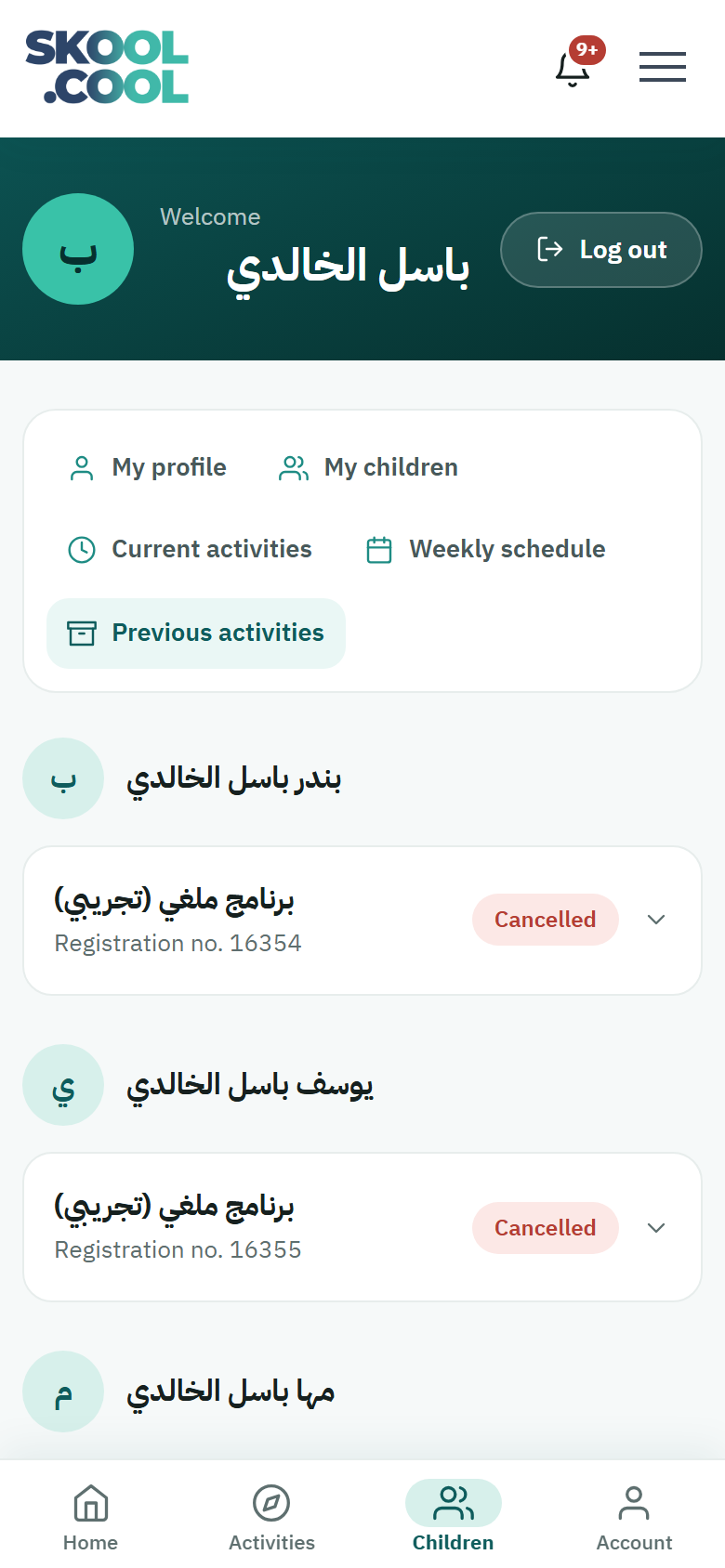
Your account keeps a complete record of the finished activities your children took part in, so you can come back to it at any time to check a registration's final status, or to look at the attendance record and the trainer's notes for each session.
How do I open the previous activities page?
- Sign in to your account, then open My account.
- Choose Previous activities from the menu.
- The finished activities appear grouped under each child's name, with your own registration — if you have one — under the heading Me.
If you have no finished activity yet, the message "You have no previous activities." appears.
What appears on each card?
Each finished activity appears as a card holding:
- The activity's name as the school wrote it, and its batch number if it has one.
- The registration number for that activity, for reference when contacting the school.
- The final status badge for the registration, in the same colours used across the rest of your account.
These are the statuses you are most likely to see here:
- Completed: the activity's period ended and the registration closed successfully.
- Partially paid: the activity has ended and part of its fees is still unpaid. Expand the card to see how much you have paid out of the total and what is outstanding, and contact the school about the remainder. This status and the amounts appear only to the parent who registered the child.
- Ongoing: an active registration entered into the record after the activity closed.
- Transferred: the child was moved to an alternative activity.
- Absent: the activity ended with no attendance.
- Cancelled: the registration was cancelled.
- Cancelled — no payment: the registration was cancelled automatically because the payment was not completed in time.
- Refunded: the fees were refunded.
The status badge here uses the same meanings set out on The registration and payment statuses, so go there to understand each one in detail.
How do I see the attendance record for a past activity?
- Press the activity's card to expand it.
- A View activity button appears, taking you to the activity's full details page.
- Under Attendance, every session that has come due is listed, and against each:
- The session's date and the day's name.
- A badge reading Present or Absent, according to what was recorded, or Not recorded where your child was never marked for that session — which is not an absence.
- The trainer's note for that session, if they wrote one.
The attendance record section appears for every session that has come due, even one where nothing was recorded — those read Not recorded. It is absent only when the activity has no session that has come due yet.
Important notes
- Running activities have their own page. To see activities that are still going, open Current activities.
- The record is for reading only. You cannot register or change attendance from this page; it is a reference archive.
- The attendance shown here comes from the school's recording during the activity, and can also be reviewed from The attendance record.
Frequently asked questions
Where do I find my child's activities that have finished?
Open My account, then Previous activities, and you will find every finished activity grouped under the child's name.
Why does my child's activity show Cancelled or Cancelled — no payment?
Cancelled means the registration was cancelled, while Cancelled — no payment means the system cancelled it automatically because the payment was not completed in time. For each status in detail, see The registration and payment statuses.
How do I see my child's attendance and the trainer's notes on an old activity?
Press the activity's card to expand it, then look at the Attendance section, which shows each session with a Present, Absent or Not recorded badge and the trainer's note if there is one.
Can I restore a cancelled activity or change it from this page?
No; the previous activities page is for reading only. If you want to register again, look for the activity through Current activities or in the list of activities available.