Setting capacity, fees, payment methods and the sibling discount
Goal
Set an activity's financial values and its maximum capacity, choose which payment methods parents can use, and turn on the sibling discount when you need it.
When do you need this?
- When setting an activity up for the first time, before publishing it (as part of creating a new activity).
- When you want to open more seats on an activity that is in growing demand.
- When changing the enrolment fee, or turning on a promotional sibling-discount policy.
Before you start
- You need permission to edit the activity to reach and update these fields.
- The payment methods available to an activity are automatically limited to those enabled at the school branch level; if a method is not enabled for the school, it does not appear as an option on the activity.
Where it lives
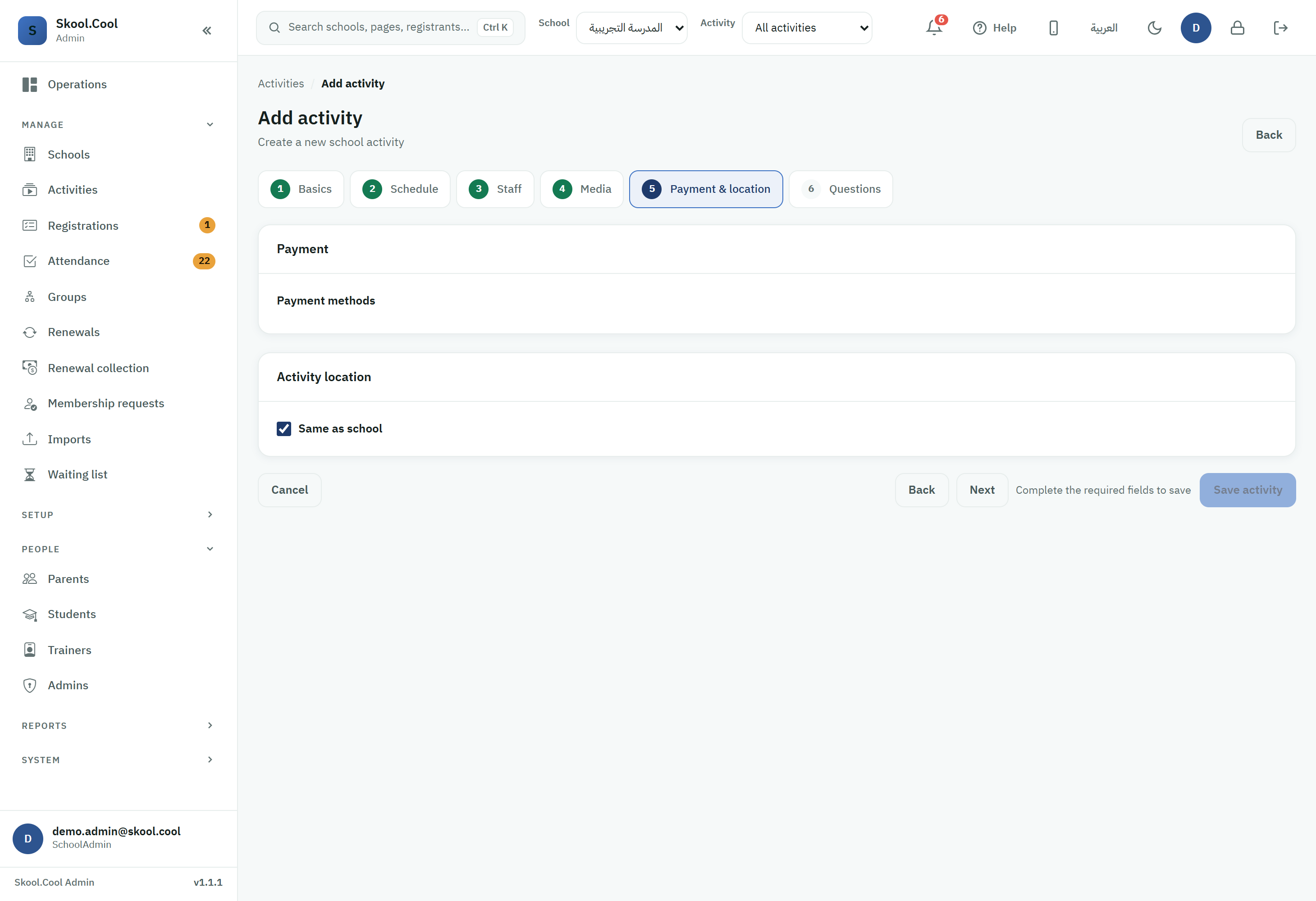
Sidebar > Activities > open the activity's options > choose Edit. Capacity, fees and the sibling discount are set on the Basics tab (the first one), while Payment methods (Cash / Online / Free) are set on the Payment & location tab.
Steps
1. Setting the capacity
- In Capacity, enter the maximum number of students the activity accepts (for example,
30). The field is required. - The system does not accept registrations beyond this number; requests over capacity are handled through the Waiting list. For details, see The waiting list.
If you lower the capacity below the number of currently accepted students (from 30 seats to 20, say, with 25 students accepted):
- No existing registration is cancelled automatically — the accepted students stay exactly as they are.
- The activity shows an Over capacity indicator in the activities hub, and the system blocks any new registration until capacity is above the number of accepted students again (either by raising capacity, or after some students withdraw).
2. Setting the fee and the payment methods
- In Fees (SAR), enter the total enrolment cost in Saudi riyals. It can be left empty for free activities. The fee is either zero (a free activity) or at least
1.00SAR; if you enter a value in between, a red message appears directly under the field (see the input and validation rules below). - On the Payment & location tab, tick the payment methods the activity accepts:
- Cash: the parent chooses to pay in cash at the school, and the registration stays Awaiting payment until an authorised member of staff (a Cashier, for example) confirms the money was received. See Confirm a cash payment.
- Online: lets the parent pay immediately through the secure payment gateway inside the app. See Switching to online payment.
- Free: removes the payment requirement; the registration becomes active once it is approved, with nothing owed.
Online payment cannot charge less than 1 SAR. If the amount due on a registration is under 1 SAR when it is paid online (on an activity whose fee or discount was set before this limit applied, for example), 1 SAR is charged and the registration shows the amount actually charged. Free activities stay free, and a cash payment collects the amount due as it is, with no rounding. The entry rule (a fee of 0 or at least 1.00 SAR) still applies to every activity, even one that takes cash only.
3. Setting up the sibling discount
To encourage families to enrol more than one child in the same activity:
- Turn on Sibling discount — 2nd child onward on the Basics tab.
- Choose the kind of discount from Discount type:
- Percentage (%): a percentage discount (such as
15%) off the fee for the second child onwards. - Fixed amount (SAR): a fixed discount (such as
75) for the second child onwards.
- Percentage (%): a percentage discount (such as
- Enter the amount in Discount value. The discount is applied automatically from the second child onwards within the same family.
If the discount would leave the second and later children paying more than zero but less than 1.00 SAR, a red message appears under Discount value and the activity is not saved until you correct it. For example, a fee of 5 SAR with a 90% discount leaves the second child paying half a riyal. In that case, either make the discount a full one (so the second child pays nothing), or leave at least 1.00 SAR to pay.
Input and validation rules
- Capacity and Fees: the form does not change what you type in them; it refuses a value that breaks a rule with a message under that field. Capacity is required and must be a whole number greater than zero; a
0or a fraction such as12.5shows "Capacity must be greater than 0." or "Capacity must be a whole number (no fractions).". Fees can be left empty for free activities, and is the total the parent pays, including VAT where it applies. - The
1.00SAR limit: the fee is either zero or at least1.00SAR, and a sibling discount that leaves the second and later children paying more than zero but less than1.00SAR is not accepted. The screen warns you as soon as you enter a value that breaks the limit, with a red message under that field, and the message does not disable the save button; but if you press it (Save changes on the edit screen, or Save activity when adding) while the value still breaks the limit, nothing is saved and the same message is repeated in the red bar above the save and navigation buttons, then disappears from it as soon as you correct the value. If the server refuses the value for the same reason, the same message appears in that bar. The two messages read as follows on screen:- Under Fees: "Fees must be 0 for a free activity, or at least 1.00 SAR. Online payment cannot charge less than 1.00 SAR."
- Under Discount value: "This sibling discount leaves the 2nd child onward paying less than 1.00 SAR, which online payment cannot charge. Make it a full discount, or leave at least 1.00 SAR to pay."
- On the edit screen: the limit applies only when you change the fee or the sibling discount, so saving an edit to other fields on an existing activity is not affected by it. A group's fee is not checked, because a registration is always on the main program, so the amount charged is the program's price.
- The new batch's fee when you extend: the same fee rule applies in the Extend program wizard, which has no sibling discount. On the Seats & fees step, the same fee message appears under Fees and Next is disabled; on the Confirm step it appears in a red bar beside Create the batch, which stays disabled until you correct the fee. If the server refuses the fee for this reason, the same message appears in a red bar, and it goes as soon as you change the fee.
- Payment methods: at least one method must be selected. If you clear every checkbox, a message blocks the save: please select at least one payment method.
What you should end up with
After a successful save, a message confirms the activity was updated, and the new values apply immediately: the new capacity governs which registrations are accepted, the fee is shown to parents, and the sibling discount is applied automatically from the second child onwards when a family registers.
Frequently asked questions
What happens to registrations once capacity is full? Once capacity is reached, the system does not accept new registrations beyond it, and requests over capacity are handled through the Waiting list. See The waiting list.
How do I turn on the sibling discount for an activity? On the Basics tab, turn on Sibling discount — 2nd child onward, then choose the discount type (percentage or fixed amount) and enter its value. The discount applies automatically from the second child onwards within the same family.
Why did the system refuse to save the sibling discount?
Because the discount leaves the second and later children paying less than 1.00 SAR, and online payment cannot charge less than that; this is why the message appears under Discount value, and is repeated in the red bar if you press the save button. Either make the discount a full one, or reduce it so that the second child still pays at least 1.00 SAR. For example, on a fee of 5 SAR a 90% discount is refused, while 80% (leaving 1 SAR) or 100% is accepted.
When extending a program, a message appeared under Fees and Next is disabled. What do I do?
The new batch's fee is more than zero but less than 1.00 SAR. Change it to 0 (a free batch) or to at least 1.00 SAR and the button becomes available. This can happen without you typing anything in the field, because the wizard starts from the current program's fee, which may have been set below 1.00 SAR before this limit applied.
Why can I not find the online payment option on the activity? The payment methods available to an activity are limited to those enabled at the school branch level; if Online is not enabled for the school, it does not appear on the activity. Enable it at school level first, then see Switching to online payment.
I lowered the capacity and now I see "Over capacity" — what do I do? The indicator means the number of accepted students exceeds the current capacity. No student is cancelled automatically, and no new registration will be accepted until capacity is above the number of accepted students — either by raising Capacity, or after some students withdraw.
Where do I change the fee for an activity that already has registrations? Open the activity and press Edit, then change Fees on the Basics tab and save. The new fee applies to the activity as soon as it is saved.