Scheduling an activity's weekly sessions
Goal
Spread an activity's sessions across the days of the week and set each session's time, building the weekly schedule that student attendance is taken against.
When do you need this?
- When designing the session schedule for a new activity, after creating it and setting its date range.
- When adding or cancelling sessions in a particular week (an unexpected holiday, an extension, redistributing the days).
- When changing a session's time (moving it from the morning to the afternoon, for example).
Before you start
- You need permission to schedule the activity (saving weekly sessions); without it, neither the Schedule action nor the save button appears.
- The date range (start and end date) is set first, when the activity is created or from its edit screen, because the weekly grid is built inside that range only. See Create a new activity.
- If either date is missing, no grid appears: the screen shows Set the dates first with an Edit activity button (or Edit group) that opens the edit screen directly, and Save schedule does not appear until the dates are set.
- If the activity has active registrations, editing the schedule becomes locked except for anyone holding the permission to edit dates and the schedule after registrations exist.
- It is worth agreeing the times with the responsible trainer in advance, so they fit and do not clash with other activities assigned to them.
Where it lives
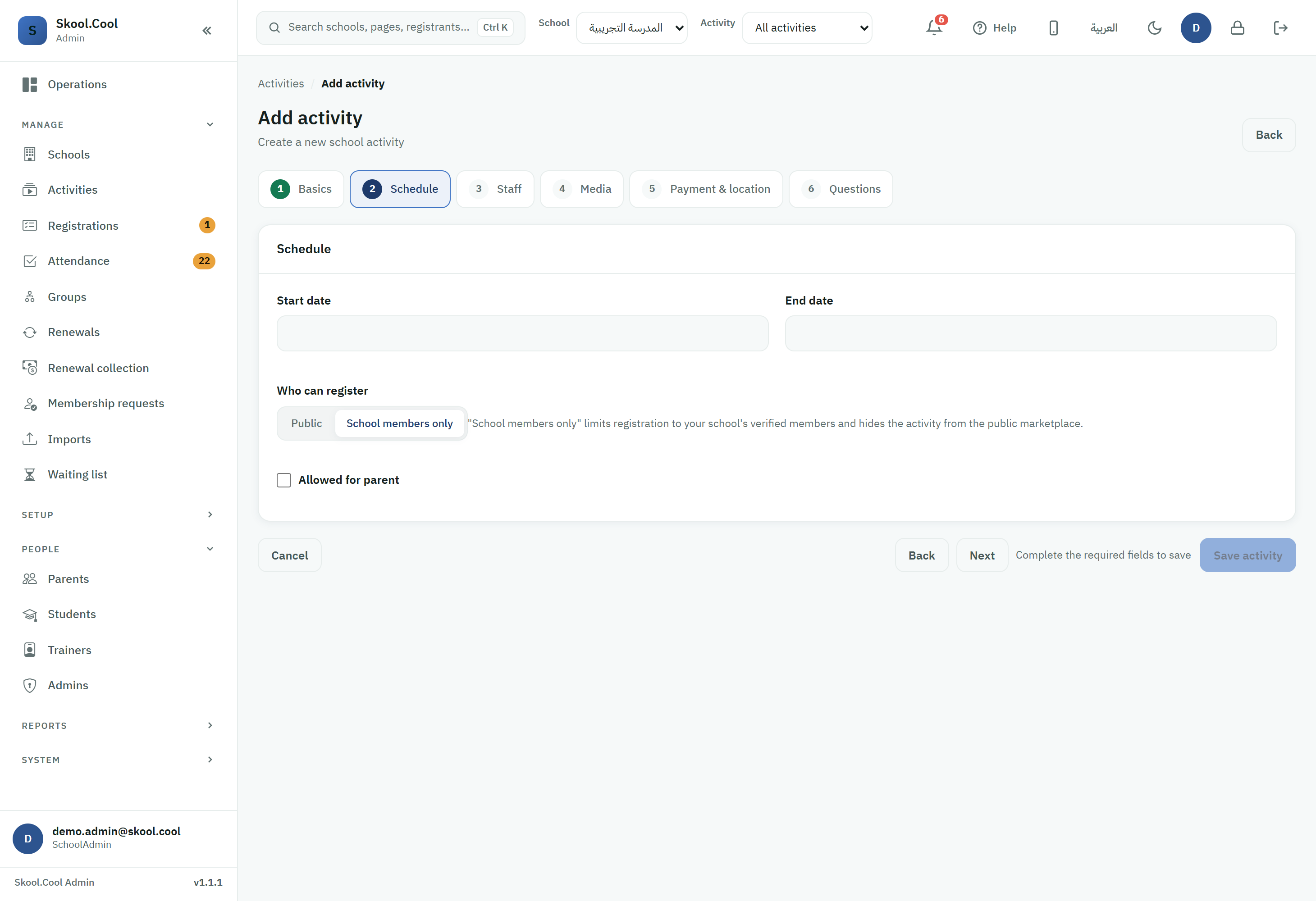
Sidebar > Activities > open the activity and its actions, then choose Schedule. The Activity schedule screen opens, subtitled with an instruction to set the weekly session times.
To change the date range itself (start and end), go into Edit and move to the Schedule step — spreading the sessions across days and times happens on the Activity schedule screen described here.
Steps
1. Read the schedule summary at the top
At the top of the Weekly sessions card there are three information cards:
- Start date and End date — read-only (they are edited from the activity's edit screen).
- Selected sessions — a live counter of how many sessions are enabled and valid, updating with every change.
2. Choose the session days and times
The grid shows a row per week (Week 1, Week 2, and so on) and a column per day from Saturday to Friday. Each day cell shows its date, and then:
- Tick the Session box on the day a class will be held.
- Choose the session's start time from the first list, then its end time from the second.
- Times are shown on a 12-hour clock with am/pm, in quarter-hour steps (for example, from
5:00 pmto6:30 pm).
- Times are shown on a 12-hour clock with am/pm, in quarter-hour steps (for example, from
- Repeat for every day you want. The Selected sessions counter updates immediately with each one.
3. Use the repeat tools to speed up entry
Instead of entering every day by hand, the small buttons inside each cell copy that day's time forward:
- Repeat next day — copies the time and the enabled state to the following day.
- Repeat day after next — copies them to the day after that.
- Repeat next weeks (at the end of the week's row) — copies the whole of the current week's pattern to every later week.
- Clear schedule — resets every session so you can start again (shown only while the schedule is editable).
4. Save the schedule
Press Save schedule at the top of the screen. On success, a message confirms the activity's schedule was saved. To leave without saving, press Back.
The button saves what is in the grid only: sessions the grid does not show stay exactly as they are, unless you removed one yourself — see Sessions the grid does not show below.
What you should end up with
- The enabled sessions are saved and become the basis for taking student attendance for each session — see Take session attendance.
- The Selected sessions counter reflects the final number of sessions scheduled within the activity's date range.
Editing the schedule after registrations and attendance
The system becomes cautious as soon as an activity is tied to families or to recorded attendance — it never deletes sessions automatically:
- Active registrations (without the edit-after-registration permission): the schedule is locked entirely, and a message explains that families are actually registered, so changing it requires the permission to edit dates and the schedule after registrations.
- Active registrations (with the permission): you can edit, but a message warns that families are actually registered and that saving schedule changes will notify them in the app — that is, every save sends parents a notification.
- Sessions with recorded attendance: these stay locked for everyone, because attendance is a historical record, so their day and time cannot be changed.
Sessions the grid does not show
The grid is built inside the activity's date range only, and shows one session per day. So if you change the start or end date and some sessions fall outside the new range, or one day holds two sessions, those sessions do not appear in the grid — but they are not deleted, and families and trainers still see them.
You find them in a separate section above the grid called Sessions the grid does not show. Each one shows its date, its time, and why it is not in the grid: Before the start date, After the end date, or A second session that day.
- Saving the schedule keeps them as they are. None of them is removed unless you choose to remove it.
- To remove one, press Remove beside it — or Remove the upcoming ones to mark them all — then press Save schedule. Before you save, Undo takes it back.
- Only a session that has not started and has no attendance marked can be removed. A session that has started stays, and so does one with attendance; the reason is shown beside it.
- To bring a session back into the grid instead of removing it, widen the activity's dates on its edit screen so they include its day.
Frequently asked questions
Where do I find weekly session scheduling? From the sidebar open Activities, then open the activity's actions and choose Schedule to open the Activity schedule screen. Set the start and end dates first, when creating the activity.
What is the difference between the morning/afternoon activity day time and the session times? Activity day time is only a broad category (morning/afternoon) set in the activity's basics, for display and filtering. Each session's actual time is set per day inside the Schedule grid with the start and end lists.
I opened Activity schedule and no grid appeared — why? Most likely the activity (or group) has no start date or no end date, so the screen shows Set the dates first. Press Edit activity (or Edit group for a group) in that message, set both dates and save, then return to Schedule to see and edit the sessions. If it says No days to schedule instead, the end date is before the start date; correct both dates on the edit screen.
How do I repeat the same times across every week? Once a full week is set, press Repeat next weeks at the end of that week's row to copy its pattern to all later weeks, then press Save schedule.
Why can I not edit the schedule? Most likely because the activity has active registrations, which locks the schedule; editing it then requires the permission to edit dates and the schedule after registrations. Any session with recorded attendance also stays locked for everyone — see Editing past attendance.
I changed the activity's dates and now have sessions outside the range — what do I do? The system does not delete them automatically, and saving the schedule keeps them. Open Schedule: these sessions appear in the Sessions the grid does not show section above the grid. Press Remove beside each session you do not want (or Remove the upcoming ones), then Save schedule. A session that has started, or that has attendance marked, stays and cannot be removed. If you would rather keep them in the schedule, widen the activity's dates to include them — see The activity lifecycle.