Editing a child's details and completing their name
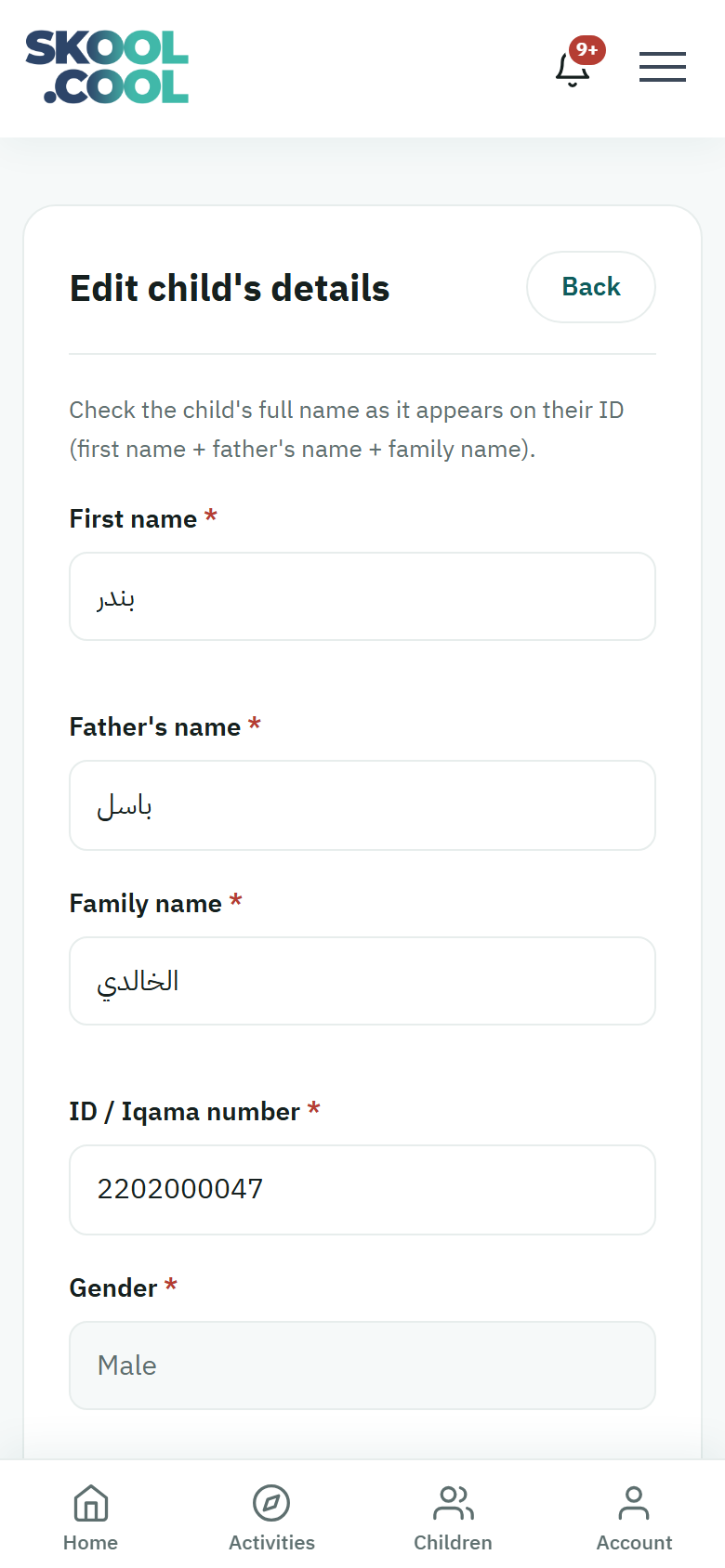
You can review and update your child's details at any time: correcting a spelling in the name, completing the three-part name, updating the ID number, or adding the health condition and setting the photo consent. Every change is saved in one place, inside the child's edit page.
The child's edit form has no field for a school. A child is linked to their school through the join code the school gives you, not from this page.
The steps for editing the details
- Open My account, then My children.
- Find the card of the child whose details you want to edit.
- Press Edit details beneath the card.
- Update the fields you need — all of them are required:
- First name, Father's name and Family name — exactly as on the ID.
- ID / Iqama number.
- Gender and Date of birth.
- Press Save changes at the bottom of the page.
At the top of the form is a reminder: "Check the child's full name as it appears on their ID (first name + father's name + family name)." And if you want to leave without saving, use Back at the top of the page, or Cancel beside the save button.
Completing the three-part name
If one of your children is registered with an incomplete name — a first name only, with no father's name or family name — a notice bar headed Complete the child's full name appears at the top of the My children page. The bar holds a button for each child with a missing name; press the child's name to go straight to their edit page.
Schools, clubs and activities require the student's name to be in three parts and to match their official documents, so that certificates can be issued, approvals secured, and insurance cover provided during activities. Complete the father's name and the family name and press Save changes, and the notice disappears — and later registration requests are not refused.
You can hide the bar for now by pressing its close mark (×), but it returns while any child still has an incomplete name.
Updating the health information
Inside the child's edit page there is a Health section, for adding or updating what supervisors need to know for your child's safety:
- Against the question Does your child have a health condition the supervisors should know about?, choose Yes or None.
- With Yes chosen, fill in whichever of the optional fields apply:
- Allergies — food, medicine or environmental.
- Chronic conditions — asthma or diabetes, say.
- Regular medication — the name, the dose and when it is taken.
- Special needs — mobility, sensory or dietary.
- What should the supervisor do in an emergency?
- And turn on Life-threatening condition where it applies — anaphylaxis, say — so an urgent alert shows for the supervisor.
- Choosing None automatically clears any health detail entered before.
- Press Save changes.
This information is shown only to the supervisors concerned during the activity, and never to other parents.
Setting the photo consent
In the Photo consent section you can give your consent, or withdraw it, at two separate levels, each of them optional. The section explains: the centre may take photos or videos of your child during activities; your child's photos in the Activity journal reach you and their other parents; the two options below are for any wider use than that, and your consent to them is optional and you can withdraw it at any time.
- Internal use: sharing your child's photos within the activity's closed group, with the group's parents.
- Public / marketing use: social media accounts, the website, and adverts.
Your consent is optional and affects neither your child's registration for activities nor the photos in the Activity journal, which always reach you. Any change is saved when you press Save changes. For what each option does, see The health profile and photo consent.
The notice about completing health details and photo consent
If you have not yet answered the health question or set the photo consent for one of your children, a bar headed Complete the health information and photo consent may appear at the top of the My children page. Press the child's name inside the bar to go straight to their edit page and complete both sections.
Frequently asked questions
Which fields can I edit in a child's details?
You can edit the first name, the father's name and the family name, the ID or Iqama number, the gender, and the date of birth, as well as the health and photo consent sections. All the name, ID, gender and date fields are required.
Why am I seeing the "Complete the child's full name" notice?
Because the child is registered with an incomplete name — a first name only. Complete the father's name and the family name as they appear on the ID and press Save changes, and the notice disappears by itself.
How do I change my child's school from here?
There is no school field in the child's edit form. A child is linked to their school through the join code the school gives you. See Adding a child for more.
Does editing the health condition or the photo consent affect my child's registration?
No. The health information is shown only to the supervisors concerned, for your child's safety, and the photo consent is entirely optional and does not affect whether a registration is accepted.