Managing link requests and invitations
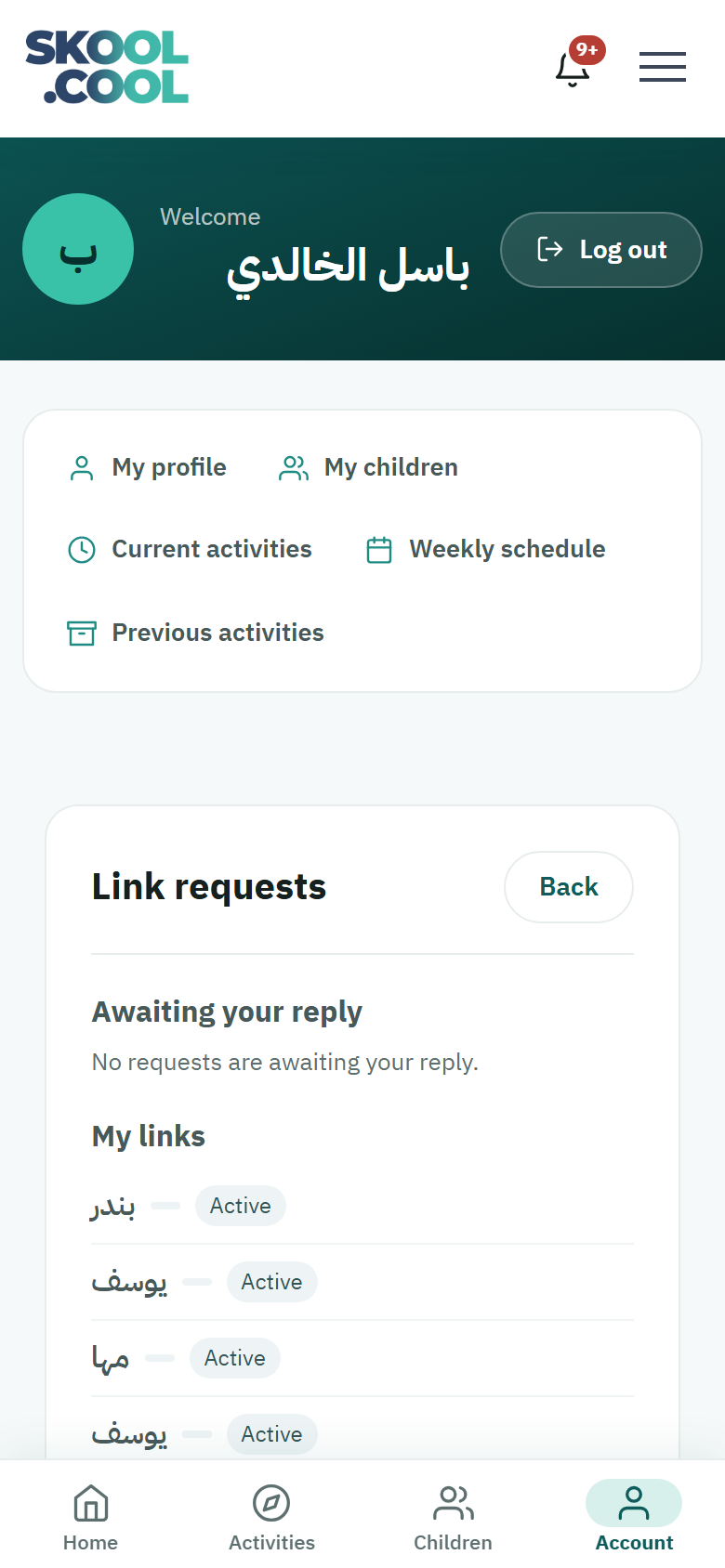
The Link requests page is where you control who shares your children's profiles. From here you answer the requests and invitations that reach you from other parents, and keep track of the links you have sent yourself.
To reach the page: from the My children menu go to Link requests, or use Back at the top of the page to return to the children list.
The page has two clear sections: Awaiting your reply and My links.
1) The Awaiting your reply section
This section shows everything that has reached you and needs a decision. If there is nothing, the message "No requests are awaiting your reply." appears.
Two things can reach you:
-
A link request, when another parent tries to link one of your children to their account, having checked the ID number and the date of birth. The text reads:
Request from [the parent's name] to link to the profile of [the child's name].
-
An invitation, when a guardian invites you to share their child's profile. The text reads:
Invitation from [the guardian's name] to share the profile of [the child's name].
The steps for replying
- To agree: press Approve, which is what the button is called for link requests, or Accept, which is what it is called for invitations. The link is activated at once and the child appears in both accounts.
- To decline: press Decline to close the request or invitation without granting any access.
Approving with a verification code (link requests only)
On incoming link requests specifically, beneath the buttons there is a link reading Or enter the code sent to your mobile. Press it and a field appears for a six-digit code sent to your phone, with a Confirm with code button. This is an alternative way of approving the request. If the code is shorter or longer than six digits, the message "The code is 6 digits." appears; and if it is wrong or expired, the message "The code is wrong or has expired." appears.
Note: the code option does not appear with invitations — an invitation is accepted by pressing Accept directly.
2) The My links section
This section shows the links connected to you and makes each one's state clear. If there are none, the message "No links yet." appears.
For each link it shows:
- The child's name.
- The kind of link: Request or Invite.
- The state, which is one of the following:
| The state shown | What it means |
|---|---|
| Pending | The other party has not replied yet. |
| Active | The link is active, and the child's details are visible to both parties. |
| Declined | The other party declined the link. |
| Revoked | The link was cancelled. |
Situations you may meet
- No requests appear: this is normal when there are no new requests or invitations; you will see the two messages "No requests are awaiting your reply." and "No links yet."
- The page will not load: the message "Couldn't load the requests." may appear when there is a connection problem — reload the page and try again.
- The action would not go through: if approving or declining does not complete, the message "Couldn't complete the action." appears; try again shortly.
Frequently asked questions
How do I stop sharing a child's profile with a linked guardian?
Managing the current guardians and removing a link are both done from the child's Guardians page, not from this one. The Link requests page is only for replying to new requests and invitations and keeping track of their state. See Guardians and their permissions.
What is the difference between a request and an invitation?
A request reaches you when another parent tries to link your child to their account using the child's details, while an invitation reaches you when a guardian invites you to share their child's profile. The difference shows in the message's wording and in the button's name: Approve for a request and Accept for an invitation.
Why am I asked for a verification code when approving a request?
The code is an extra and optional security measure, available on incoming link requests only, to make sure the approval came from you. You can approve directly with Approve, or press Or enter the code sent to your mobile, enter the six-digit code and press Confirm with code.
How do I know the link has been activated?
Go to the My links section: if the link's state shows Active, the link is live and the child's details are visible to both parties. Pending means the other party has not replied yet.