Managing parents and students: the lists and search
Goal
Review the parents and students linked to your school in two separate lists, read the quick indicators at the top of each, filter and search them, and open the manage panel to see any parent's or student's details.
When do you need this screen?
When following up parents whose details are incomplete or who owe money, checking the accounts created by an import, finding a student and viewing their profile, guardians and registrations, or after importing a new batch to confirm it appears in the list.
Before you start
- Permission to view school data — to open the parents and students lists. If neither screen appears for you, ask your school manager (see Access control and roles).
- Permission to correct a guardian's email — this makes the Fix email tool appear inside the manage panel and the Find by phone button at the top of the list. Anyone without it sees the list and the details without that tool. Saving the new address belongs to the System Administrator alone: a guardian's email receives their children's reports and payment notices from every school they deal with, so if the tool appears for another role, saving is refused with "Changing this account's sign-in email or phone is outside your access. Ask a system administrator."
These two lists are for viewing and following up. Parent accounts are not created here, nor by importing student data; they are created at the guardian's own first sign-in from the parents app.
Where it lives
- Parents: sidebar > People > Parents.
- Students: sidebar > People > Students.
You can also press Ctrl+K and type the list's name to go straight to it.
The parents list
The indicator cards
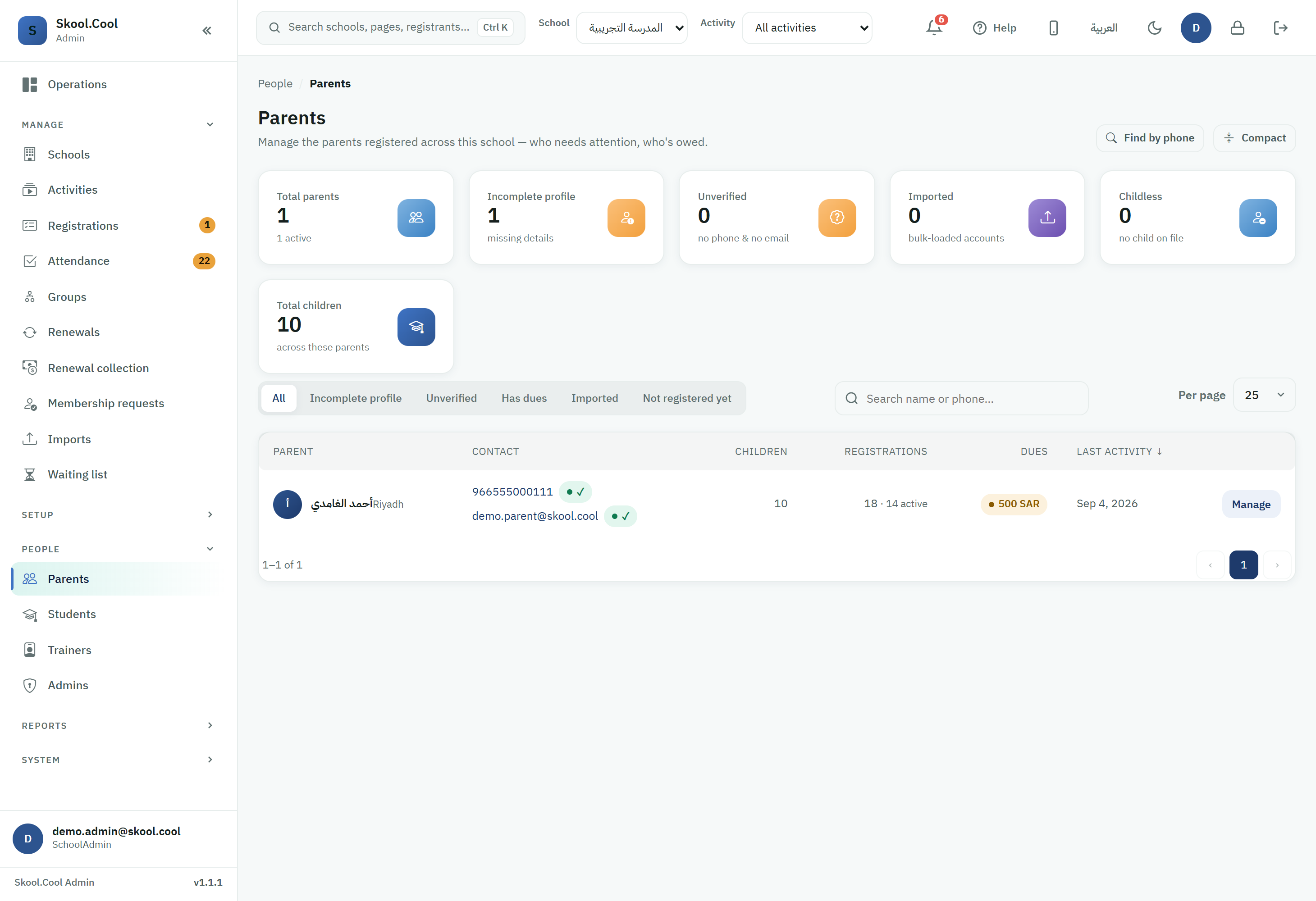
Six cards at the top of the list summarise the parents linked to this school:
- Total parents — with how many of them are active.
- Incomplete profile — those whose details are missing.
- Unverified — those with neither a mobile number nor an email.
- Imported — the accounts loaded in bulk by an import.
- Childless — those with no child registered to them.
- Total children — belonging to these parents.
Filtering and search
Below the cards is a tab bar for filtering the list, and a search field:
- The tabs: All / Incomplete profile / Unverified / Has dues / Imported.
- Search: type in Search name or phone… to search by name or mobile number.
- The Find by phone button: opens a quick search dialog to find a parent by mobile number even when they are not on the page in front of you (shown to those with permission to correct the email).
The table's columns
The table shows, for each parent: Parent (name and city), Contact (mobile, email, and the verification state of each), Children, Registrations, Dues and Last activity. Click any sortable column header to reorder the list, and use the Compact / Comfortable button to set the row density.
The manage panel
Press Manage on any parent's row to open a side panel showing:
- A Contact section: mobile, email and verification state.
- An Engagement section: how many children they have at this school, how many registrations (and how many are active), and unpaid dues.
- A View full profile button to go to the parent's profile with their children and registrations.
- A Fix email tool to update the parent's email when needed (saved by the System Administrator alone).
The students list
The indicator cards
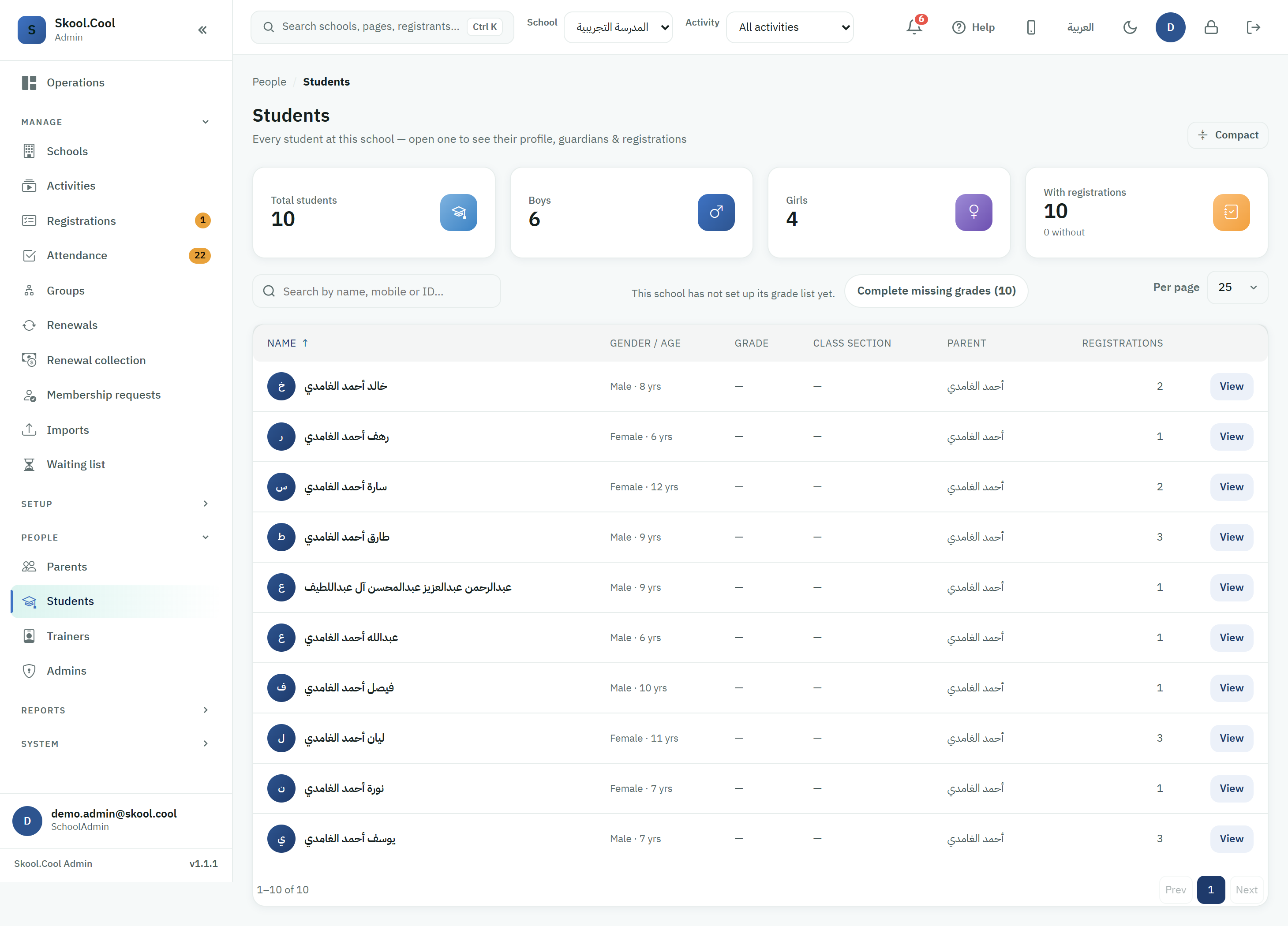
Four cards are shown: Total students, Boys, Girls and With registrations (with the number without a registration).
Search and columns
- Use the Search by name, mobile or ID… field to search by name, mobile number or national ID.
- The table's columns: Name, Gender / Age, Parent and Registrations.
- Press View on the student's row (or click the row itself) to open the student's panel with their details, guardian, registrations and guardians.
From the import to the list
Once an import completes, the Results step shows how many rows were imported, skipped and failed. The new accounts and students appear in these two lists immediately; use the Imported tab in the parents list to isolate the bulk-loaded accounts and review them. For the full import steps see Importing student data and Importing parents.
When no results appear
- No matching results: if you see a message that no parents match this filter, or no students match this search, check the selected tab or clear the search field.
- The screen does not appear at all: usually because permission to view school data is missing — ask your school manager.
- An imported account does not appear active: imported accounts are activated at the guardian's first sign-in by phone; until then you will find them under the Imported tab.
What you should end up with
- You reach any parent or student quickly by filtering or searching, and read their state from the indicators and columns.
- You open the manage panel to see a parent's or student's details without leaving the list.
- You check an import's results and review the bulk-loaded accounts from the Imported tab.
Frequently asked questions
What is the difference between the parents list and the students list? The Parents list shows the adults responsible for the children, with their contact details and dues; the Students list shows the children themselves, with gender, age and guardian. Open a parent to see their children, or a student to see their guardians.
How do I add a new parent from here? A parent is not created from this list, nor by importing student data, which links students to existing accounts only. The account is created at the guardian's own first sign-in from the parents app.
Why can I not find the "Fix email" or "Find by phone" buttons? Because both tools are tied to the permission to correct a guardian's email, which no school role holds by default. If they do not appear, you can view the list and the details only; correcting a guardian's email goes through the System Administrator.
A guardian changed their mobile number. How do they update the number they sign in with? They change it themselves in the parents app: «حسابي» (My account), then «تعديل الملف الشخصي» (Edit profile), then «تغيير رقم الجوال» (Change mobile number). A code arrives on their current number, then they type the new number and another code arrives on it; after confirming, they sign in with the new number and are signed out of their other devices. The school cannot change a guardian's sign-in number from the admin portal. If they no longer have the old number, they cannot change it from the app; raise their request to support.
What does the "Imported" tab mean? It shows the parents whose accounts were created in bulk by an import rather than by hand, and it is the fastest way to review a recent import batch and check that its mobile numbers are correct.
A parent asks about a "the school shows children not added to your account" message in their app. What is it? This message appears above the children list in the parents app when the school system's record points to another child of the same family who has not been added to the guardian's account yet. It shows the first name and the grade only, and tapping the child's name opens a confirmation screen with the full name, date of birth and grade as they came from your file, without the national ID. Confirm creates the child in the guardian's account, and Not my child hides the suggestion permanently. If the date of birth did not come through from your file, the app asks the guardian for it on the same screen before confirming. No child is created and no record changed without the guardian confirming it themselves, and the details of the job on your side are in Importing student data.