Managing school admins
Goal
Create School Admin accounts, edit their details and delete them. A school admin gets full access to the branch they are added to, so the role is normally given to the branch's owner or the person wholly responsible for it. If you want to give someone limited permissions (a partial role), use Access control and roles instead.
When do you need this screen?
- When appointing a new manager responsible for a whole branch.
- When editing an existing manager's contact details (name, mobile or city).
- When stopping the access of a manager whose time has ended, by deleting their account.
To manage trainers rather than managers, see Managing trainers.
Before you start
- Permissions required: permission to view schools to reach the schools list, permission to add school admins to create an account, permission to edit school admins to edit, and permission to delete school admins to delete. A SystemAdmin holds all of them. If the add or delete buttons do not appear for you, your account does not have the right permission — see Roles and permissions.
- The system's city list must be set up so you can link the manager to the right city.
Where it lives
Sidebar > Platform > Schools > the School Admins button on the branch's card — the School Admins page opens.
Steps
1. Adding a new school admin
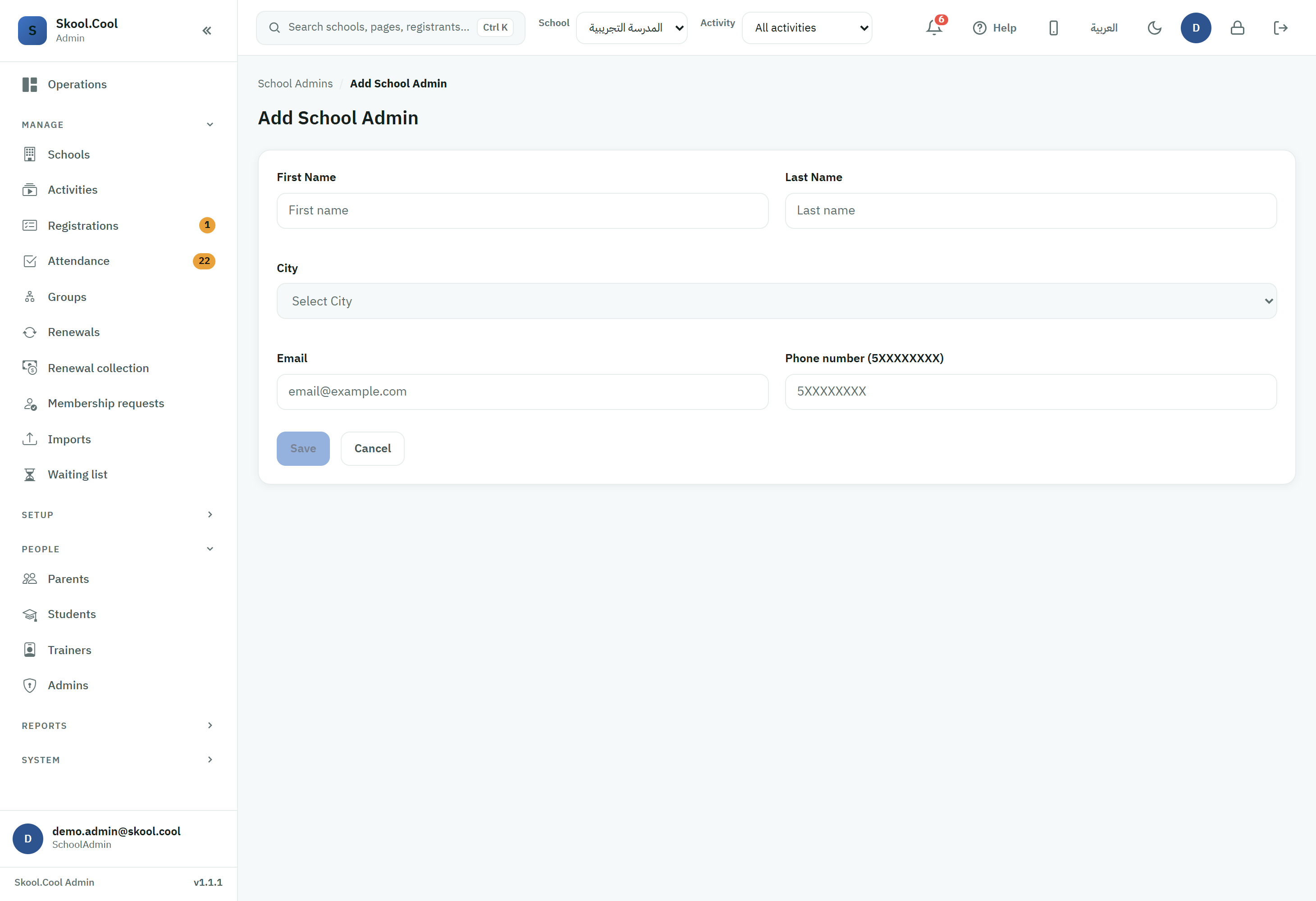
- On the School Admins page, press Add School Admin.
- In the form:
- First Name: enter the first name (required).
- Last Name: optional.
- City: choose the manager's city of work from the Select City dropdown.
- Email: enter their work email (required, and it must be a valid address). This email is their sign-in name for the admin portal.
- Phone number (5XXXXXXXX): enter the manager's mobile number.
Important
The Saudi mobile rule:
- Enter the number without the country code (
+966) and without the leading zero. - It must begin with
5, and be 9 to 10 digits long. - The field accepts digits only and ignores any other character automatically.
- Enter the number without the country code (
- Press Save (the button stays disabled until the required fields are correctly complete).
What you should end up with (after adding)
- The manager's account is created and appears immediately in the All School Admins list.
- The new manager receives an automatic email containing their sign-in address and a one-time temporary password.
- The system asks them to change that password as soon as they first sign in to the admin portal.
- If the email belongs to an admin account that was disabled when it was removed from its last school (by Delete or Unassign from school), and it is added again — usually by a SystemAdmin, because the form refuses that email for a school admin in most cases — no new account is created and the screen does not go straight back to the list. Instead a card titled School admin re-added appears, with a Done button that takes you back to the list. The card says that adding them again restored their access and signed them out of every open session, then says what happened to their password, which is one of three things:
- A one-time password was emailed to them: the old password no longer works, and the new one was sent to their email address; ask them to sign in with it and then change it. Do not reset their password afterwards, because that invalidates the password that was just emailed to them.
- It could not be sent: the old password no longer works, and the new one could not be emailed to them, so they cannot sign in yet. If you are a SystemAdmin, use Reset password on their row in the All Admins list (see Resetting an admin's password); otherwise, ask the support team through Help or request to reset the password.
- The old password was kept: the password they had before they were removed still works. It was left unchanged on purpose, because this sign-in is not used only for admin access at this school. If they do not know it, or there is a reason it should stop working, use Reset password on their row in the All Admins list if you are a SystemAdmin; otherwise, ask the support team through Help or request to reset it.
2. Editing a school admin's details
- In the All School Admins list, use the search box to find the manager you want by name, mobile or email.
- Press Edit on their row.
- Change the fields you need (name, mobile, city or email) then press Save. The Edit School Admin screen opens with their current details.
3. Deleting a school admin's account
To stop the access of a manager whose time has ended:
- Next to their name in the table, press Delete.
- A Delete School Admin confirmation dialog appears — press Delete to confirm, or Cancel to back out.
- What the delete does depends on how many schools the manager is assigned to: if your school is their last school, their whole admin account is disabled and their session ends, so they can no longer sign in to the admin portal as an admin; if they work at other schools, they are removed from your school only and their access to their other schools stays as it is. Either way, the delete does not touch the same person's parent or trainer account, if they have one.
Deleting is a disable, not a permanent erase, so the manager's data is kept — but bringing them back to your school is usually not done from this screen: after the delete, the Add School Admin form refuses their email. If you deleted a manager by mistake, ask the support team to bring them back through Help or request.
Frequently asked questions
What is the difference between a school admin and an admin with limited permissions?
A school admin added with Add School Admin gets full access to the branch. If you want someone with limited permissions (registrations or attendance only, say), create them and assign an appropriate role from Access control and roles, and read the explanation in Roles and permissions.
How does a school admin receive their password?
When the account is created they receive an automatic email containing their sign-in address and a one-time temporary password, and they are asked to change it at their first sign-in. Adding back an admin account that was disabled when it was removed from its last school is different: a School admin re-added card says what happened to their password — the detail is under What you should end up with (after adding) above. See Signing in and verification.
Why can I not find the "Add School Admin" or "Delete" button?
Because your account does not have the permission required; Add School Admin appears only to those with permission to add, and Delete only to those with permission to delete. See Roles and permissions, or ask a system admin to grant it.
What happens if I delete a school admin by mistake?
Deleting does not erase the account permanently, but you most likely cannot bring them back yourself. Entering their email in Add School Admin shows, in most cases, the message "This e-mail belongs to an account outside this school, so it cannot be added here…", because the delete ended their link to your school. The form accepts their email only if they still have another link to your school, such as being the parent of a student there or an active trainer there. So ask the support team to bring them back through Help or request. A SystemAdmin, by contrast, can bring them back by adding the same email, and the old account is reactivated rather than a new one created. A School admin re-added card then appears, saying that their open sessions were ended and what happened to their password — the detail is under What you should end up with (after adding) above.
Where do I find the school admins list?
From the sidebar open Platform and then Schools, and press the School Admins button on the branch's card.